.svg)
Overview
Contextualization allows you to enhance the functionality of your model by defining context groups and context rules. You can create entities within specific xPacks, assign static or dynamic values based on conditions (such as order or regex), and classify entities for easier filtering.
Managing contexts
You can organize your automation strategies by creating specific contexts. Use the Global context for system defaults or create new contexts to manage rules for specific areas.
Create a context
To create a new context:
-
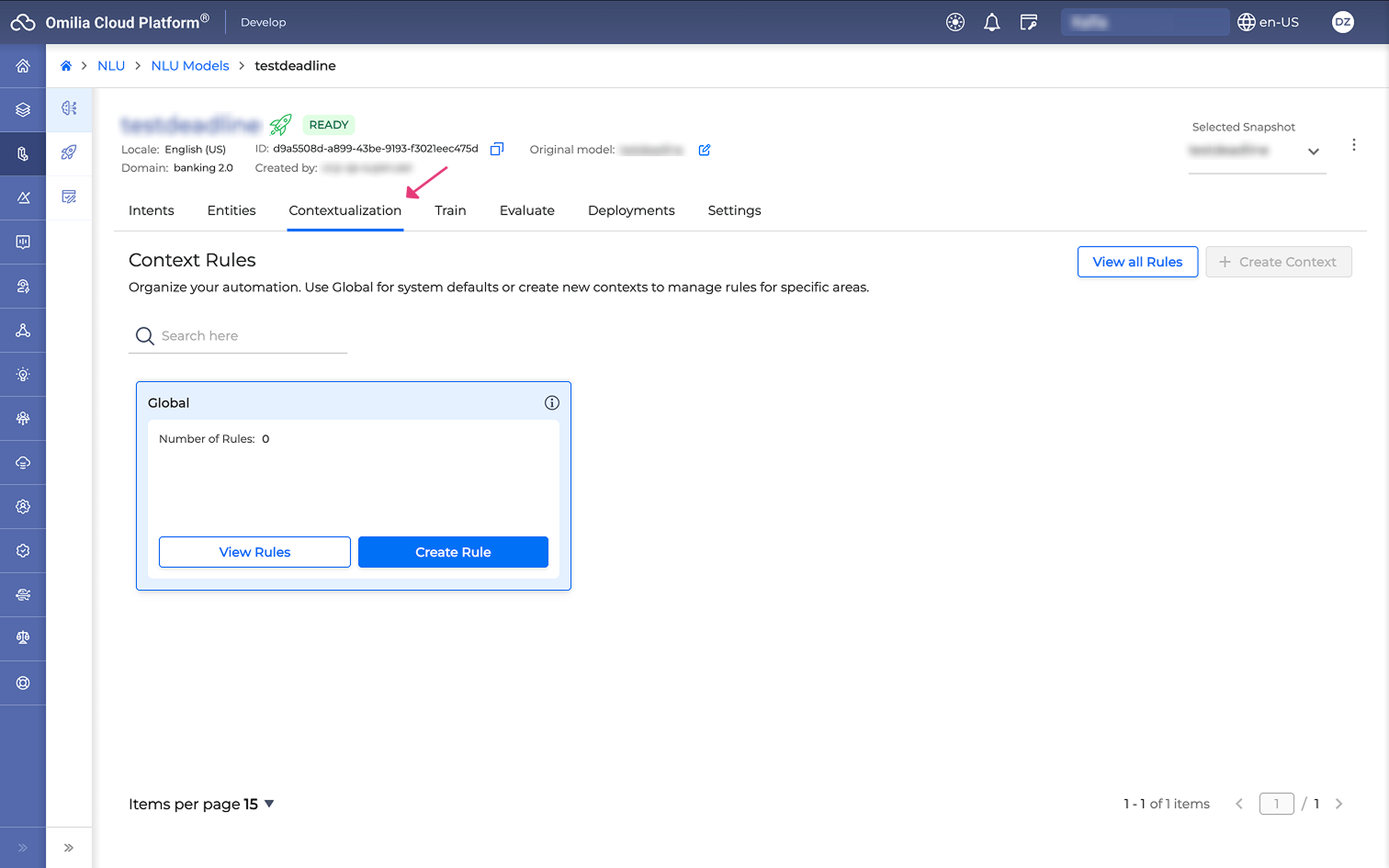
Navigate to the Contextualization tab.
-
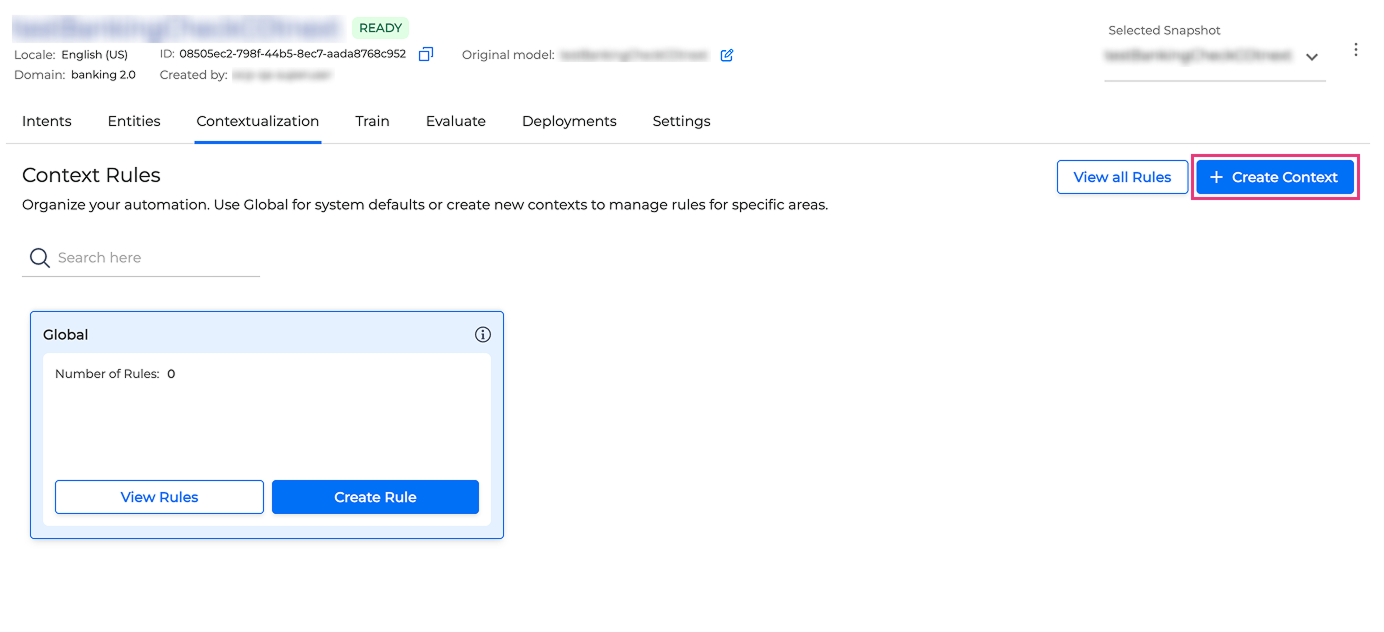
Select Create Context.
-
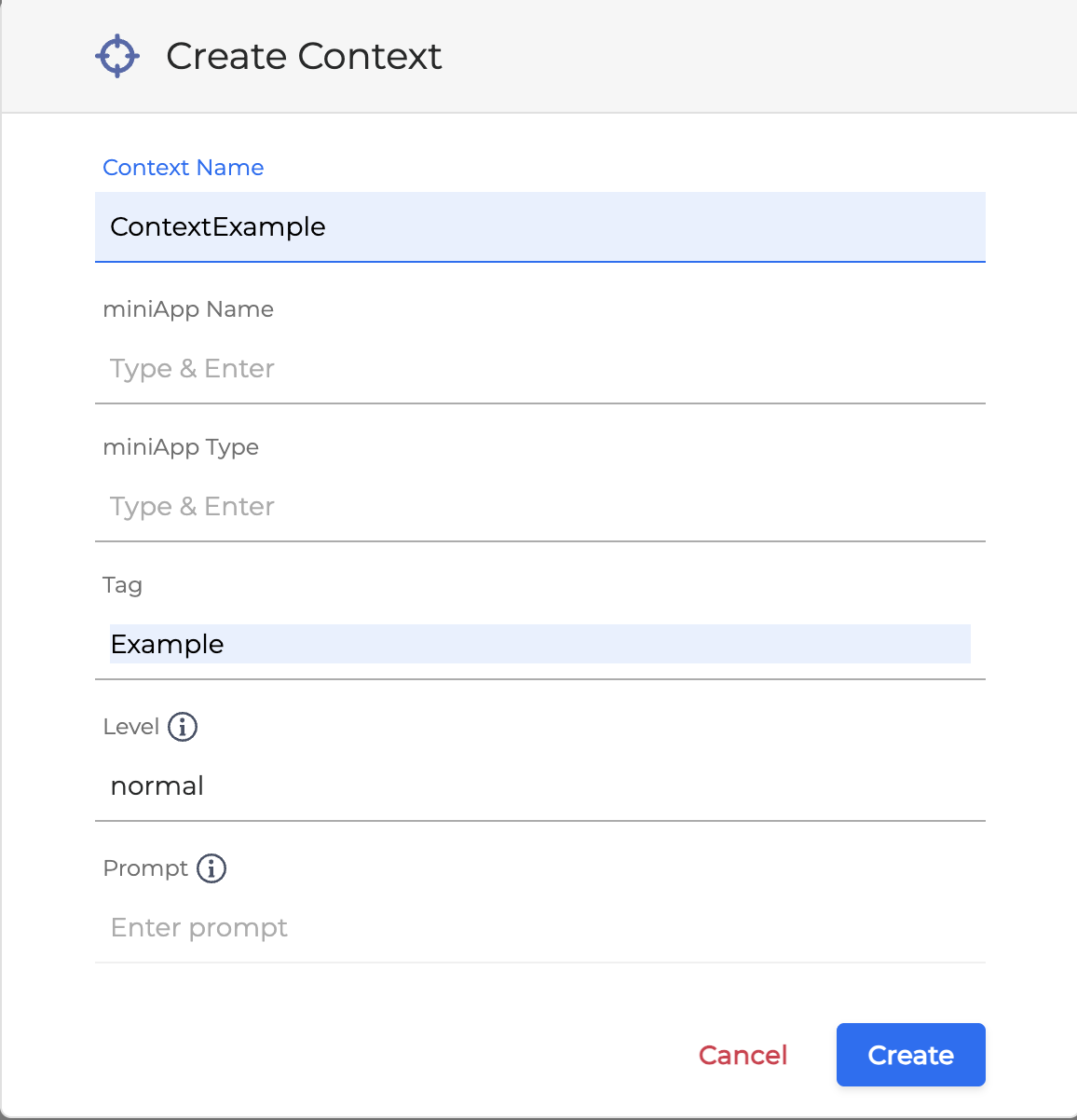
In the Create Context dialog box, configure the following settings:
-
Context Name: Enter a unique name for the context group.
-
miniApp Name: Type the name of the miniApp and press Enter.
-
miniApp Type: Type the miniApp type and press Enter.
-
Tag: Add any relevant tags to categorize the context.
-
Level: Enter the hierarchy level. The valid values are normal, error, or unrecovered. Hover over the tooltip icon next to this field to view the valid values.
-
Prompt: Enter the associated prompt text. Hover over the tooltip icon for guidance on using this field. Use Prompt for richer free-form context hints and leave Level empty when Prompt is set.
-
To create a valid context, you must fill in at least one of the available fields (miniApp Name, miniApp Type, Tag, Level, or Prompt).
-
Select Create.
Editing a context
To modify an existing context:
-
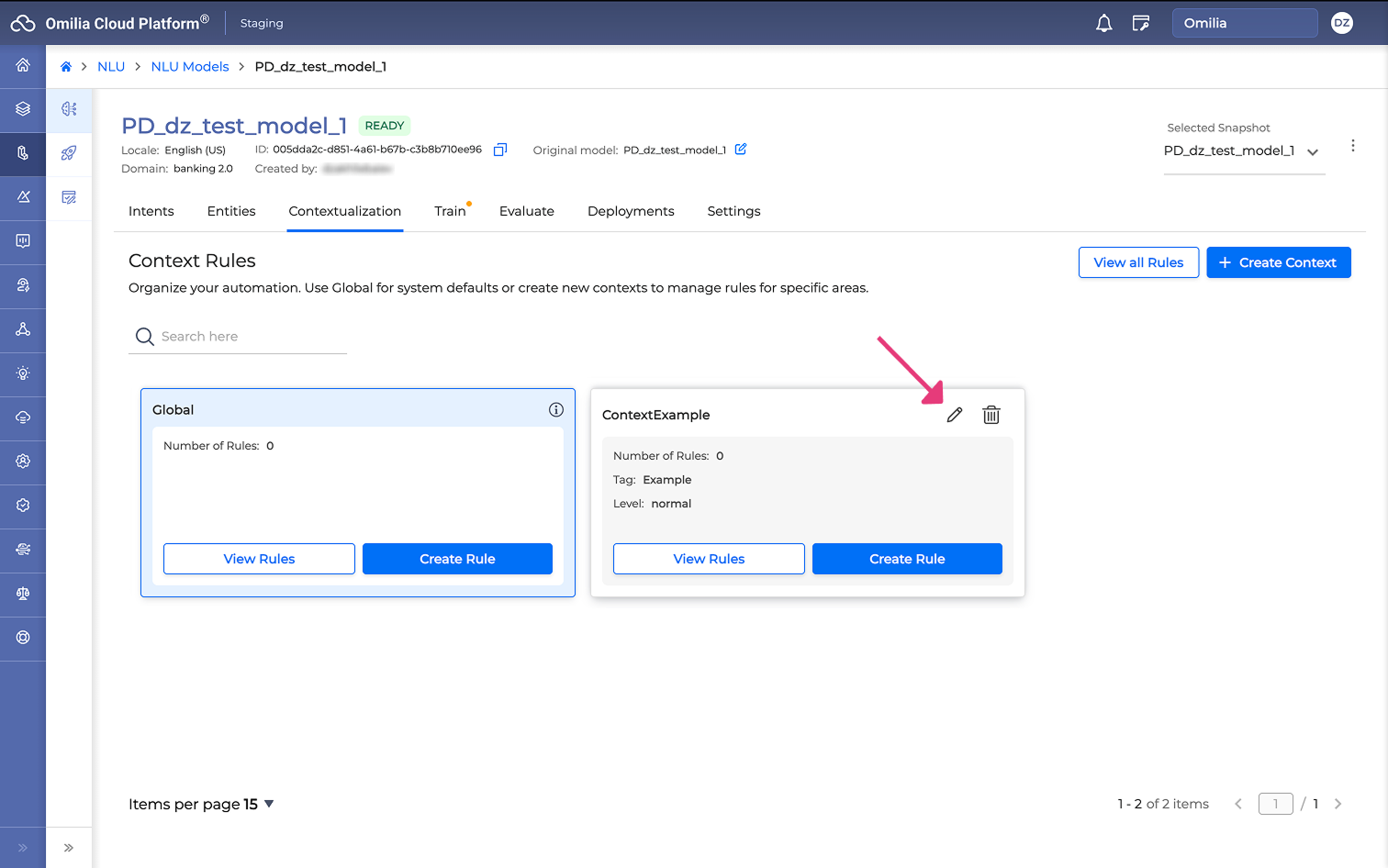
Hover over the context card you want to modify.
-
Select the Edit icon (pencil).
-
Update the fields in the Edit Context dialog box.
-
Select Save.
You cannot edit a context that is currently in use (referenced by a rule). If the context has a CONTEXT IN USE badge, the Edit icon will be disabled. You must delete the associated rules first.
%201.png?cb=95e669bad87079161b85746450ef2348)
Deleting a context
To remove a context:
-
Hover over the context card you want to remove.
-
Select the Delete icon (trash can).
-
In the confirmation dialog box, select Delete.
You cannot delete a context that is currently in use. If the context has a CONTEXT IN USE badge, the Delete icon will be disabled.
Managing context rules
Context rules allow you to define advanced logic for dynamic entities and contextual understanding. You can specify matching patterns and the resulting actions, such as marking entities or setting feature values.
Accessing context rules
You can manage rules within a specific context or view a comprehensive list of all rules configured in the model.
To view rules for a specific context:
-
Navigate to the Contextualization tab.
-
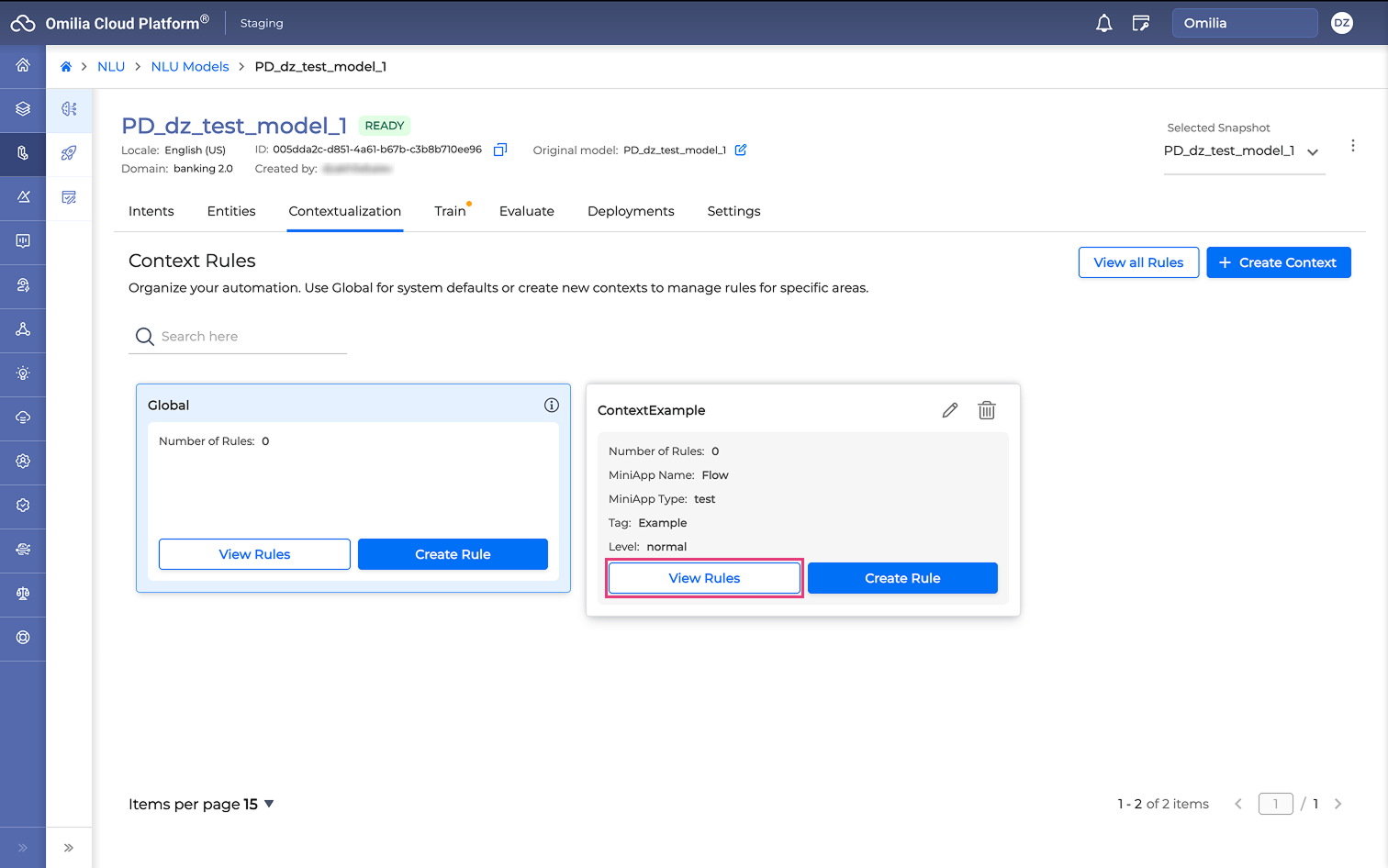
Locate the specific context card (for example, Global or a custom context like ContextExample).
-
Select View Rules on the card to open the rules list for that context.
To view all context rules:
-
Navigate to the Contextualization tab.
-
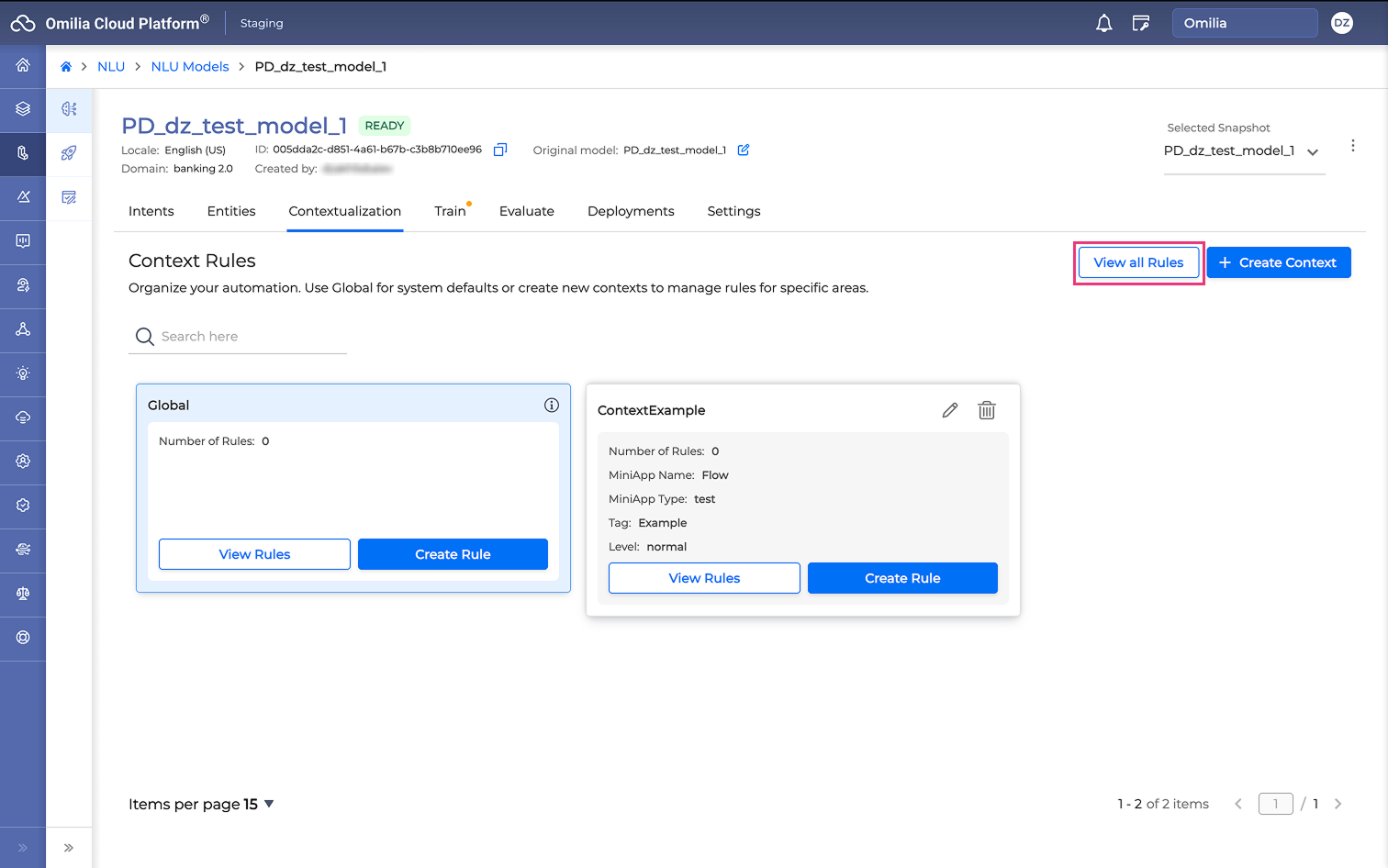
Select View all Rules located in the upper-right corner.
-
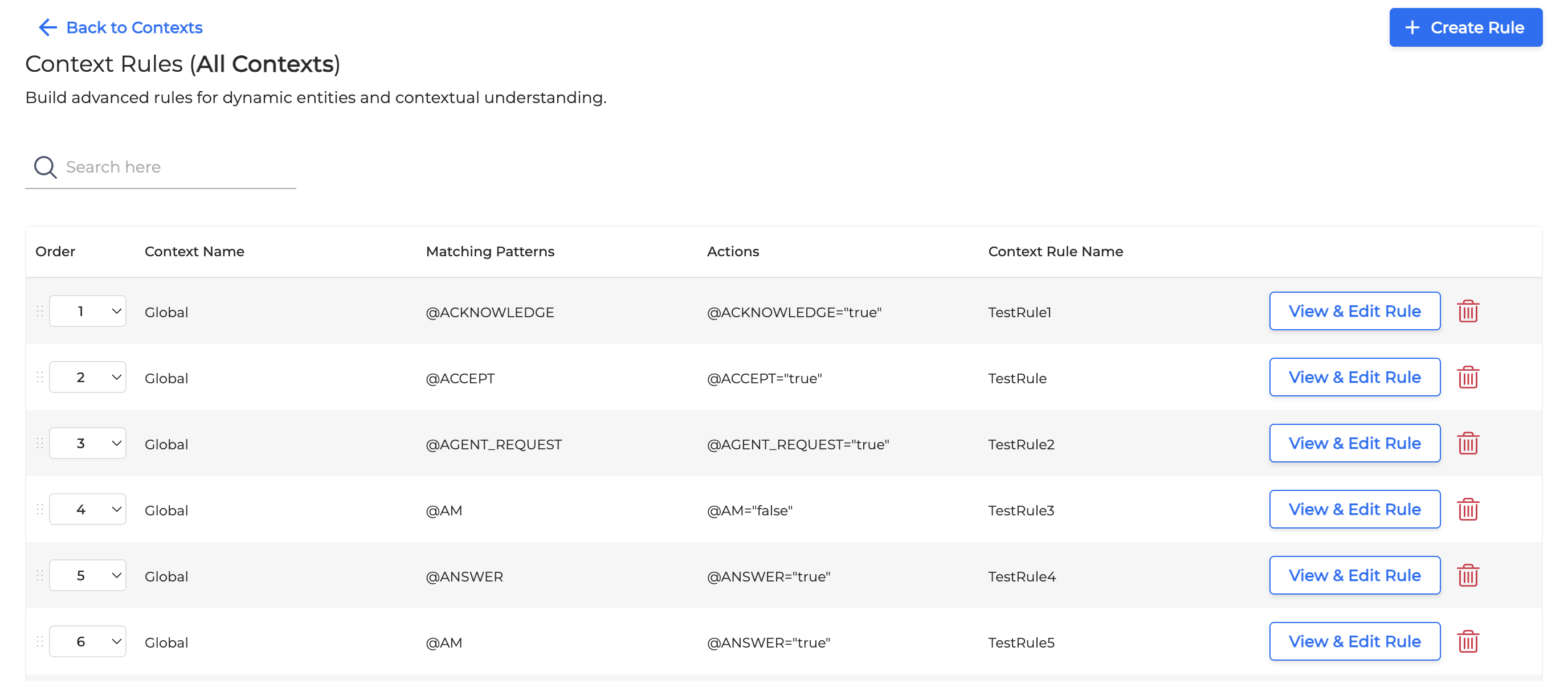
A list displays all rules from every context group. You can use the search bar to find specific rules or select a rule to edit it.
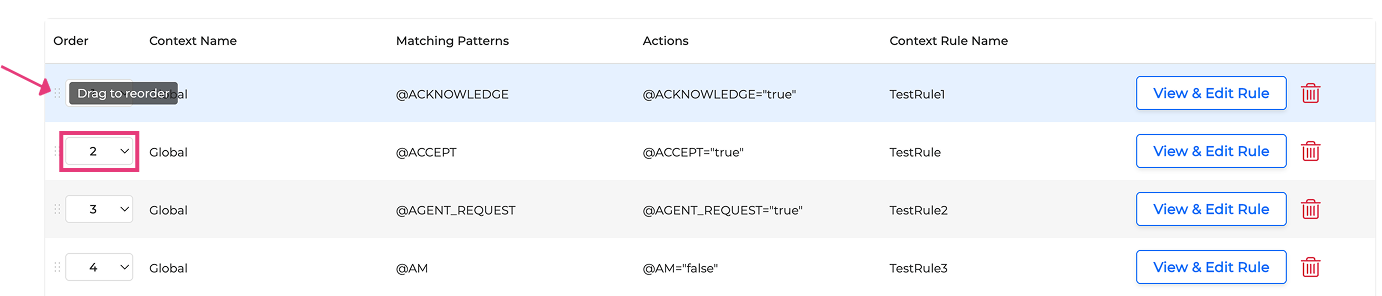
To reorder a context rule, use one of the following methods:-
Drag and drop the rule to a new position.
-
Select a specific number from the Order drop-down list.
-
Creating a context rule
To add a new rule:
-
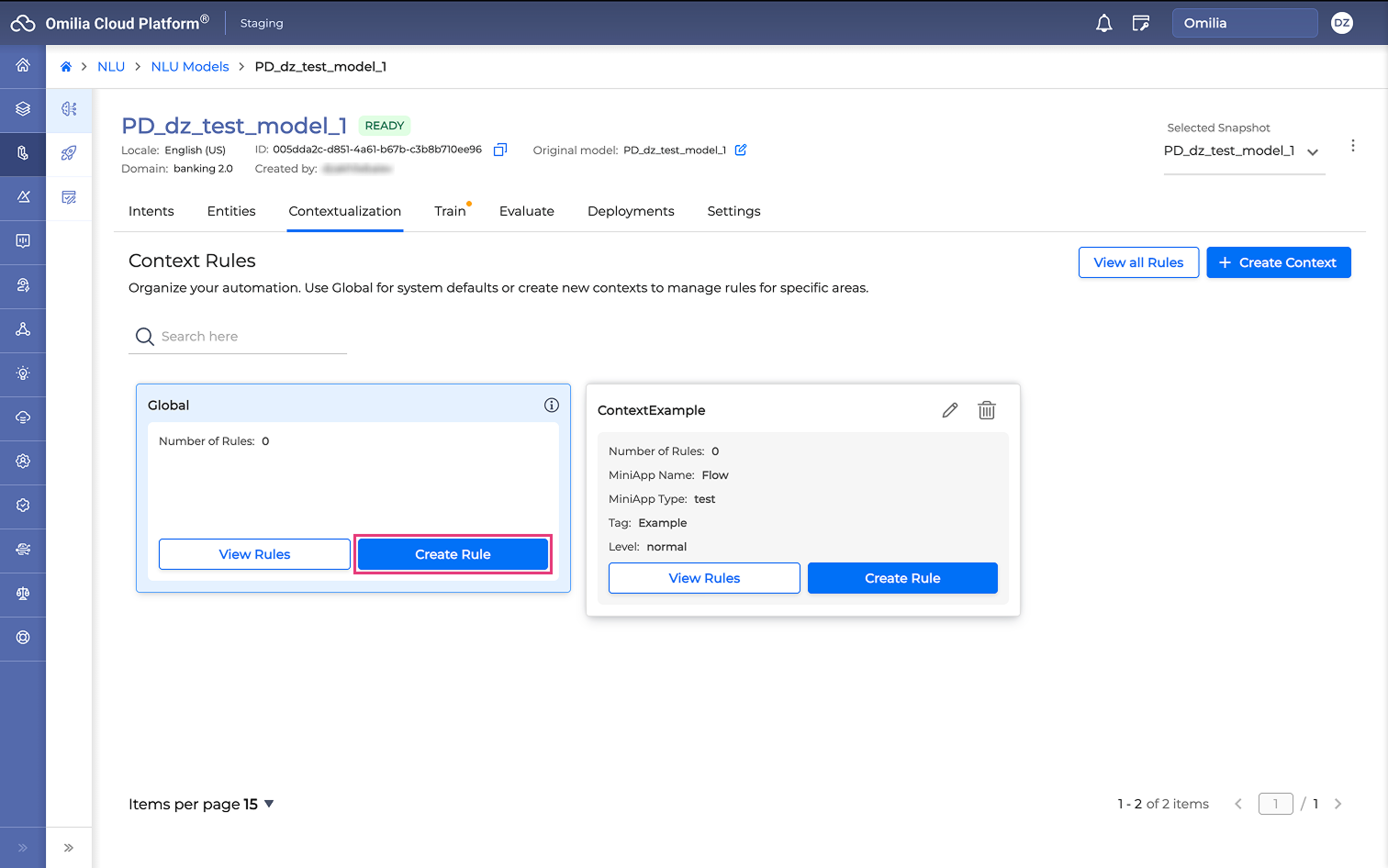
Select View Rules on a specific context card, or select Create Rule to add a rule to the Global context.
-
In the Context Rule Creation page, configure the following mandatory fields:
-
Context rule name: Enter a descriptive name for the rule. Hover over the tooltip icon for a brief description of this field.
-
Description (optional): Enter a brief description of the rule's purpose. Hover over the tooltip icon for a brief description of this field.
-
Context: Select the context group from the drop-down list (for example, Global). Hover over the tooltip icon for a brief description of this field.
-
-
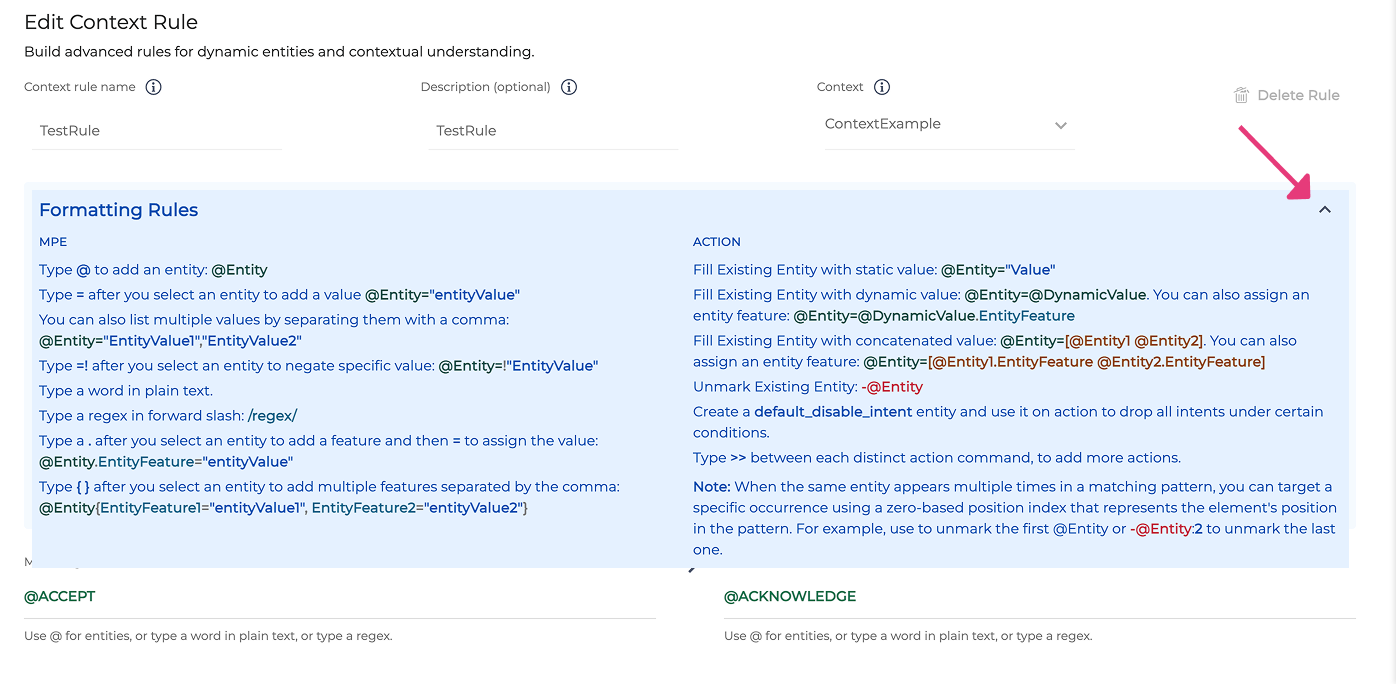
Expand the Formatting Rules section to view guidance on how to build a context rule. This section provides syntax examples for entities, feature assignments, and values.
-
Define the logic for the rule in the fields below:
-
Matching Patterns: Define the pattern to look for (for example, @Entity="Value" or regex).
-
Action: Select the operation to perform when the pattern is matched (for example, marking an entity, unmarking it, or setting a feature value).
-
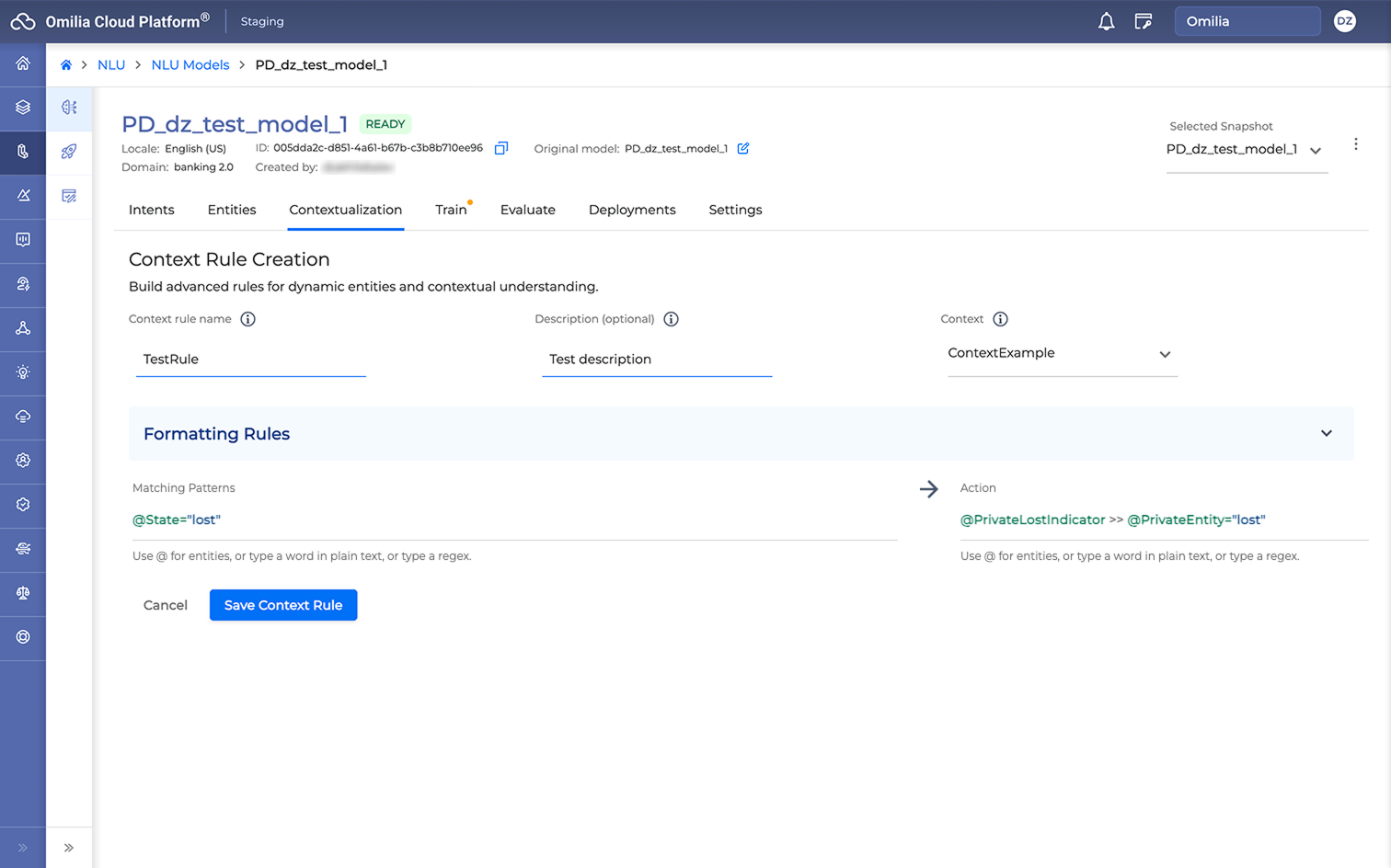
Example: In the rule shown below:
-
Matching Patterns:
@State="lost"This condition checks if the State entity has the value "lost". -
Action:
@PrivateLostIndicator >> @PrivateEntity="lost"If the condition is met, the system marks the PrivateLostIndicator entity and sets the value of the PrivateEntity to "lost".
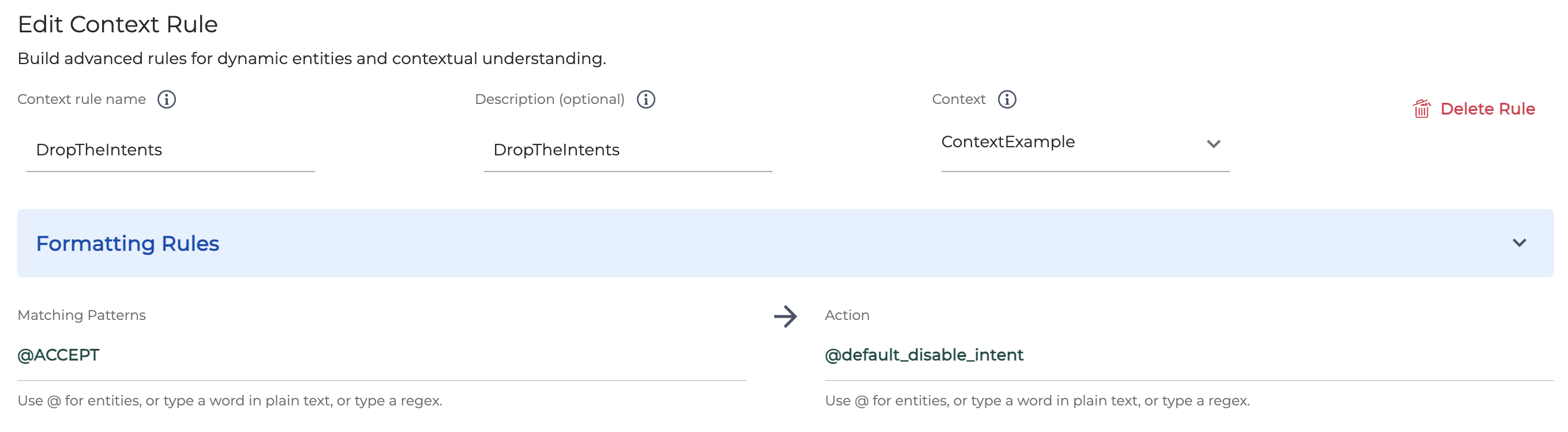
If a matching pattern is triggered, use the @default_disable_intent entity in the Action area to drop the intents.
-
Select Save Context Rule.
Viewing and editing rules
Once created, rules appear in the Context Rules list.

-
To modify a rule, select View & Edit Rule.
-
To delete a rule, select the Delete icon (trash can).