.svg)
The Concierge Agent can serve as a routing agent within standard OCP-type Orchestrator applications. Unlike the Agentic Orchestrator applications where connected agents are used as tools, in OCP applications the Concierge Agent connects with standard building blocks and transfers the conversation based on the configured routing parameters.
Creating Agent
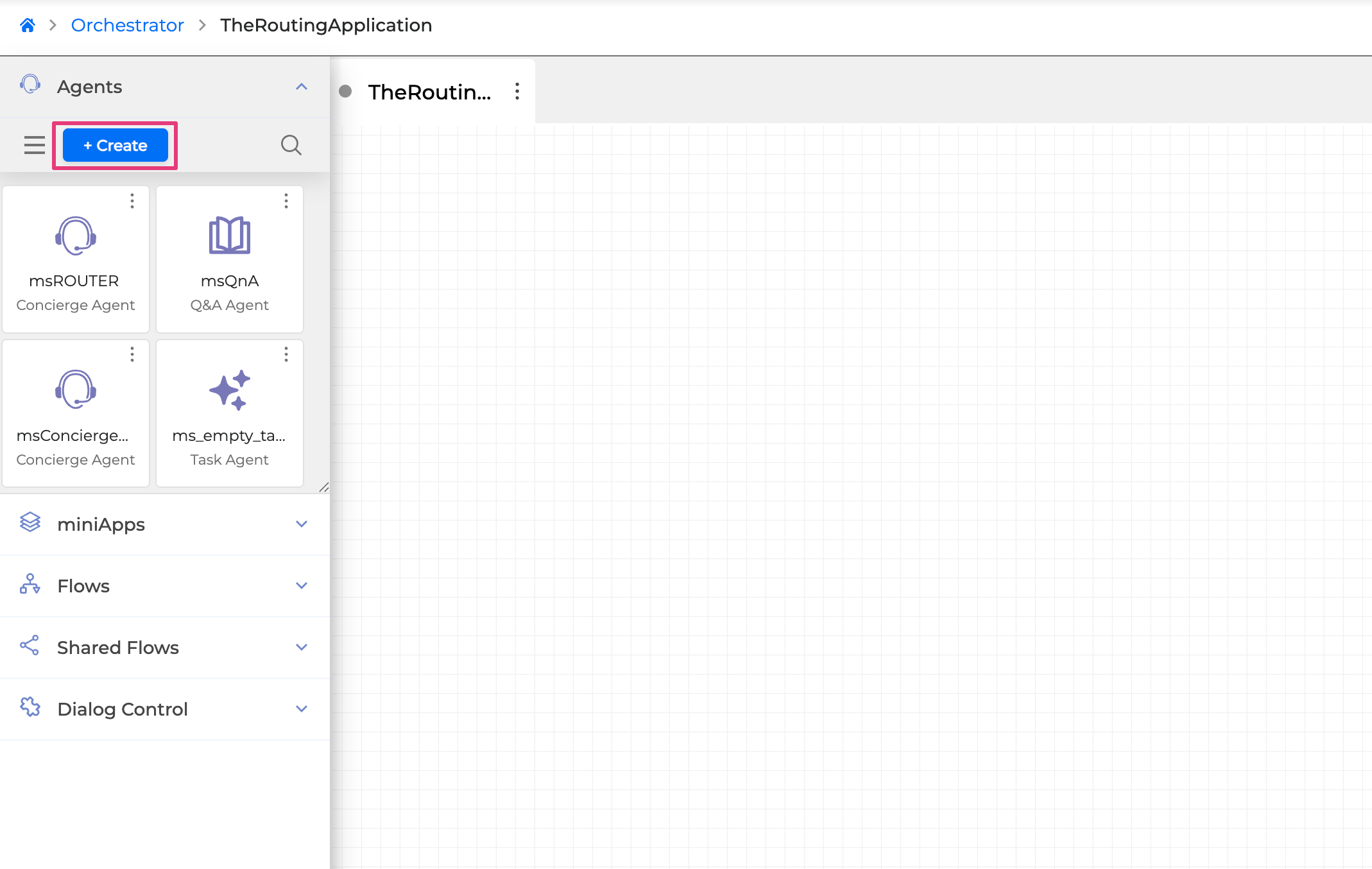
Open your OCP-type application and navigate to the Agents section in the left panel to create a new Concierge Agent:
In the dialog that opens, enter a name for the agent, select Concierge Agent as the agent type, and optionally add a description along with any input and output fields:
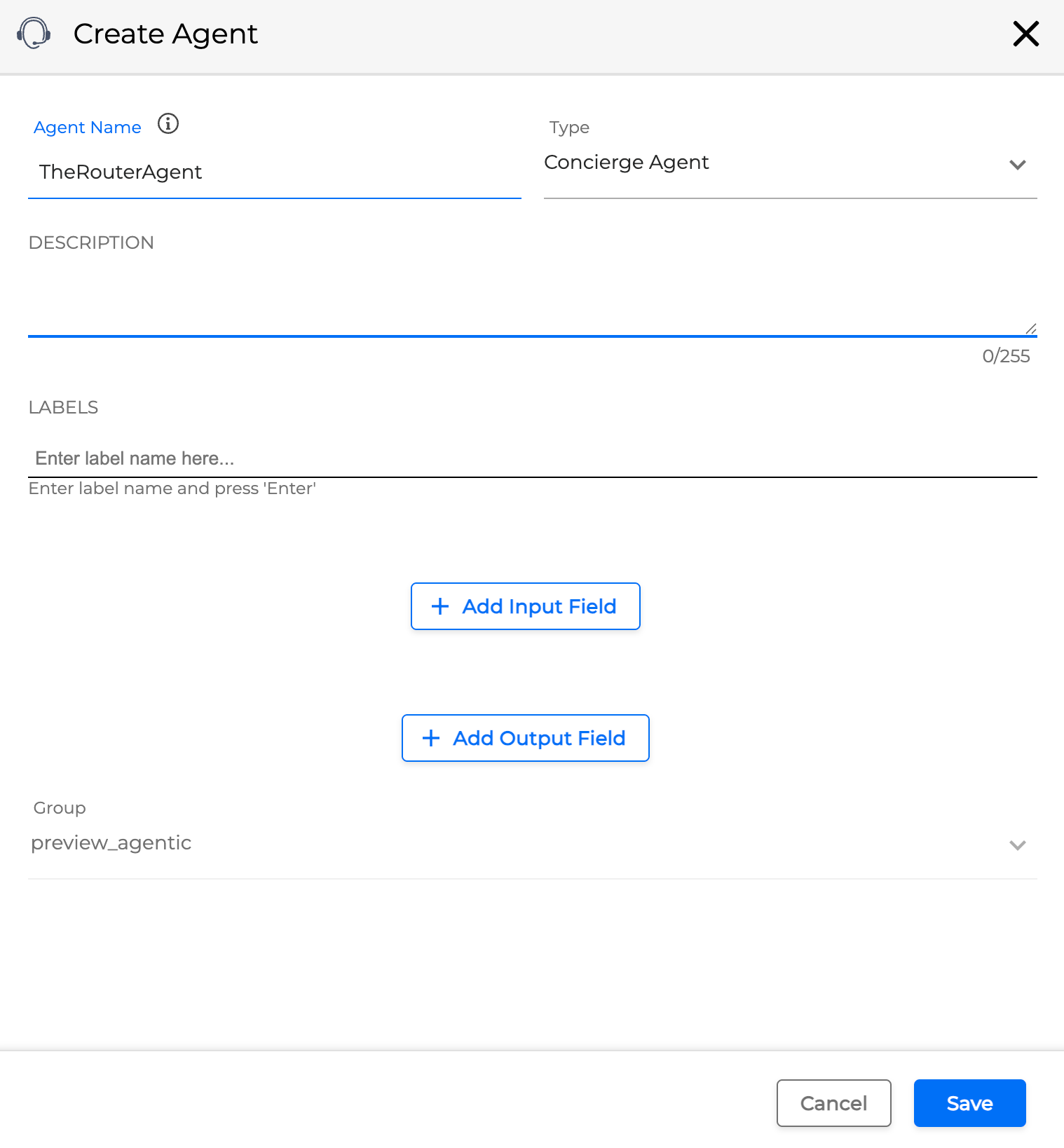
Concierge Agents created for use in the OCP-type applications will only be available in this application type.
After you press Save, you will be redirected to the Agent setup page.
Configuring Agent
To make the agent functional, you need to provide instructions and define routing rules. You can also configure input and output fields and set up a welcome prompt.
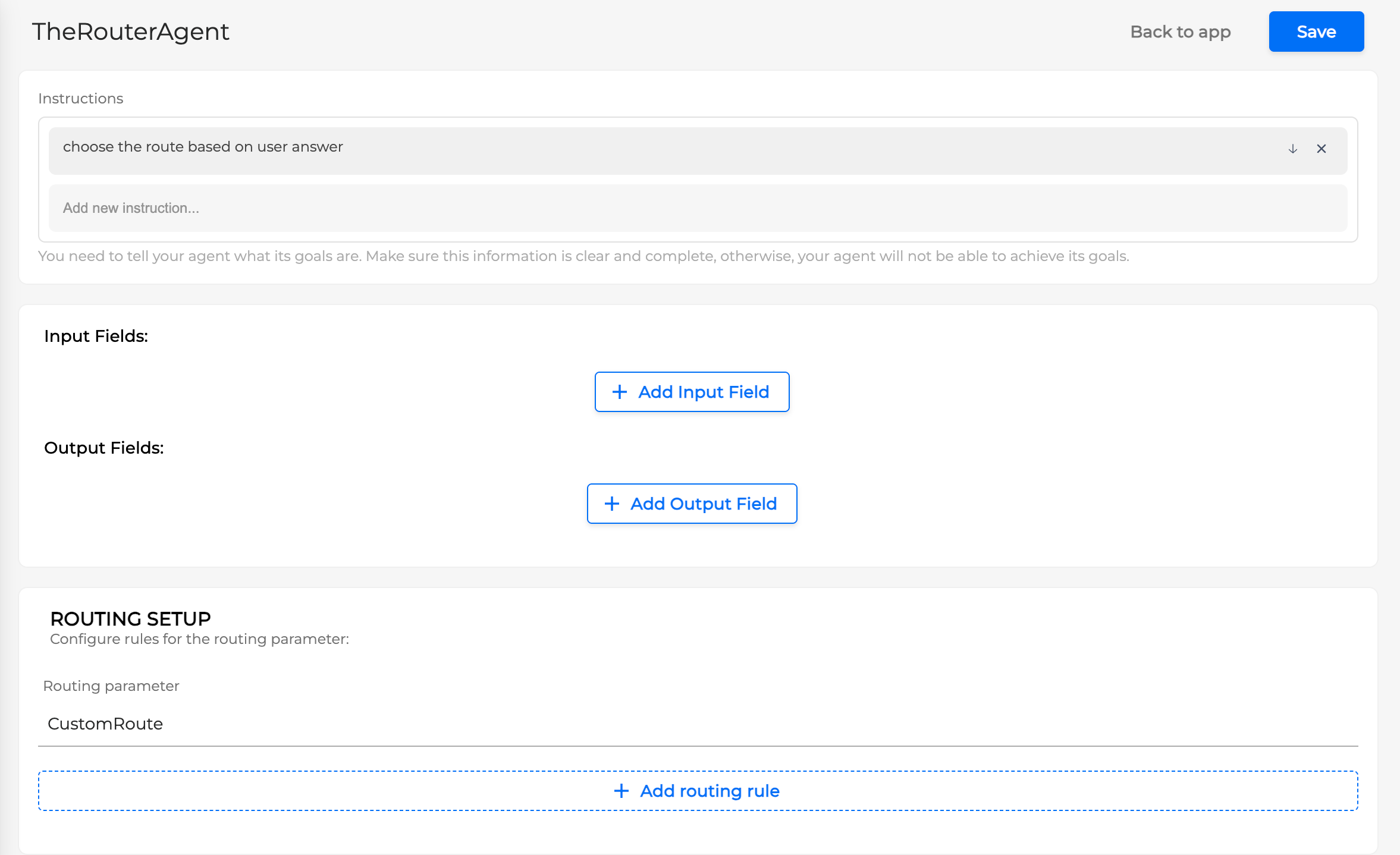
Routing rules determine which building block in the Orchestrator application should handle each conversation topic. To set them up:
-
Add a name for your routing parameter — this is the parent category under which individual routing rules are organized.
-
Click +Add routing rule to create a new rule.
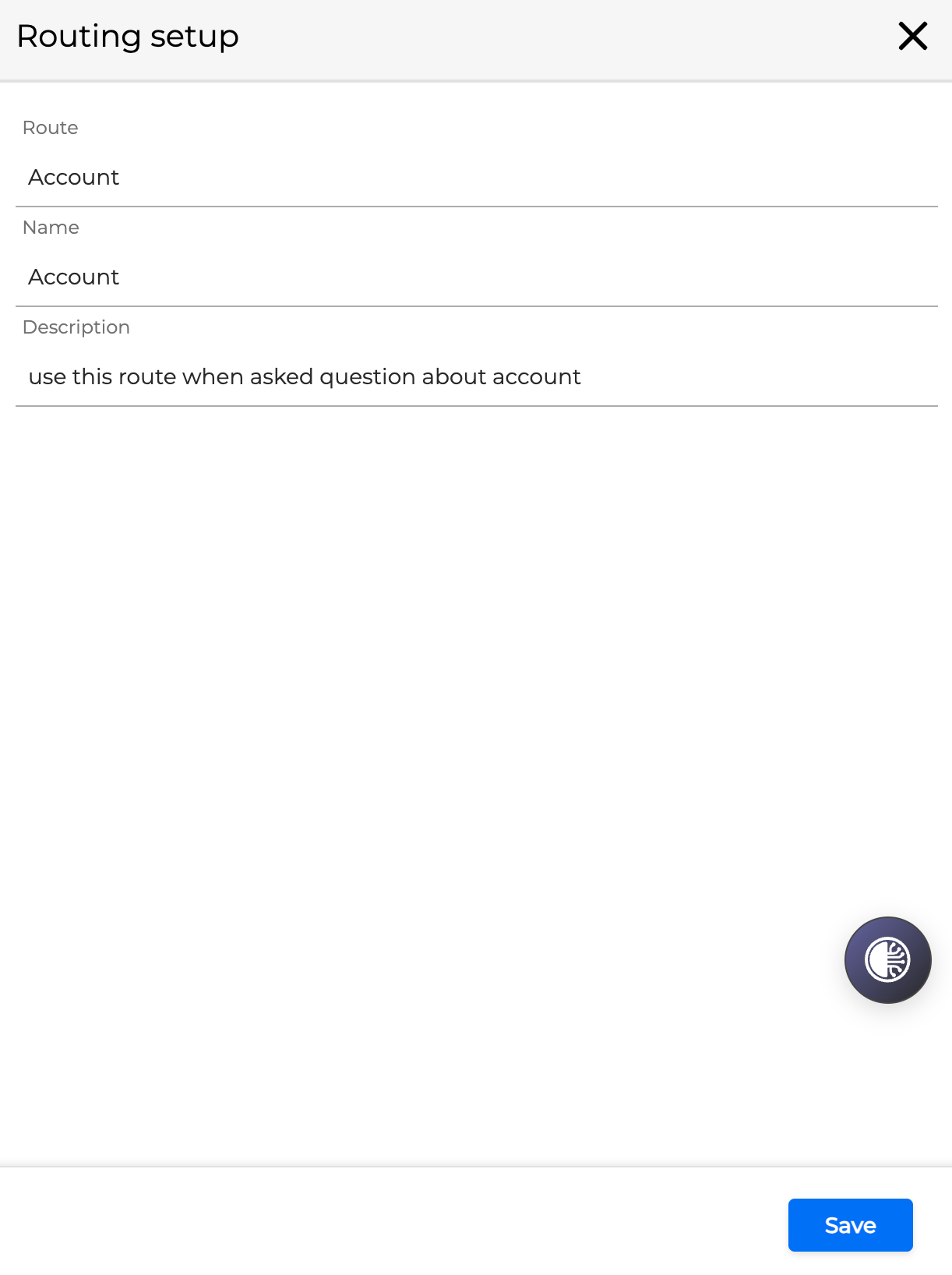
Enter the routing rule name and a description that explains when this rule should be triggered, then click Add Rule:
Return to the Orchestrator application and drag the newly created agent onto the Canvas. Open the agent's options menu and go to Settings. The routing parameter is set as the default output field — ensure you configure the corresponding Orchestrator field that will be used with the Condition building block:
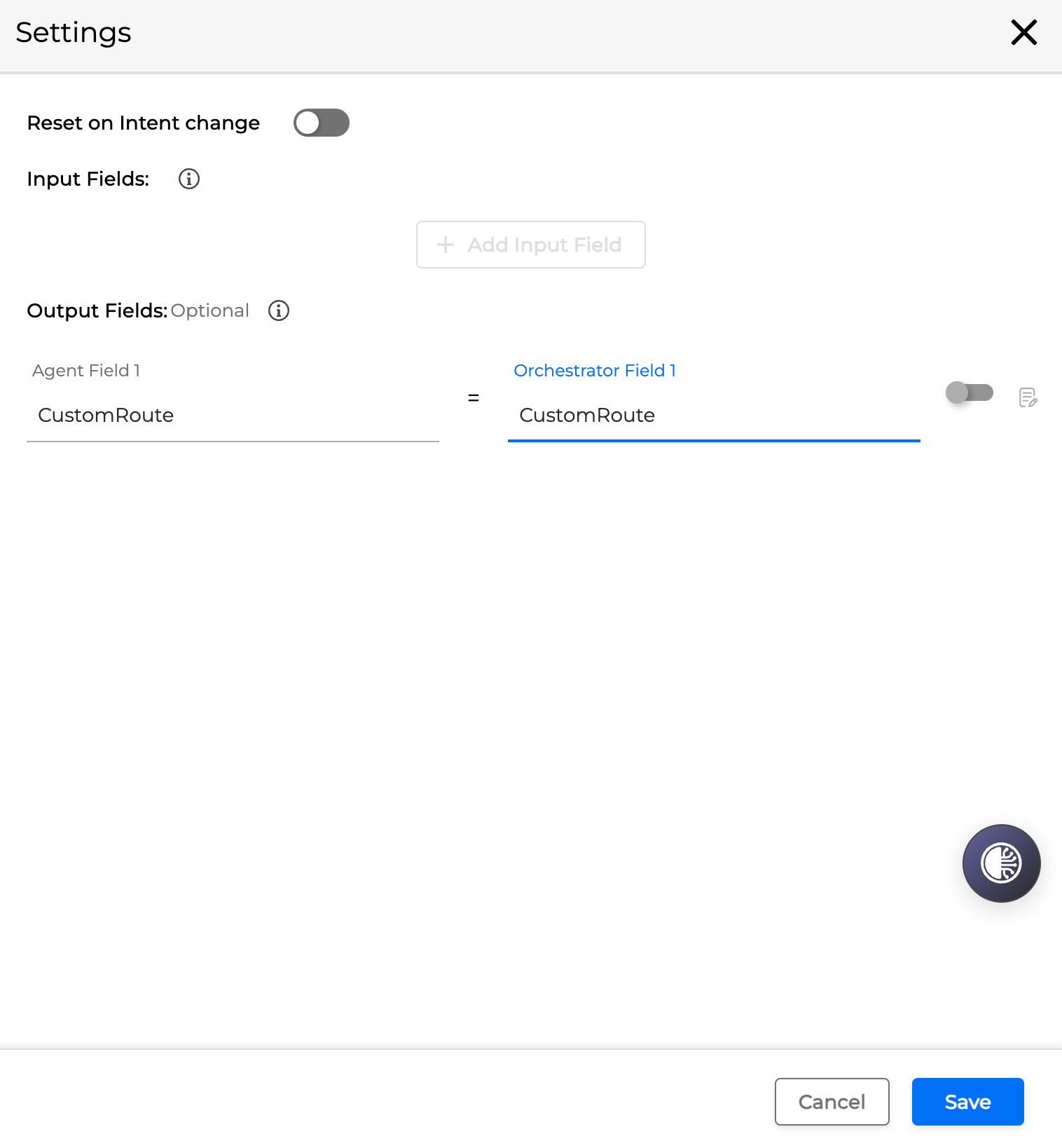
Once the agent is configured, set up the Condition building block and connect it to the appropriate output miniApps or agents using conditional nodes.
For a detailed guide on configuring Conditions, see Conditions.
When connecting a condition node to an output miniApp or agent, select the routing parameter as the Field 1 value and specify one of the routing rules as the condition for that branch:
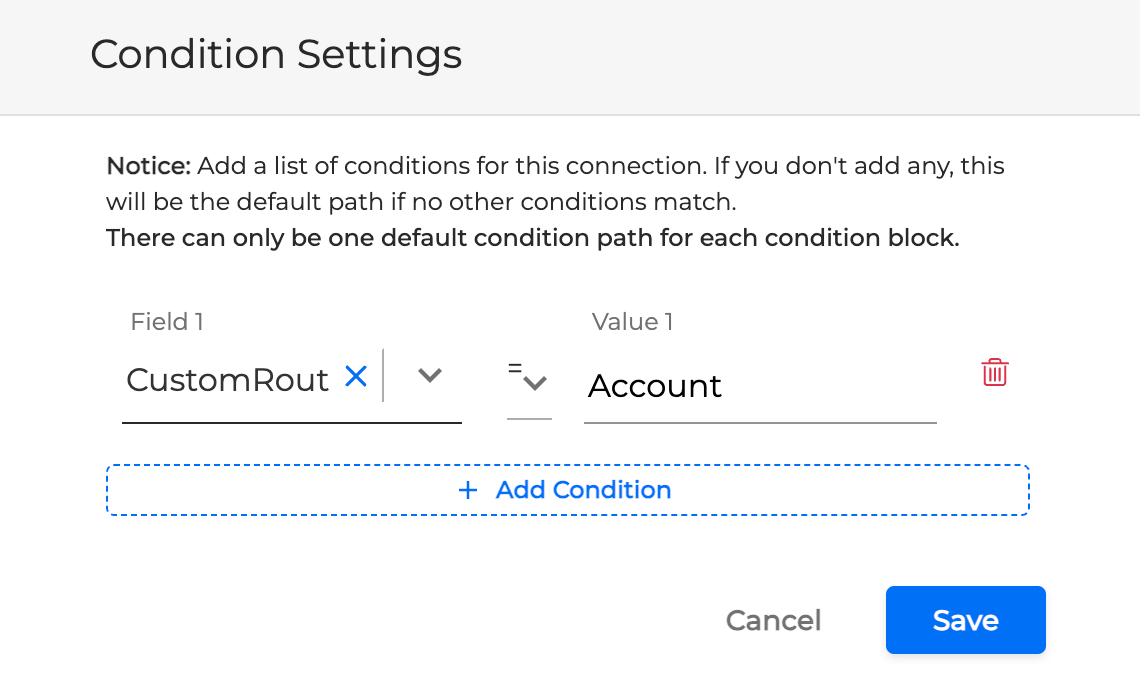
After all conditions and their output nodes are in place, the Concierge Agent will automatically route conversations to the appropriate agent or miniApp based on the topic identified during the dialog:
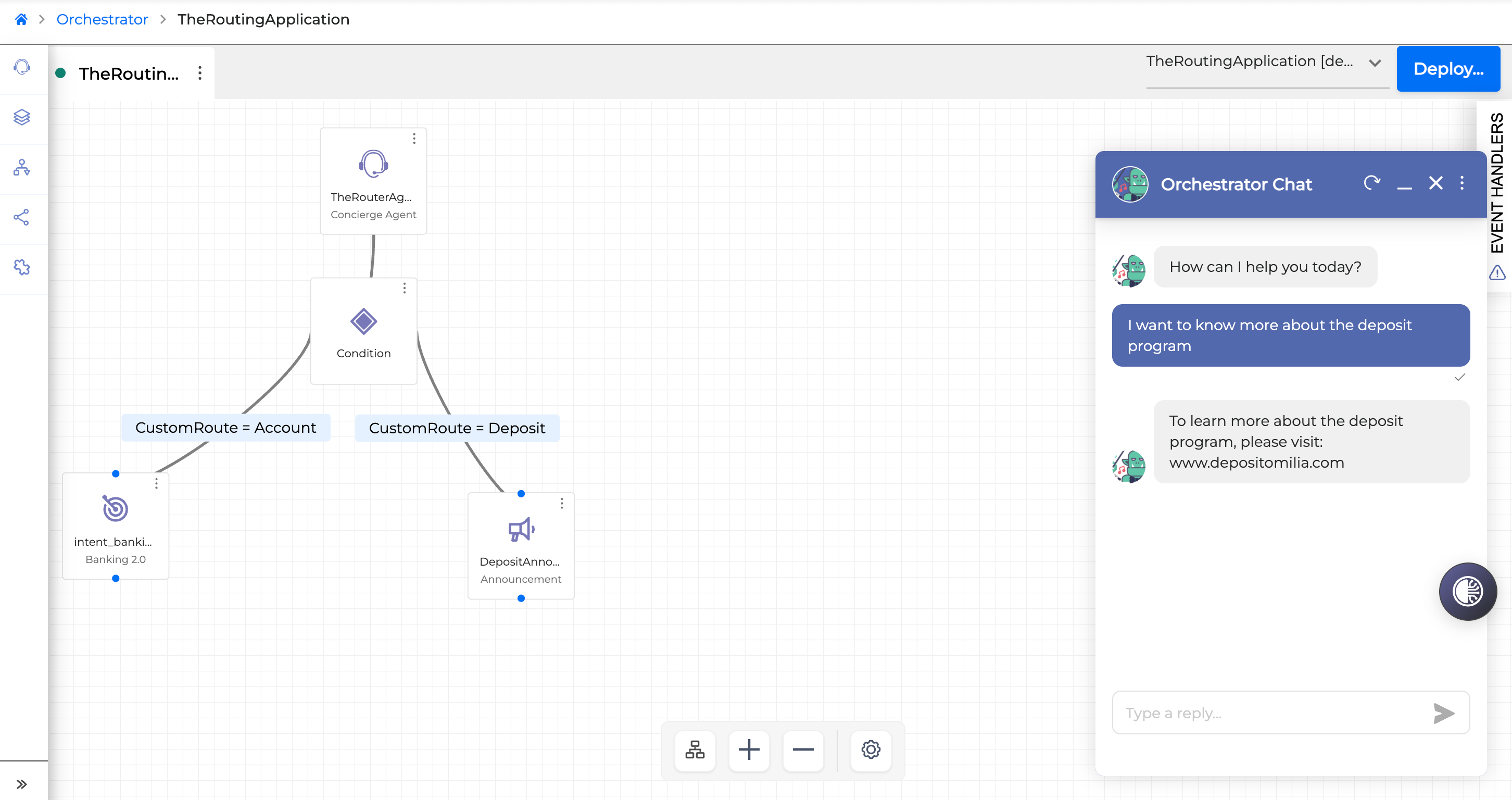
The agent without the routing parameter or routing rules set can be added to the canvas, but you need to configure these rules in order to deploy the application; otherwise, the deployment will fail and the corresponding message will appear in the notifications panel.
Re-Ask Intent in the Concierge Agent
You can use the Anything Else? block to loop the conversation back through the agent. To set this up:
-
Add the Anything Else? block to the conditional branch where you want it to execute.
-
Connect the block to the branch, then open the options menu and select Settings:
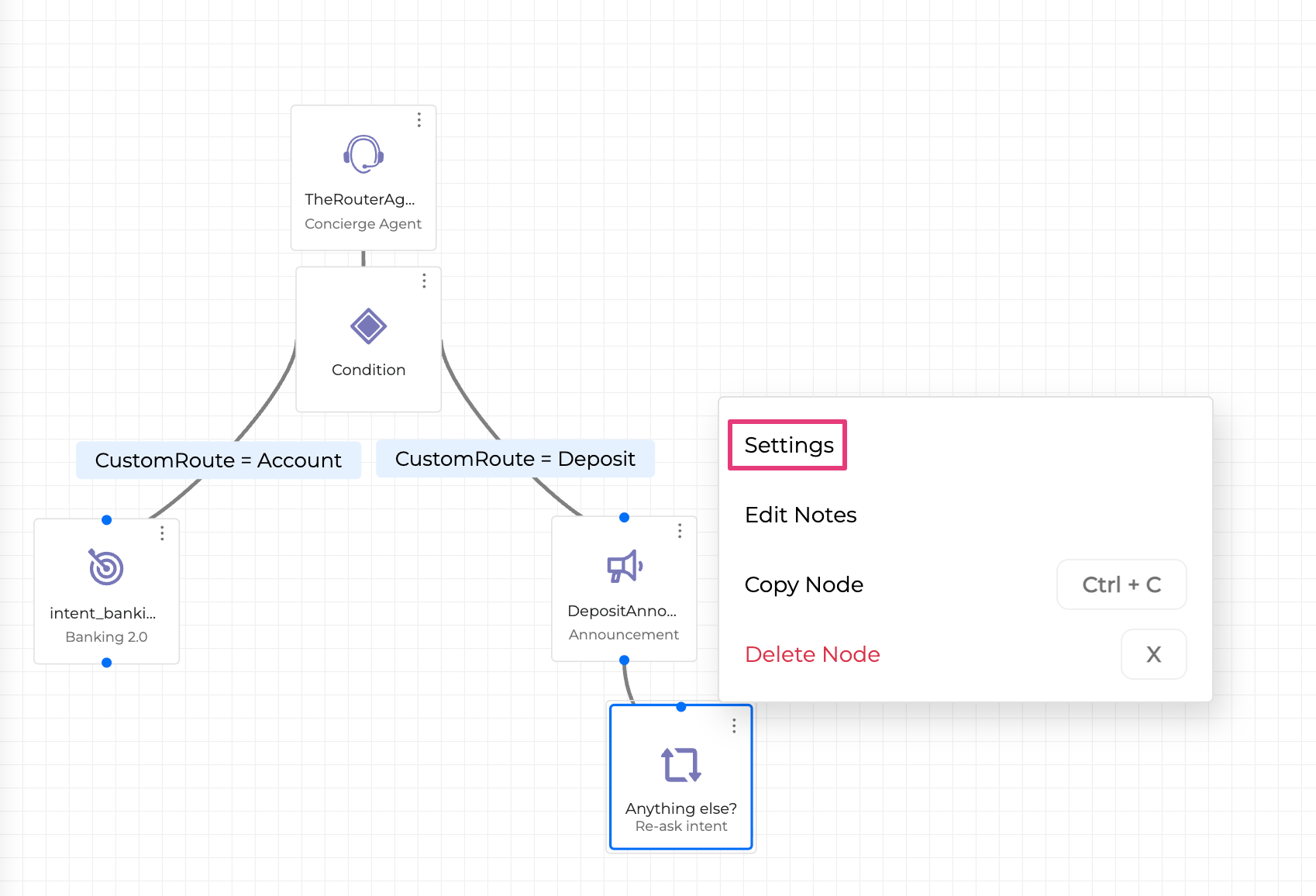
In the settings window, switch to the Inputs/Outputs for Router Agents tab. Select the Concierge Agent to use and specify the output fields:
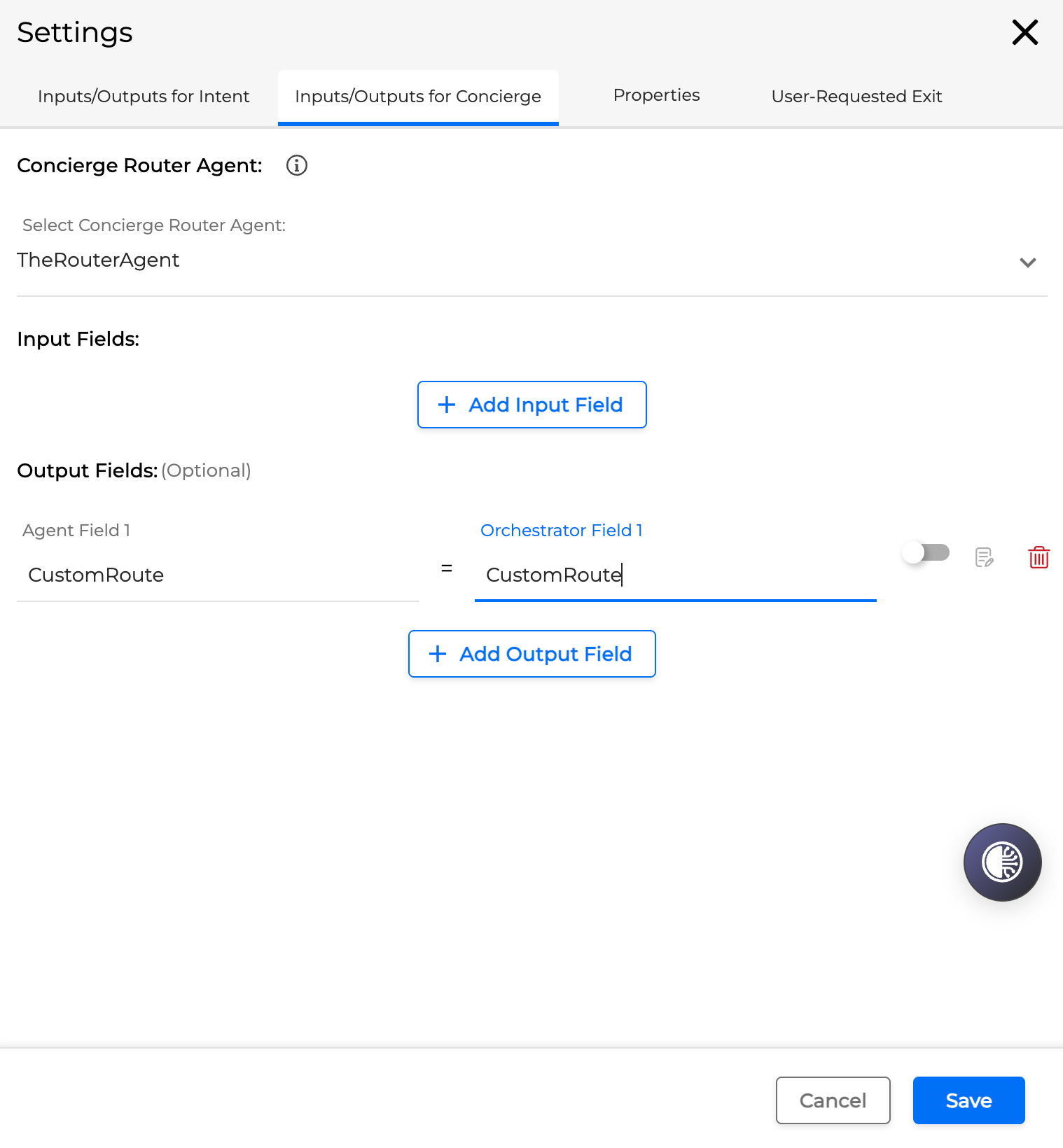
Save your changes. The updated application will now present the "Anything Else?" prompt within the active routing branch, allowing the conversation to restart through the agent.