.svg)
Open a dialog from the Dialog List to inspect its metadata, utterances, tags, and events, and to export or replay it.
Dialog Review
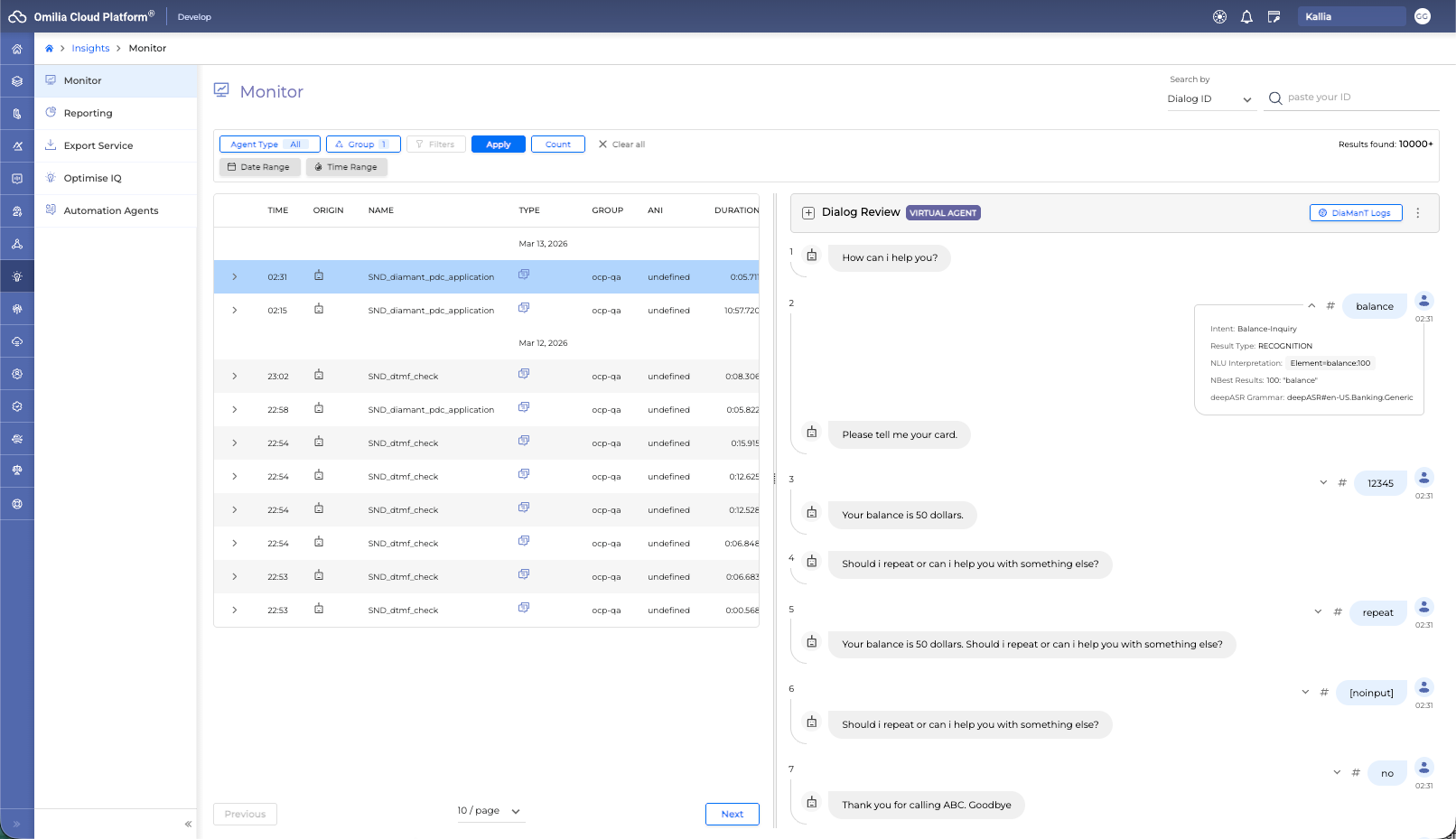
The Dialog Review component contains all the detailed information about a single, selected conversation. When you click on a specific dialog from the Dialog List, the Dialog Review pane will open.
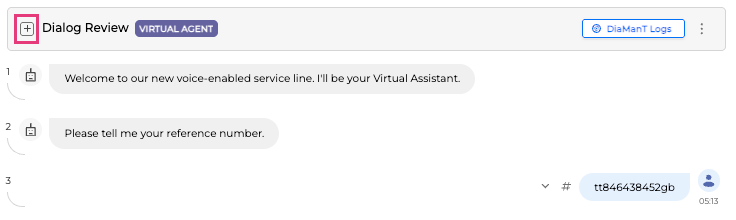
The content of the pane is collapsed by default; click the expand icon (a + symbol) next to the Dialog Review title to see the details.
Next to the title, you'll see a tag indicating the agent type for the session, such as VIRTUAL AGENT or LIVE AGENT. The information and options available will change depending on this type.
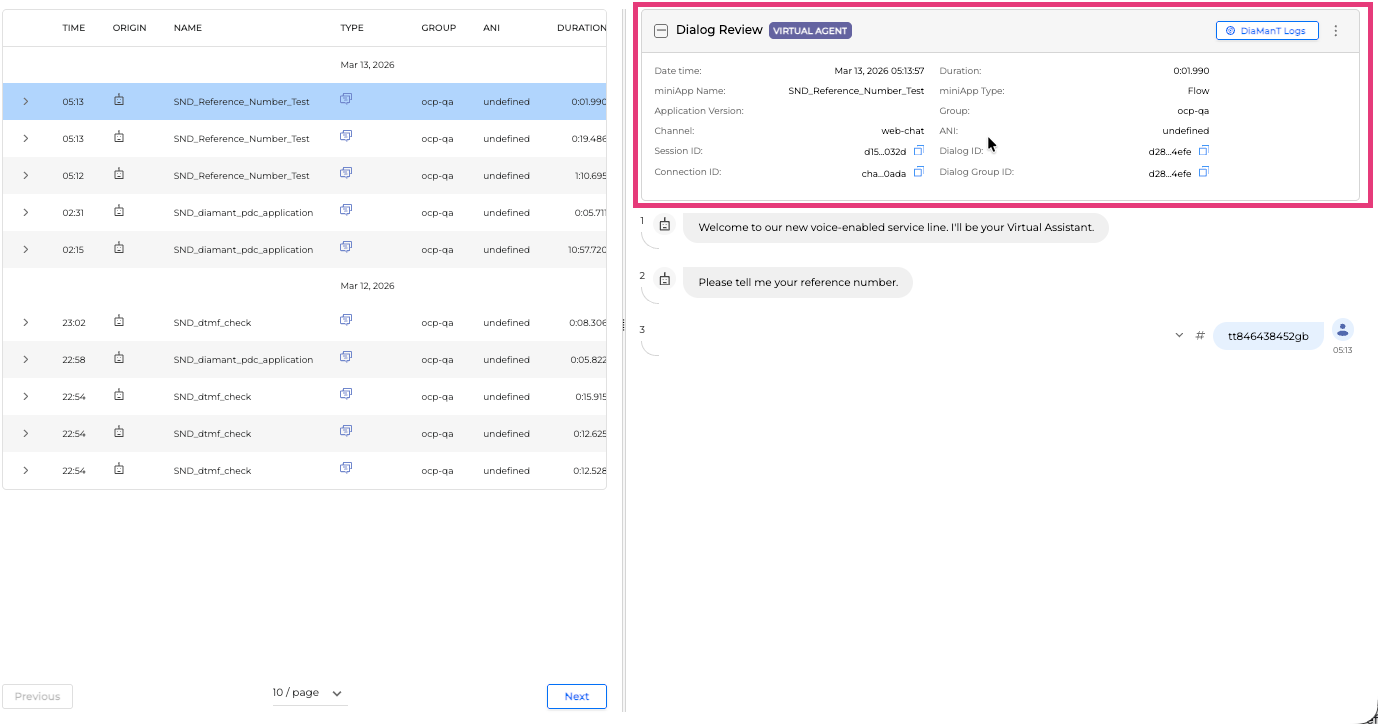
The pane is split into several key areas:
Dialog Header (Metadata)
This top section displays key metadata about the conversation. You can click the Copy icon next to any ID to copy its value to your clipboard.
The fields displayed change depending on whether you are viewing a VIRTUAL AGENT or a LIVE AGENT session.
Virtual Agent View Fields
-
Date time: The date and time the dialog took place.
-
Duration: The length of the dialog session.
-
miniApp Name: The name of the miniApp used for the selected dialog.
-
miniApp Type: The type of the miniApp used for the selected dialog.
-
Application Version: The publishing version of the Application.
Navigate to the Orchestrator Application Options Menu guide to learn more about publishing. -
Group: The group this Application belongs to.
-
Channel: The channel the user used for the session, such as
voiceorweb chat. -
ANI: The caller's phone number, if available.
-
Session ID: The identification number of the session.
-
Dialog ID: The identification number of the dialog.
-
Connection ID: The unique identification number of the connection.
-
Dialog Group ID: The identification number of a Flow application that consists of multiple miniApps.
Live Agent View Fields
-
Date time: The date and time the dialog took place.
-
Duration: The length of the dialog session.
-
Connection ID: The unique identification number of the connection.
-
Dialog ID: The identification number of the dialog.
-
Master ID: The master ID for the Agent Assist session.
-
CCAAS Provider: The Contact Center as a Service (CCaaS) provider handling the session (e.g.,
niceInContact). -
Agent ID: The unique ID of the human agent (e.g.,
agentId). -
Agent Skill: The skill group assigned to the human agent (e.g.,
vb_skill). -
AA Profile ID: The unique identifier for the Agent Assist (AA) profile being used (e.g.,
870..a1f9). -
AA Profile Name: The name of the associated agent profile (e.g.,
konan_with_vb_profile).
The miniApp bot icon indicates the prompt generated by the miniApp. The Agent icon indicates the prompt written by the Agent. The numbering on the left represents the step number.
Correspondingly, the utterances produced by the caller are indicated by the User icon.
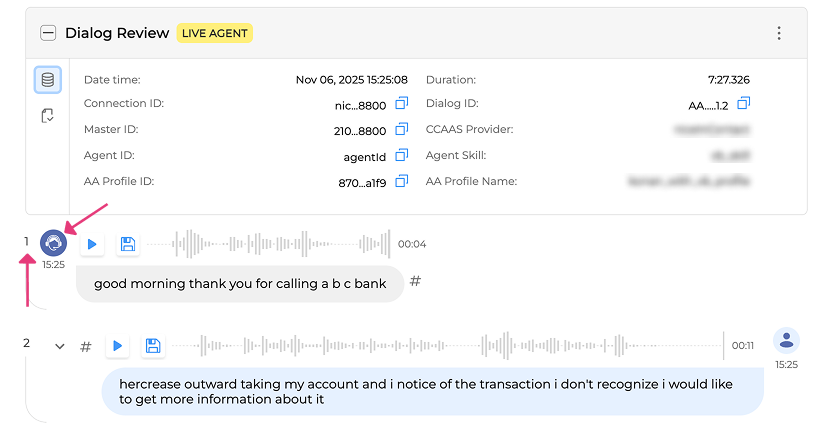
If this was a call, you can click the Play button next to the User icon to listen to the audio and check whether the system captured it correctly.

Click the Save button to download the utterance in WAV format.

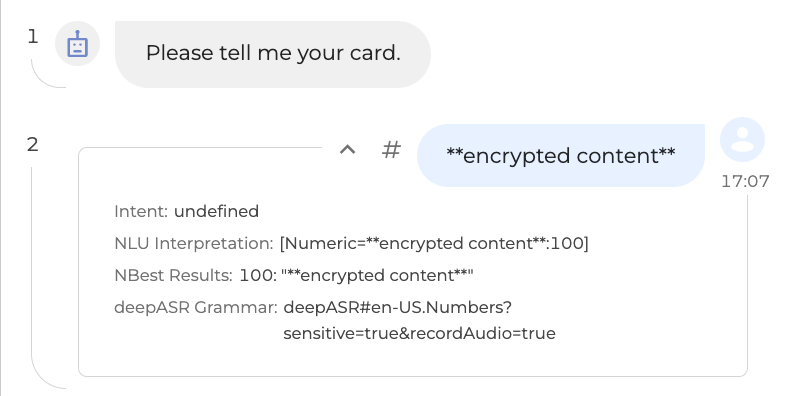
You can expand the user’s utterance by clicking the arrow to view the Intent interpretation. When expanded, the arrow will be pointing up:
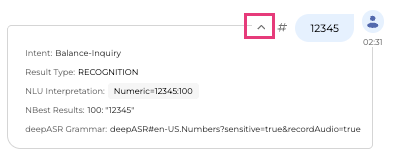
If there is sensitive data in the utterance, the details are not shown, and the message **encrypted content** appears instead.
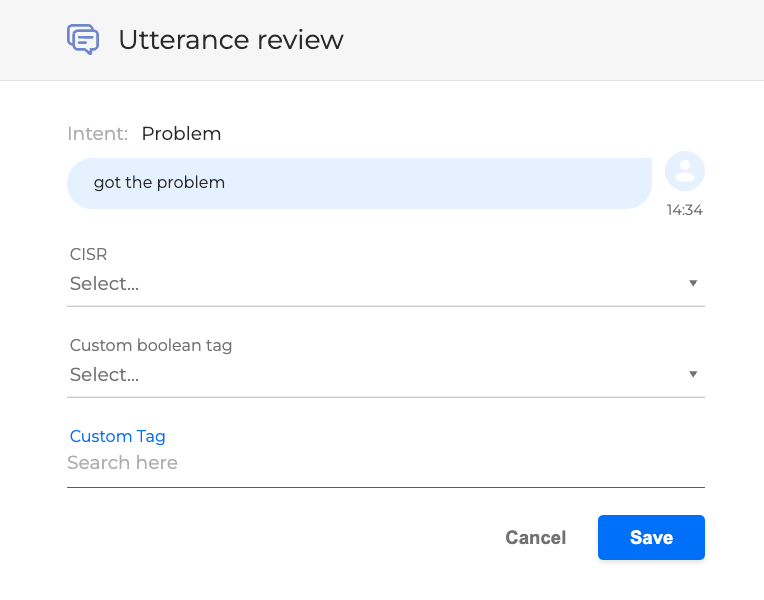
You can tag an utterance as correct or false, acceptance or rejection, or as a misinterpretation. To do so, click the # symbol and select the corresponding options in the pop-up window.
-
CISR: Concept Identification Success Rate. Select a value from the drop-down list.
-
correctAcc: The system correctly accepted the caller's input, which means that either the correct intent was extracted, or the expected input was correctly identified (for example, the caller answering yes or no when asked to confirm payment).
-
correctRej: The system correctly rejected something that is not within the application’s scope (for example, the customer utterance: I could call back if this is a bad time).
-
falseAcc: The system mistakenly confused something out of the application’s scope with something within scope.
-
falseRej: Mistakenly rejected an in-scope caller input (for example, I want to know my balance is not understood and is considered by the system to be irrelevant).
-
misinterpretation: Accepted with wrong understanding. A caller said I want the balance on card, and the system understood I want the balance on my loan. The system understood the utterance as related to the application, but it misinterpreted it by assigning the wrong intent.
-
-
Custom Field: Add a keyword to categorize the utterance.
Dialog Options and Toolbar
At the top of the Dialog Review pane, you have several buttons to download data and analyze the dialog.
-
DiaManT Log File: Opens the DiaManT log file for the selected dialog.
-
Options menu: Clicking this icon opens a dropdown menu with more actions:
-
Dialog Tree: (Available in VIRTUAL AGENT view)
This window shows a tree-like hierarchical view of all the dialog components (miniApps, Flows, etc.) that were called during the session, in the order they were executed. You can click on any item in this tree to search for dialogs in that specific miniApp.|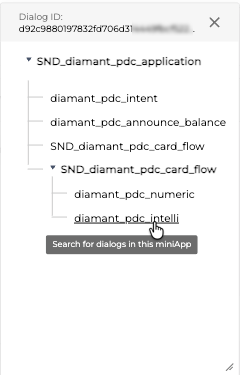
-
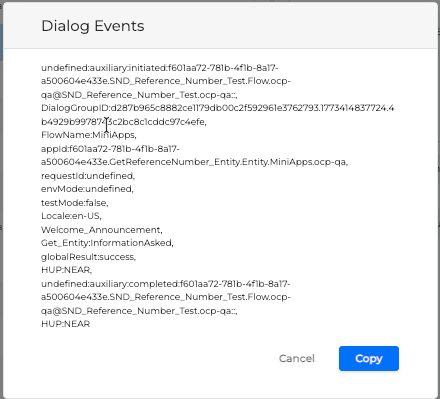
Show events: Retrieves system and/or custom loggings from the application. For more information, refer to the Events review section.
-
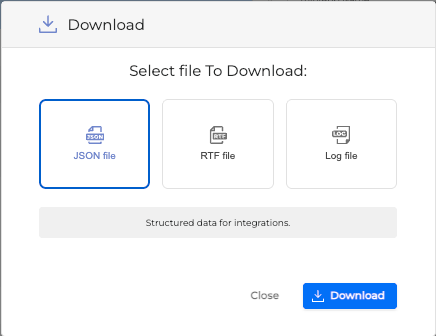
Download Files: Select the type of file you wish to download.
-
Download JSON: Downloads a JSON file containing all the information for that dialog session.
-
Download RTF: Downloads an RTF file (plain text) with the dialog session info.
-
Download Log File: Downloads the dialog's log file directly to your device in a
.txtformat.
-
-
Create Test Case: This option allows you to save the current dialog as a new test case in OCP Testing Studio®.
-
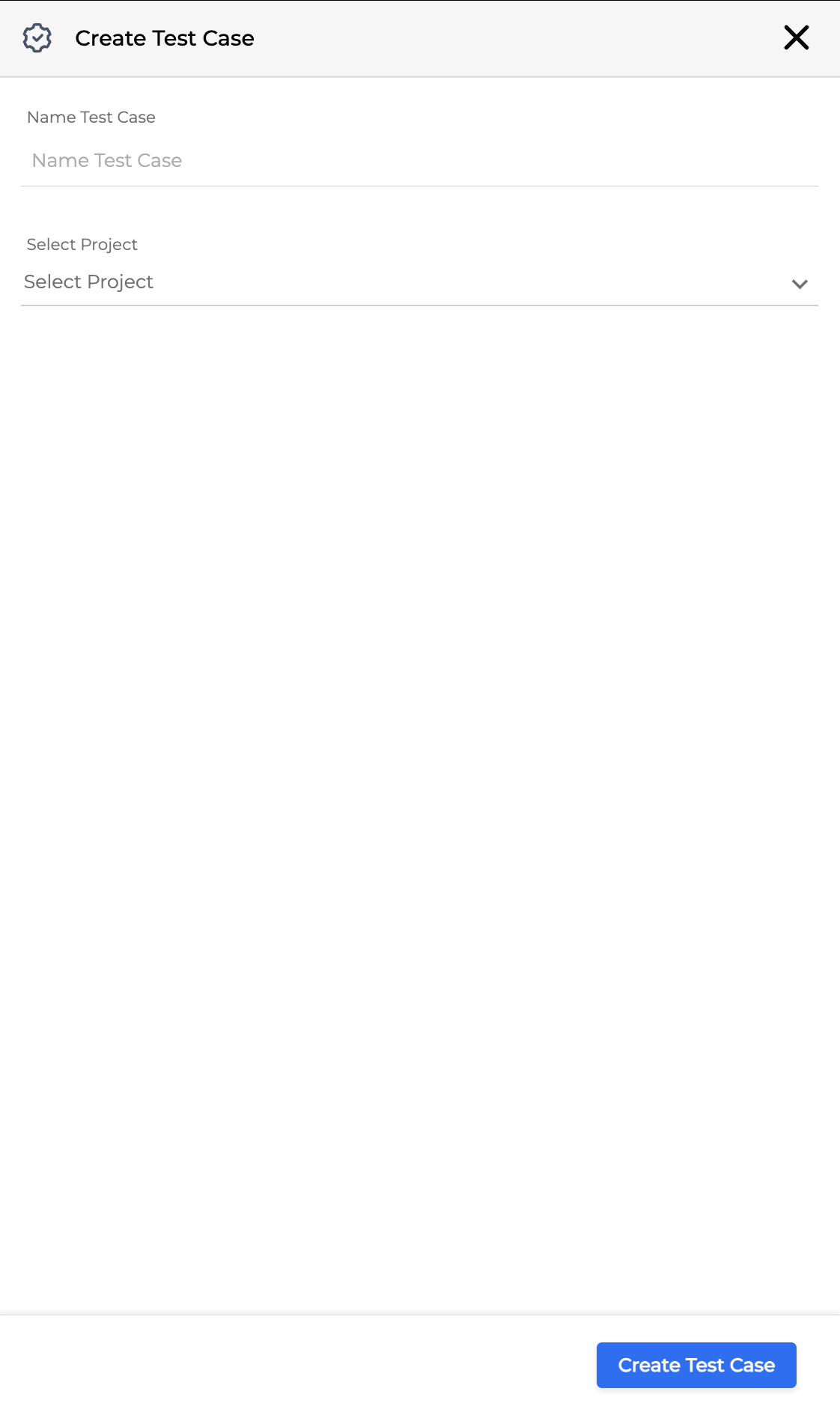
Clicking this opens the Create Test Case window.
-
Enter a name in the Name Test Case field.
-
Select a destination project from the Select Project dropdown list. These projects are pulled from Testing Studio®.
-
Click the Create Test Case button.
-
A test case creation notification will appear, with a link to View in Testing Studio.
-
-
To create a test case, the dialog must be associated with a valid Testing Studio® project. If it is not, the Select Project dropdown will show "No projects found for this dialog".
Post Call Summary
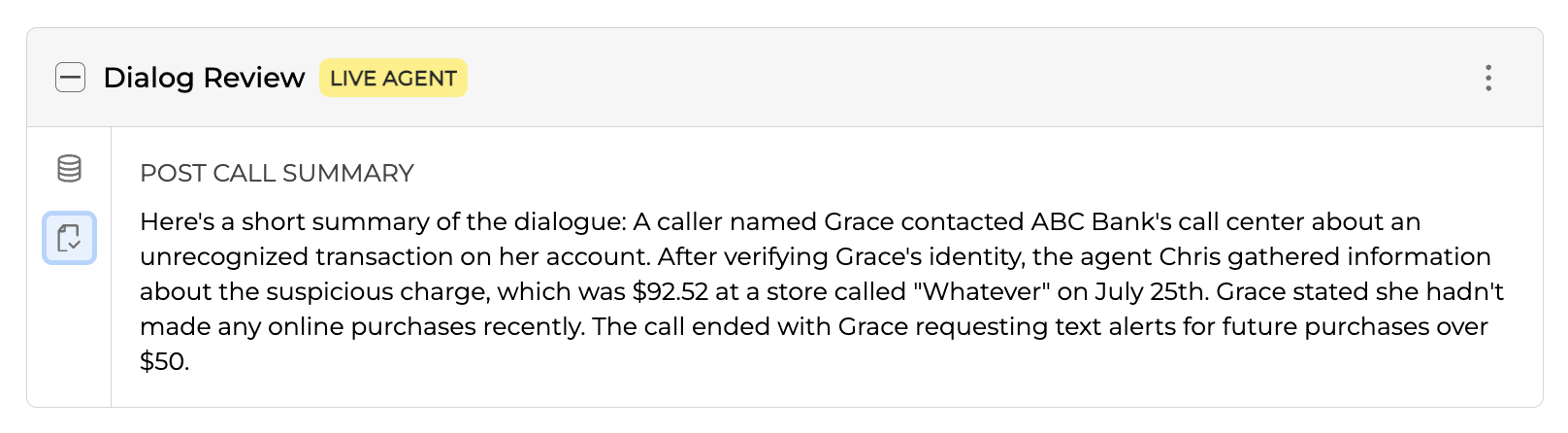
For interactions that include a LIVE AGENT, you may see a POST CALL SUMMARY. This section provides a brief, AI-generated summary of the dialogue, outlining the caller's intent, the agent's actions, and the call's outcome.
Path View
The Path View is a sequence of dialog session components (miniApps, Flows and so on), which represents the order of dialog steps that were called within the Application in a tree-like hierarchical view.
Path View is available only for Virtual Agent type.
To access the Path View, proceed as follows:
-
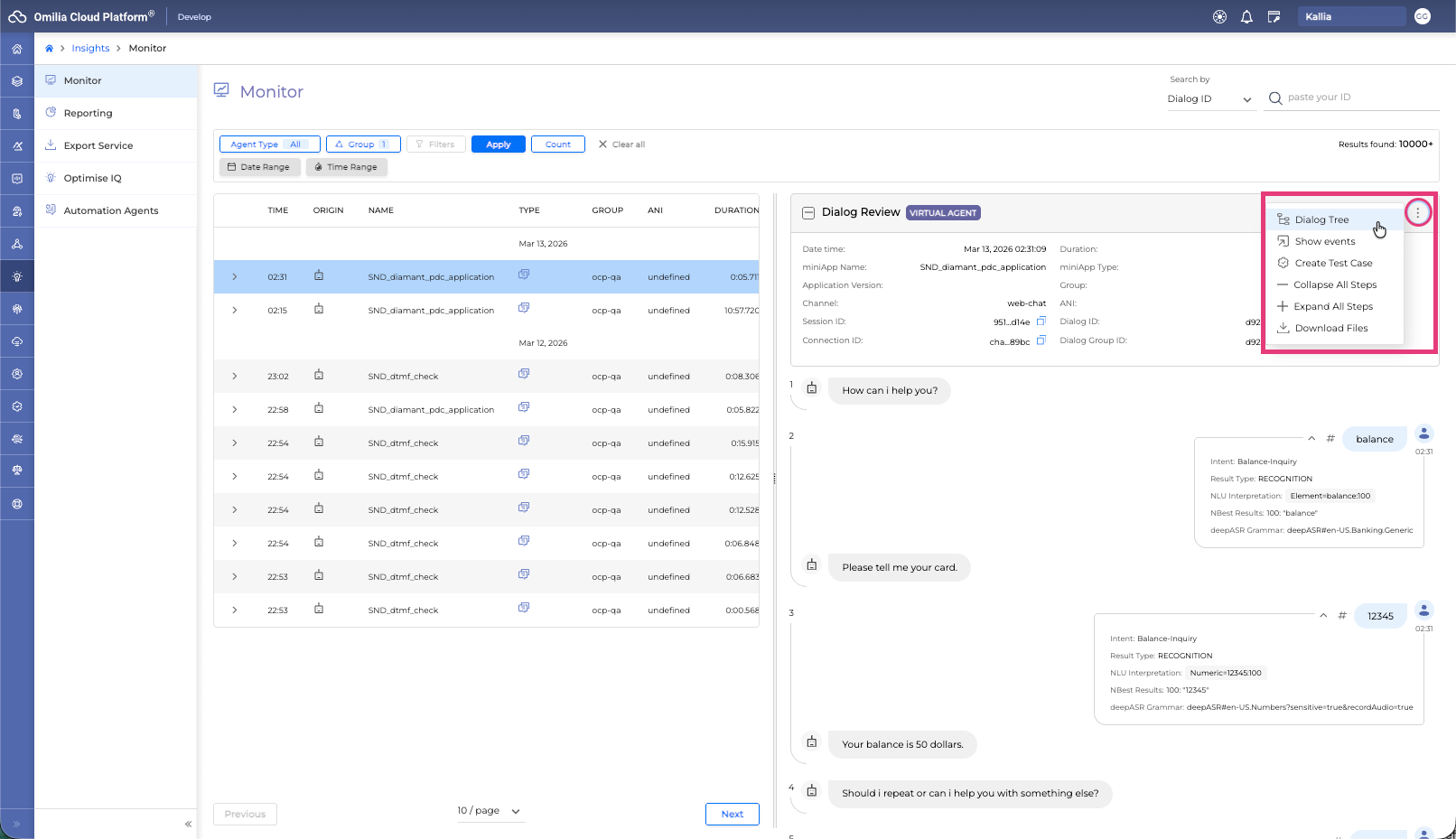
Navigate to Insights → Monitor and select a Dialog. In the Dialog Review section, click the Menu button and select the Dialog Tree.
-
Once clicked, the Path View opens with all the dialog steps components in the corresponding order.
It is possible to drag the Path View window for convenience to any part of the window. It is also possible to resize the Path View window by dragging the bottom right corner of the pop-up.
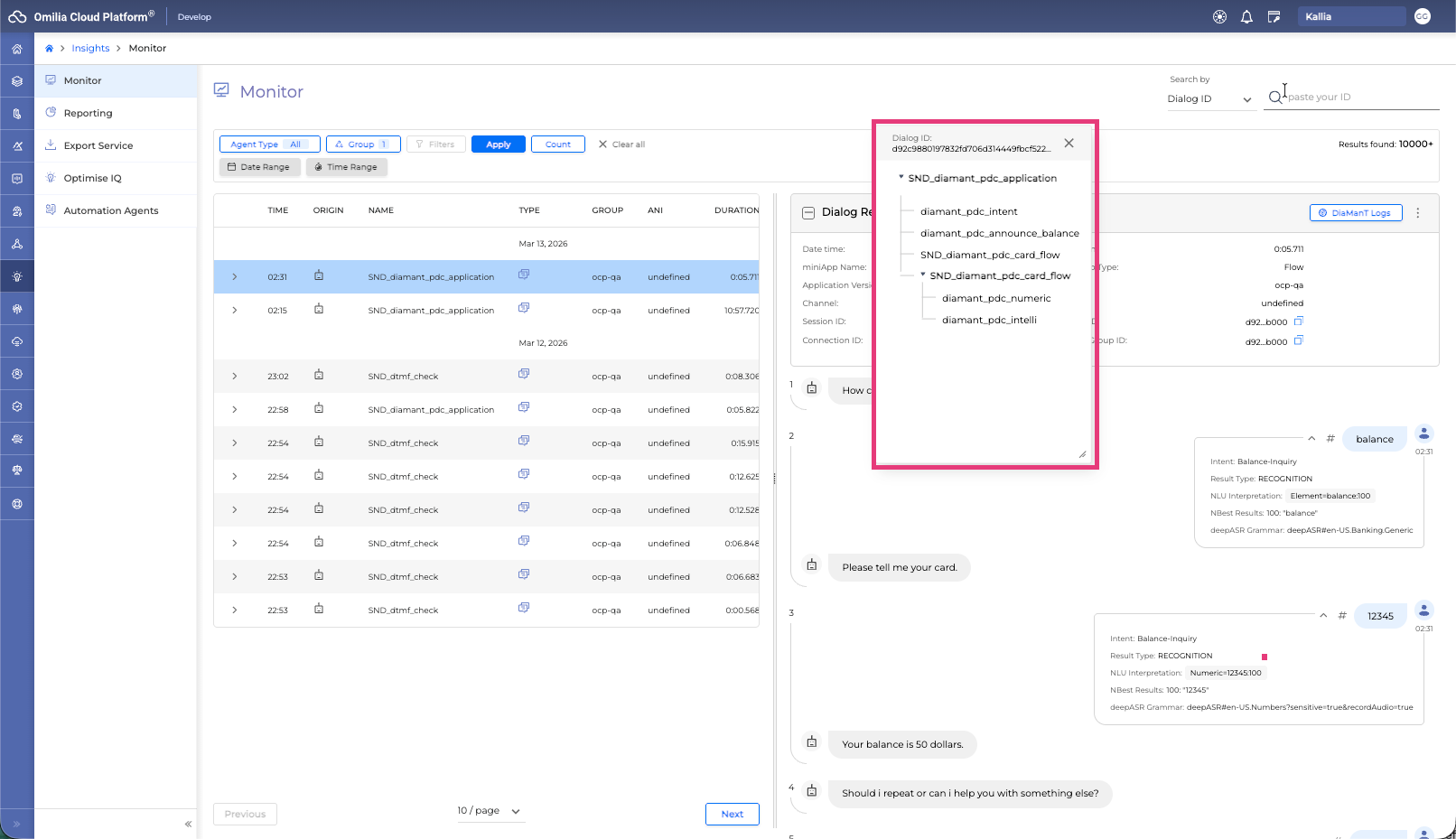
Every branch of the Path View window is expanded by default but collapsable, and it is possible to click each item of the tree to search for dialogs in the particular miniApp.
When the particular item is clicked, you’ll be redirected to the page with the more detailed information about this item.
For an overview of all OCP® Monitor components, see OCP® Monitor User Guide.