.svg)
In VFO environments, OCP® Monitor adds VFO-specific filters, Whole Call Recording, and an Order Summary for each dialog.
Voice Food Ordering (VFO) View
Voice Food Ordering (VFO) is available for specific environments only.
You can use OCP Groups to correspond to different stores in VFO environment.
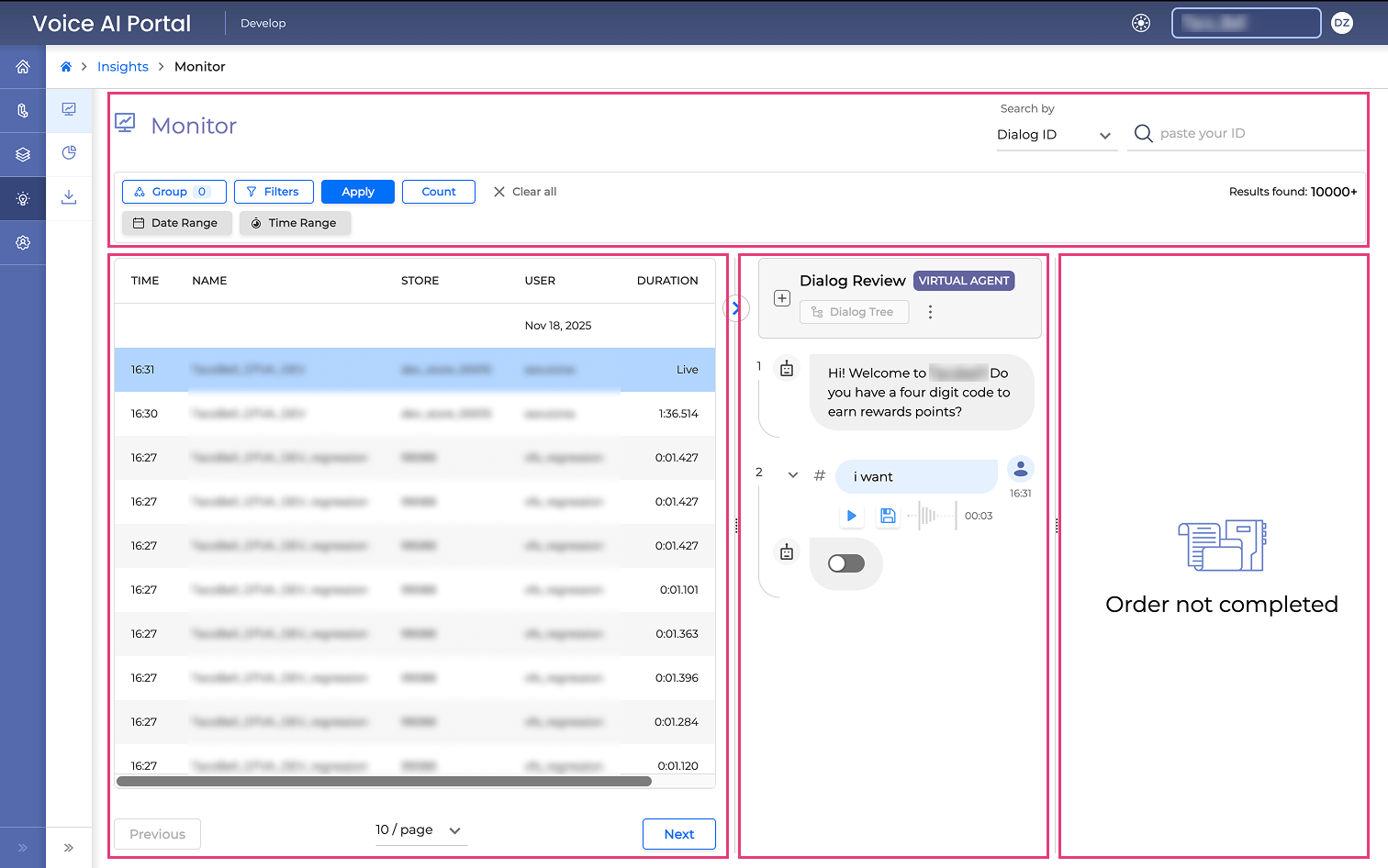
When VFO functionality is activated for the particular environment, there are some additional features available in the Monitor tab, including an additional Order Summary component near the Dialog Review:
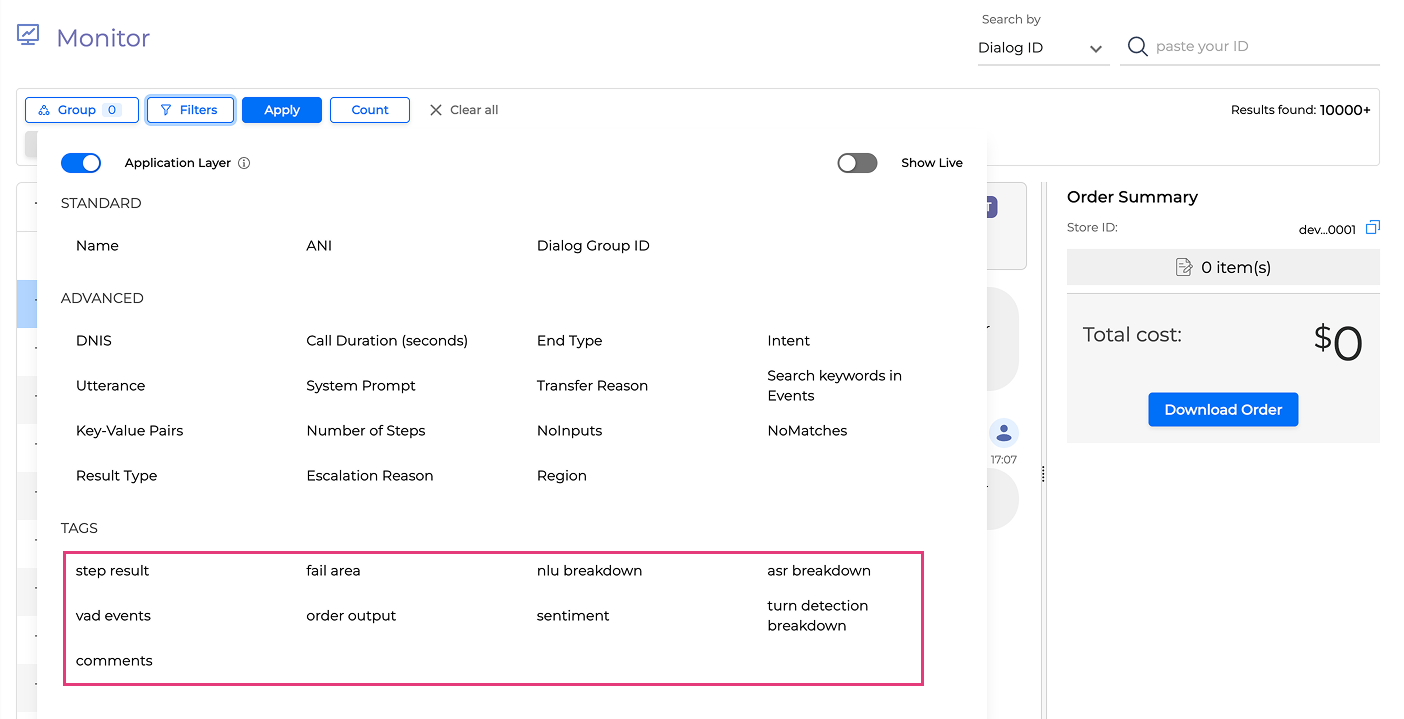
The standard and advanced Filters options are the same as for standard environments, with Agent Type filter excluded. The Advanced Search options contains VFO-specific filter dropdown in addition to the standard options:
-
Step result (success/fail)
-
Fail area (ASR, VAD, NLU, menu, integration)
-
NLU breakdown (entity_identification_menu_item, entity_identification_assistive_annotation, entity_identification_faq, reasoner_correction, reasoner_repetition, reasoner_disambiguation, reasoner_other)
-
ASR breakdown (misrecognition, missed_word, low_confidence, background_speech, background_noise, volume)
-
VAD events (interruption, speak_over, no_trigger, interruption_hes_ending, false_trigger, late_end trigger)
-
Order output (success/fail)
-
Sentiment (negative)
-
Turn detection breakdown (correct_take_over, correct_pause_handling, incorrect_take_over, incorrect_pause_handling, late_take_over, unclear, previous_turn_answer)
-
Comments (applicable comments if available)
The Dialog List component contains the same elements as standard environment.
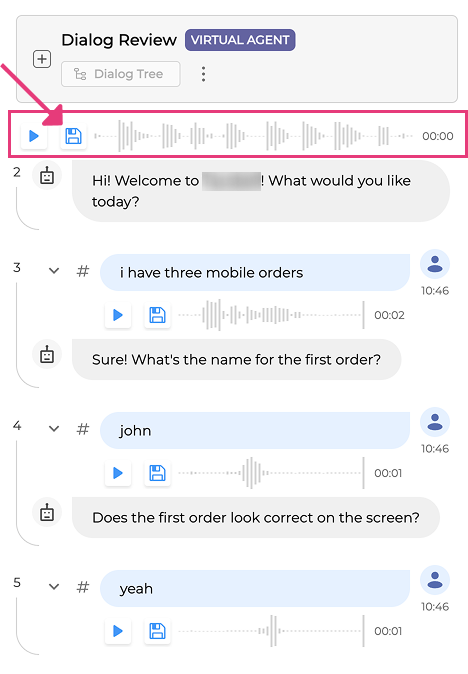
Besides the default elements within the Dialog Review component, you can also access the Whole Call Recording feature under the Show events button. You can listen to the whole dialog at once and download the whole call recording by clicking the Save button as shown on the screenshot below.
WCR buttons may be visible but are inactive if WCR is not enabled for your organisation.
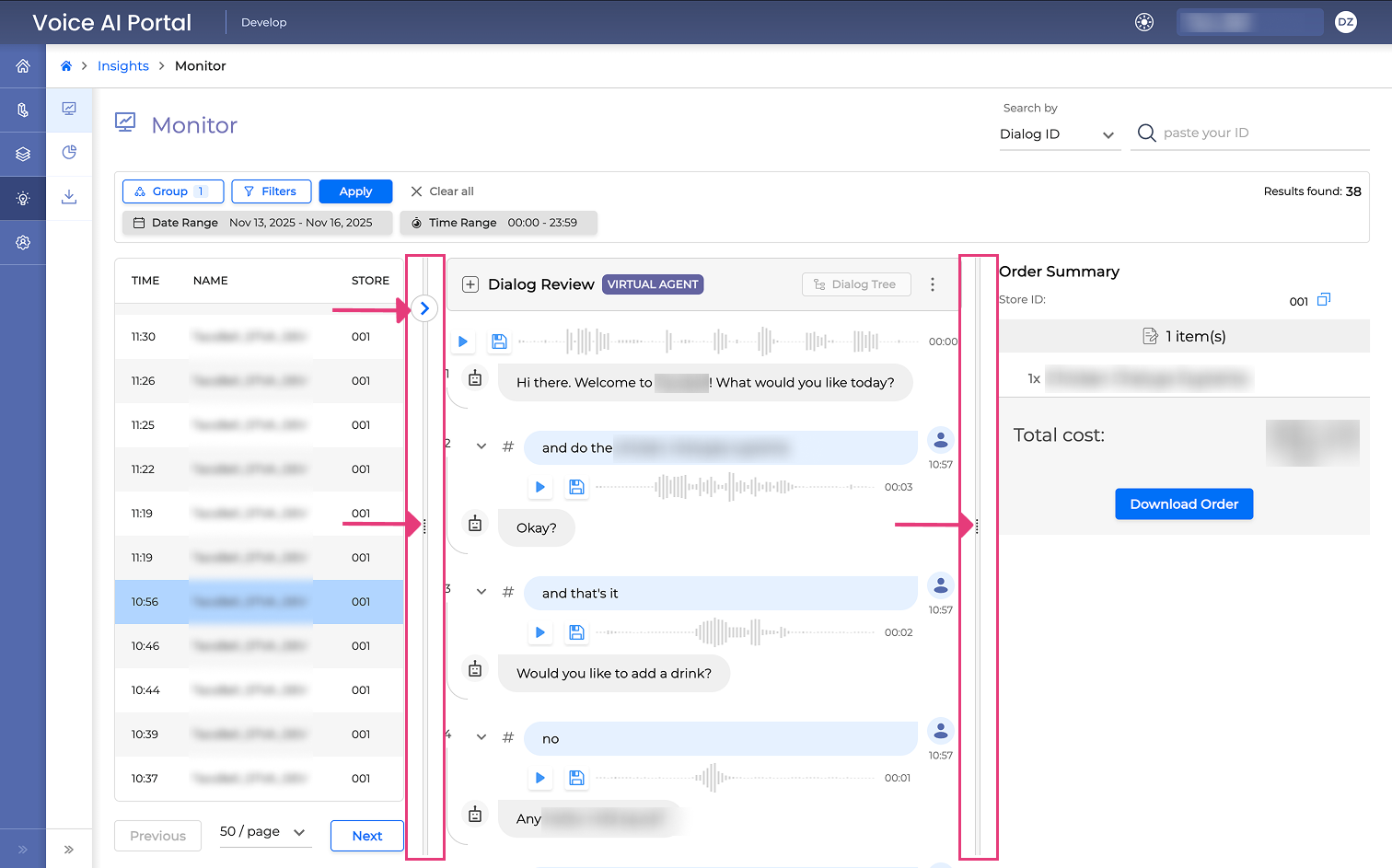
To the right to the Dialog Review, you can also see the VFO-specific Order Summary component containing all the items ordered by the user within the dialog you’re viewing.
You can adjust the components' width for better visibility by dragging horizontal borders to the left or to the right as shown on the screenshot below.
To collapse the currently open dialog, click on the > icon near the Dialog Review heading. This will return you to the Select Dialog component being shown on the full screen.
Order Summary
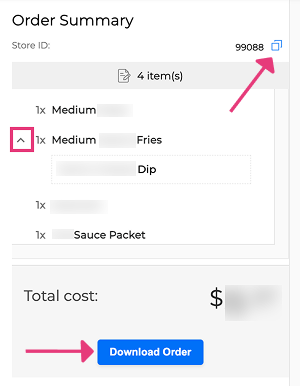
The Order Summary component contains the following information:
-
Store ID - the ID of the store where the order was processed. You can copy the ID by clicking on the Copy icon to the right.
-
Number of items - the total number of items ordered.
-
Order list - a list of all the items ordered. If there’s any addition to the item (for example, a dip), it will be displayed as a subitem with the ^ icon showing the expanded view.
-
Total cost - the total cost of the order in the currency you set.
-
Download Order - a button to download the order details in a JSON format.
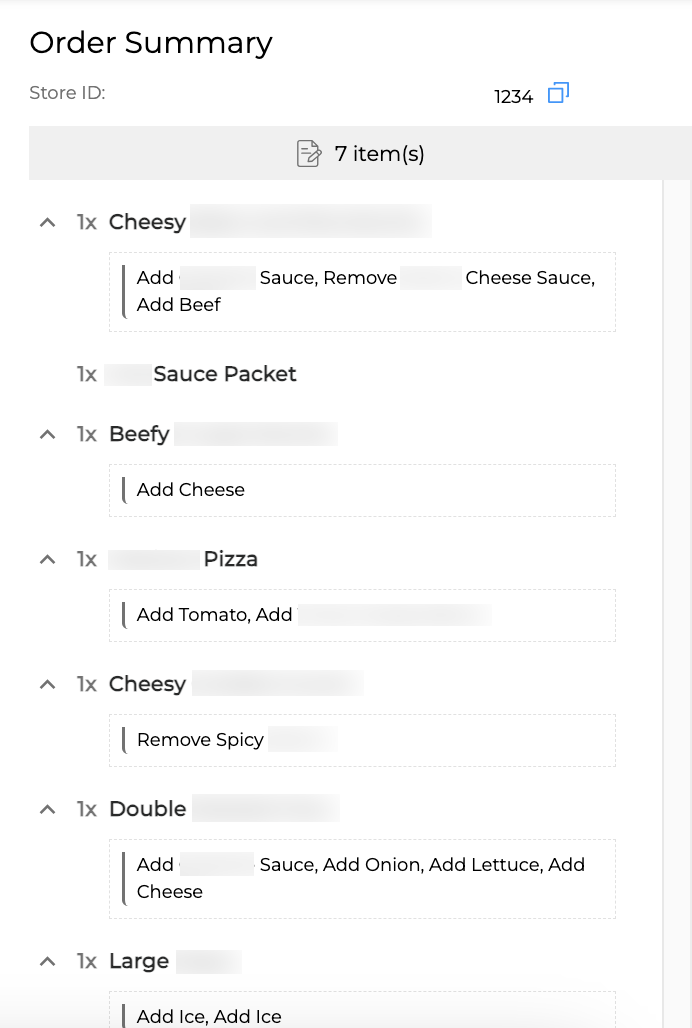
If a customer asked to add/remove some ingredients for a specific item, this information will be visible in the Order Summary under the modified item.
For an overview of all OCP® Monitor components, see OCP® Monitor User Guide.