.svg)
The Dialog List shows every dialog that matches your search filter, with key details for each session.
Dialog List
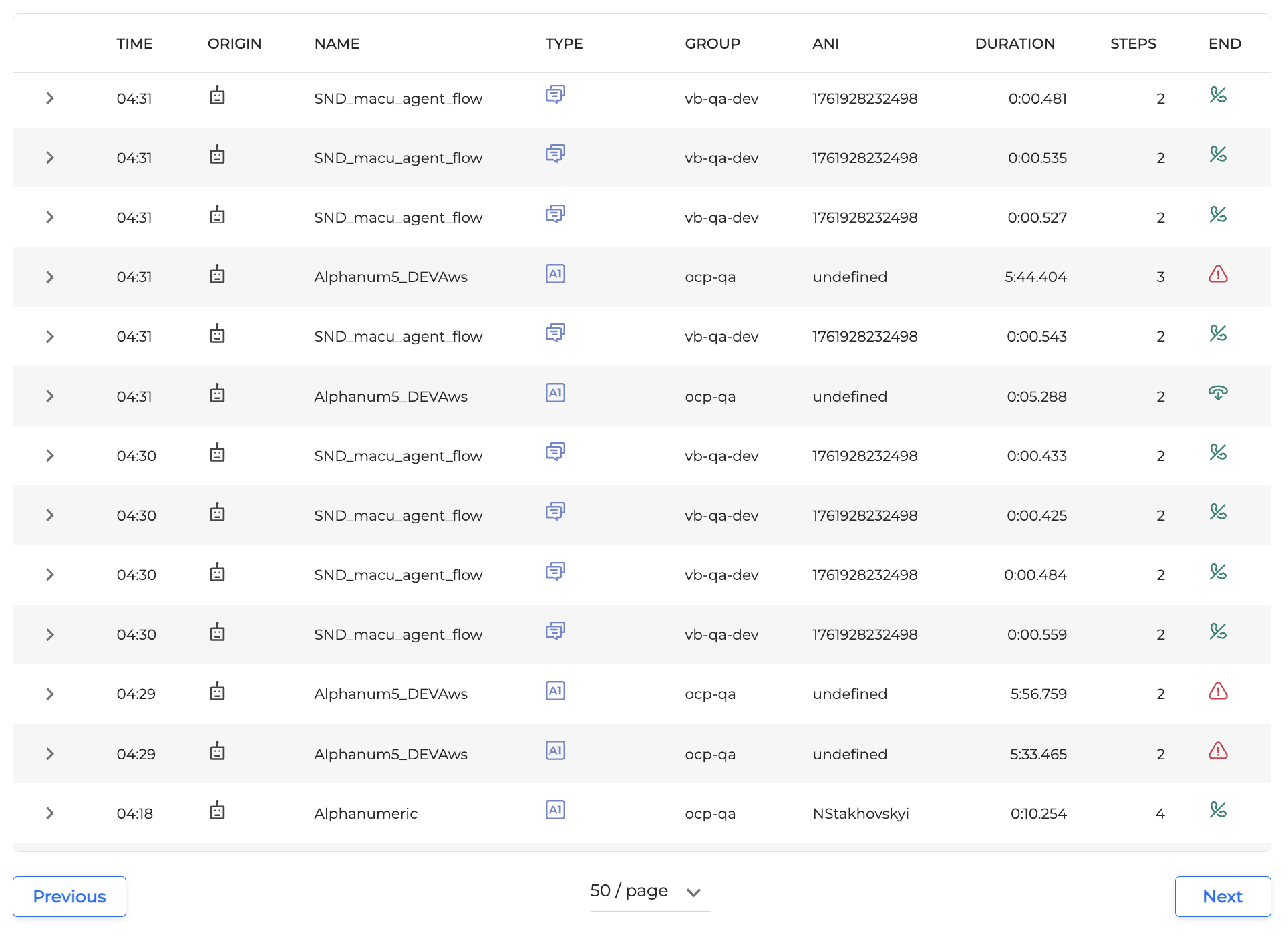
The Dialog List presents all the dialog events that meet the criteria of the Search Filter section. Every column contains information regarding the dialog.
-
TIME: The time when the dialog started.
-
ORIGIN: The origin of the voice of the dialog (Virtual / Live).
-
NAME: The name of the application.
-
TYPE: The type of the application.
-
GROUP: The group that miniApps or Flows belong to.
-
ANI: The caller’s phone number if available.
-
DURATION: The length of the dialog session.
-
STEPS: The number of steps in the session. This is the total number of system prompts and the user utterances, as well as one step added per the dialog ending, such as [hup], meaning hang-up, or transfer to an agent. The [no_input] values are not counted.
-
END: The way the dialog ended. Hover over the icon to see the tooltip with details.
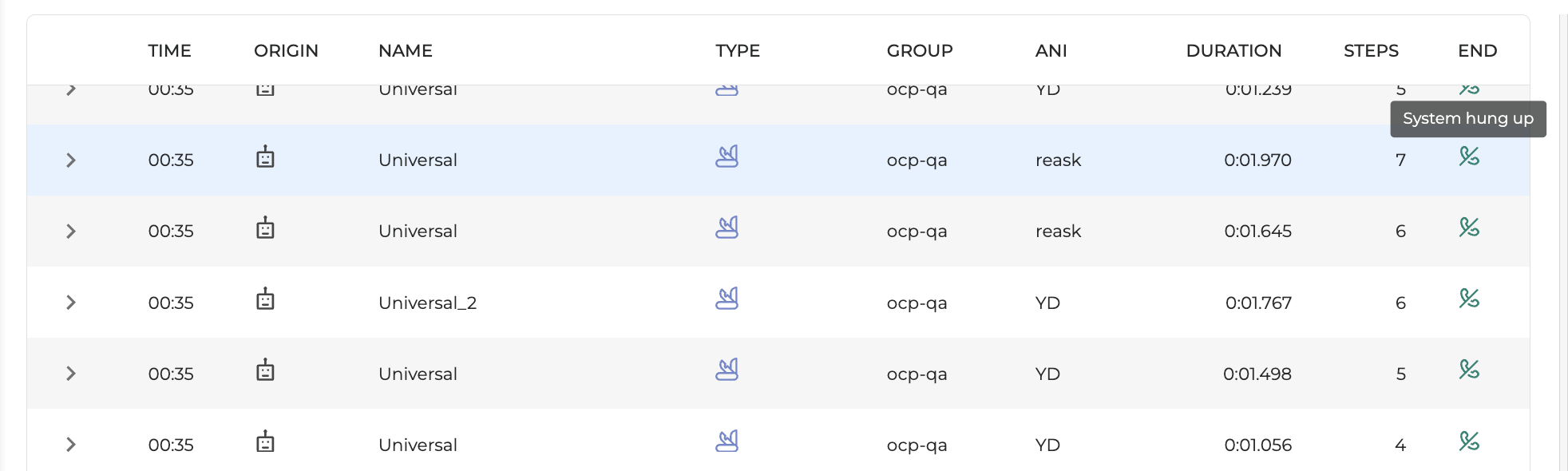
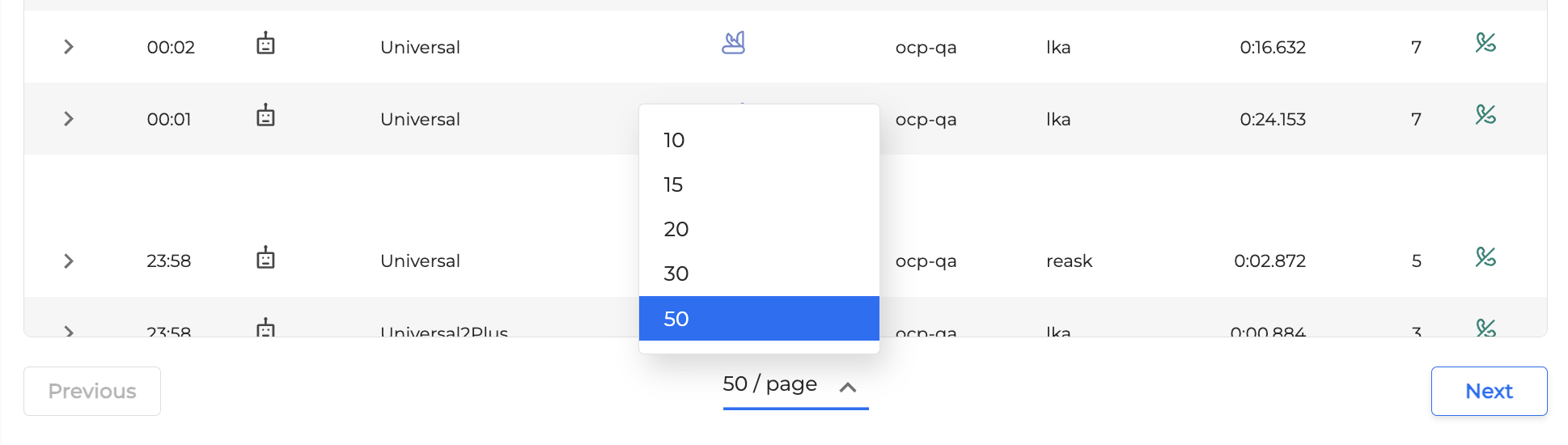
By default, 50 dialogs per page are presented. However, you can change this setting by clicking the 50/page button and selecting the desired value. To navigate through the dialog list, click the Next button.
Click on a particular dialog to get detailed information in the Dialog Review area.
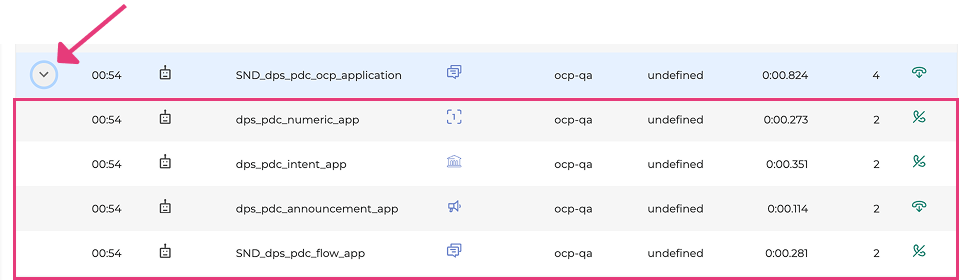
You can click the dropdown arrow on the far left of a main application's row to expand it. This will reveal all the component miniApps that were run as part of that single conversation, showing you each sub-dialog and its corresponding details.
For an overview of all OCP® Monitor components, see OCP® Monitor User Guide.