.svg)
Use the OCP® Monitor search filter to find dialogs by ID, date range, application layer, or advanced criteria.
Search Filter
The search filter allows you to restrict and refine the dialog search according to the selected criteria.
It is possible to search for all the dialog sessions that match the selected criteria or to select one particular dialog session.
-
For a quick search, select one of the Search by criteria and paste its ID into the ID search field:
-
Dialog ID
-
Session ID (Available only for Virtual Agent)
-
Connection ID
-
Searching by Dialog ID, Session ID and Connection ID ignores all other filters if selected.
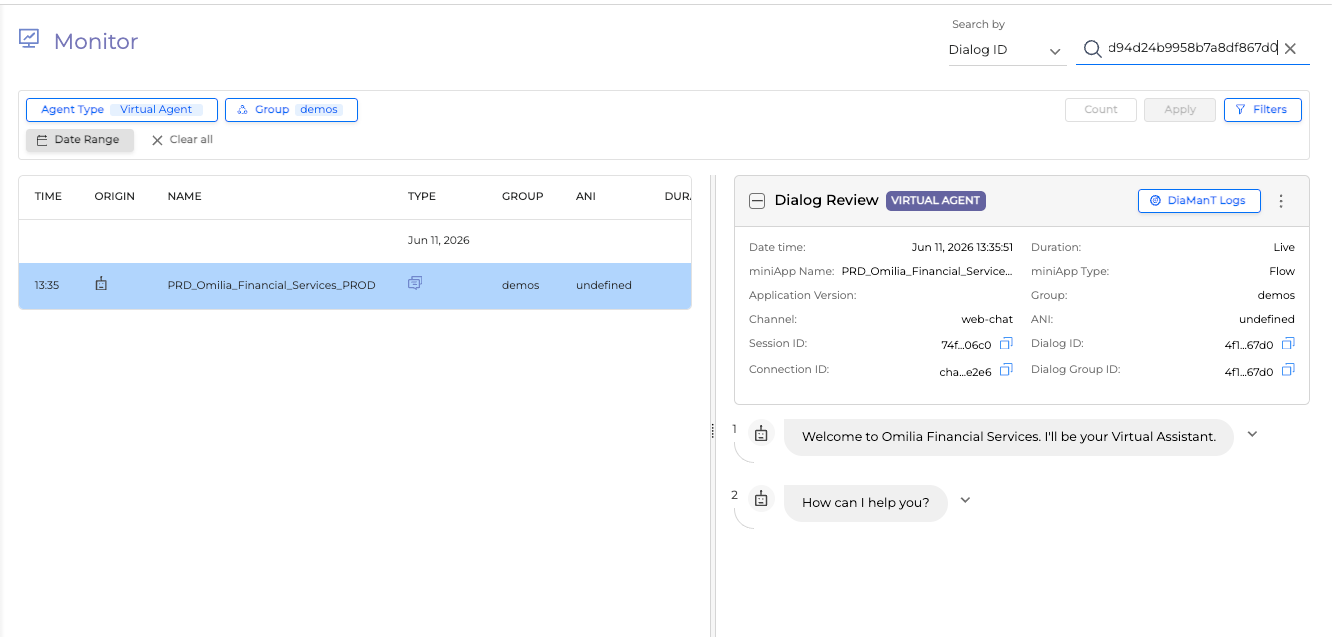
-
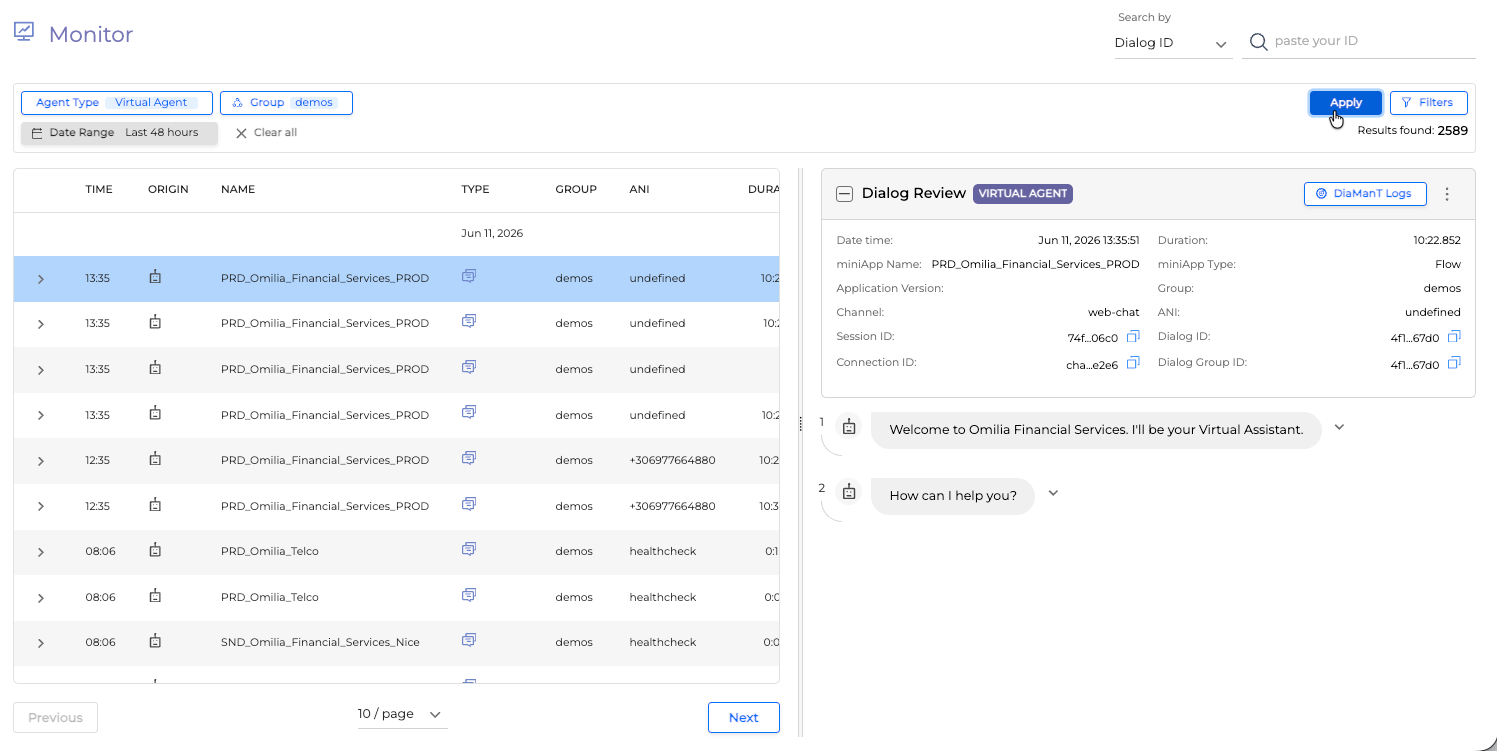
To search for all the dialog sessions that match the selected criteria, choose the criteria and click the Apply icon.
Application Layer
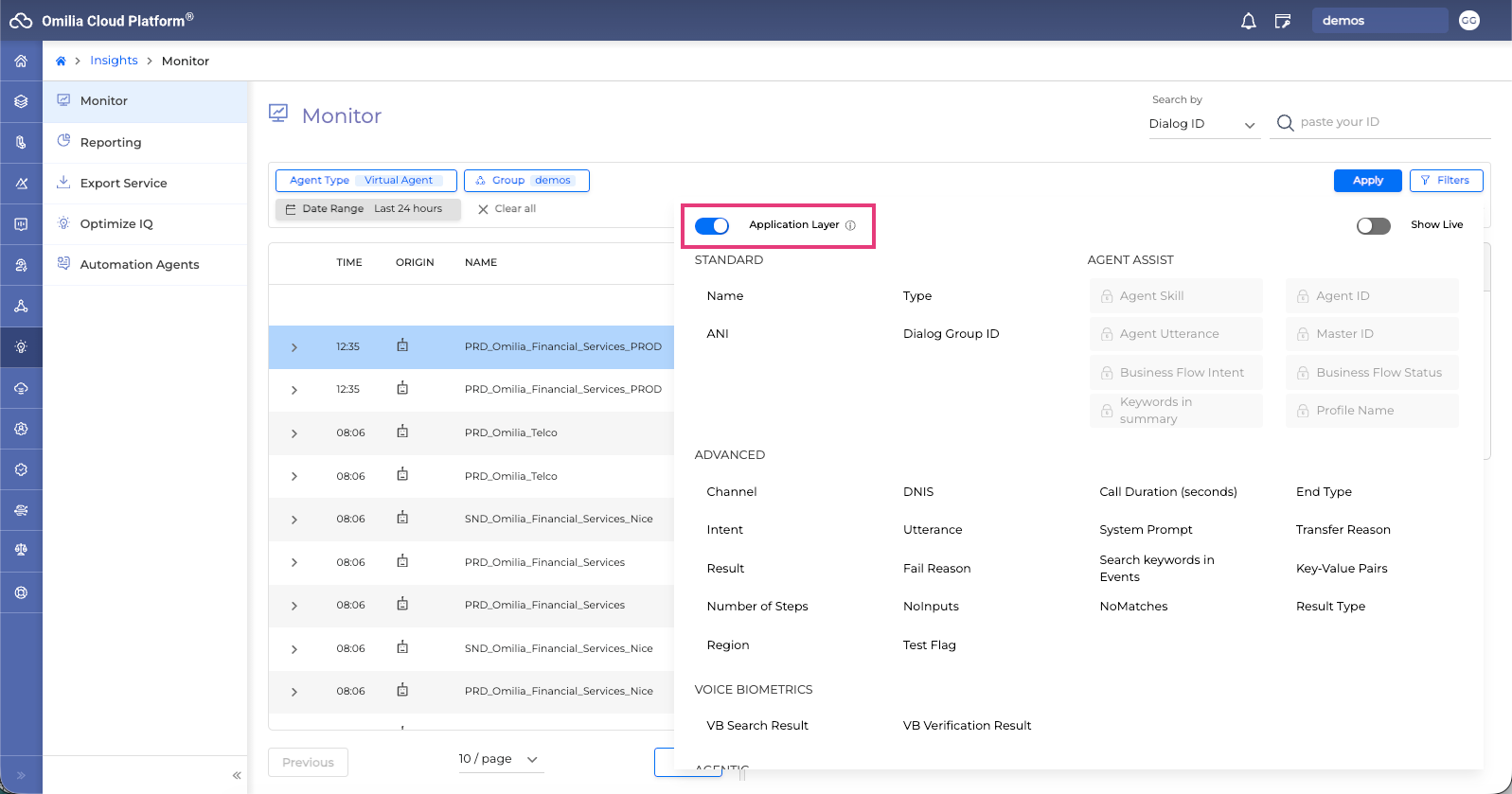
Application Layer allows you to view full end-to-end conversations only without the subcomponents, providing a clear high-level overview of each dialog in OCP.
Select an Agent Type and click the Filters button to access the Application Layer toggle button.
Once the Application Layer is activated, you can expand each Dialog Application and view its components by clicking the dropdown icon. However, if you apply the Search by filter using either Dialog ID, Connection ID, or Session ID, the hierarchical structure will not be displayed.
By default, the Application Layer is enabled.
Date Range Filter
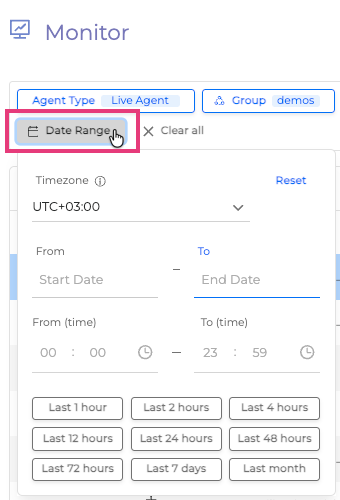
You can set your search within a specific Date/Time range using the Date Range filter. Set the Timezone, start and end dates, and start and end time, or select a specific time range to date, for example, Last 48 hours.
Advanced Search
To open the Advanced Search filters, proceed as follows:
It is recommended to disable the Application Layer for Advanced Search, especially if you are going to search for specific miniApps patterns.
-
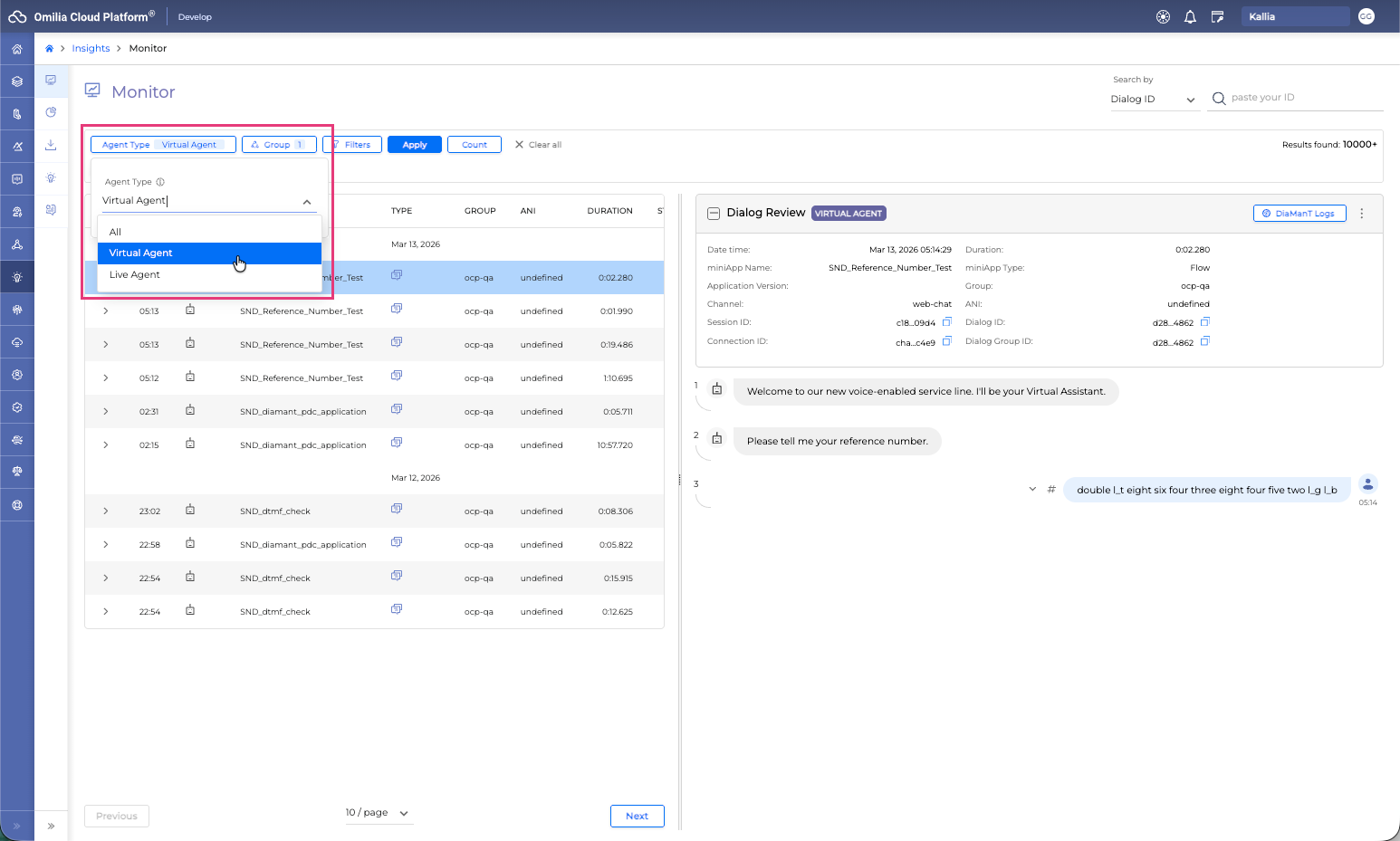
Select the Agent Type.
-
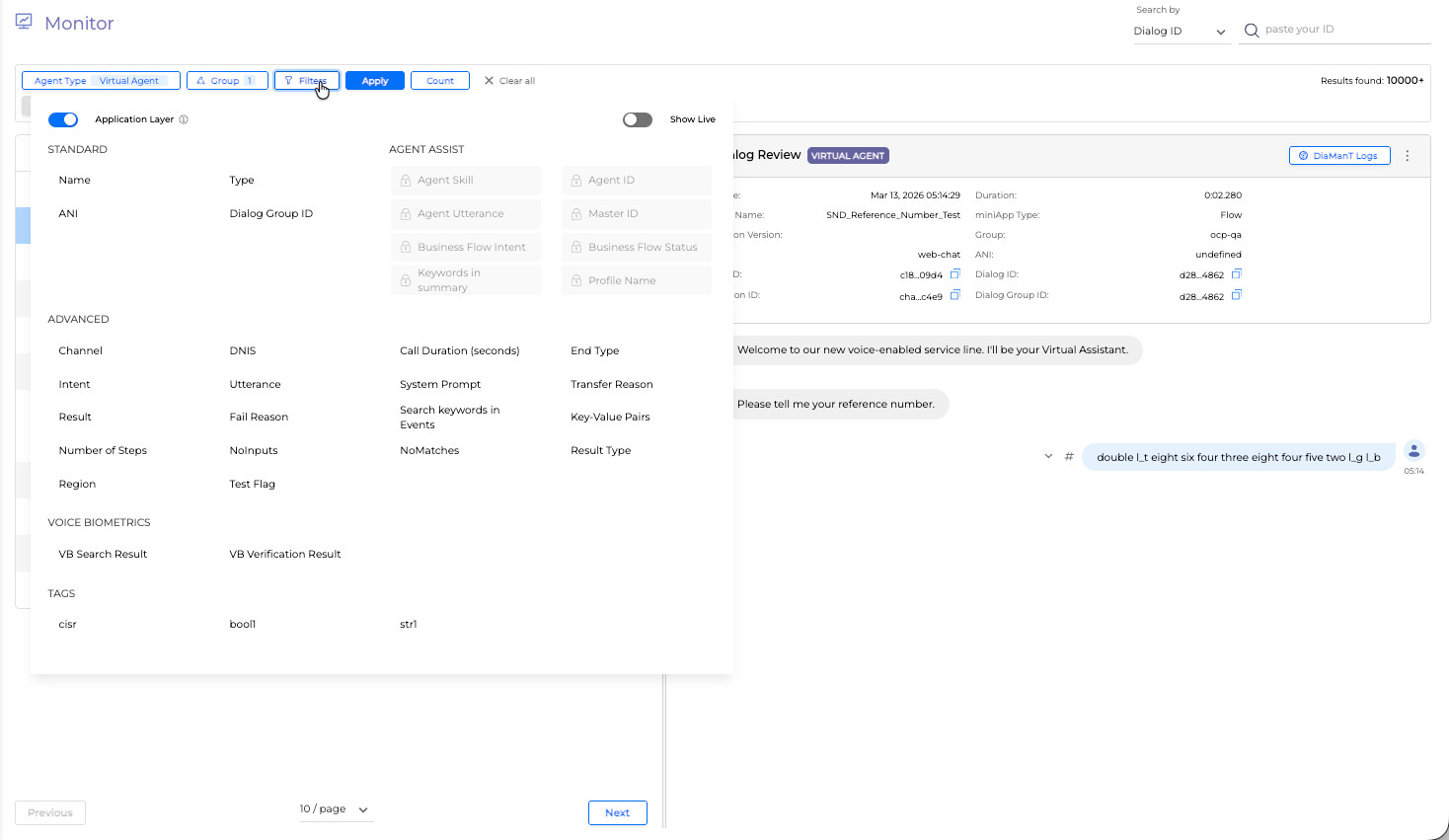
Click on Filters button.
-
The Advanced Search area opens.
-
Select the search filter fields. In the table below, you can find detailed information on each field.
-
To submit your search request, click the Apply button.
-
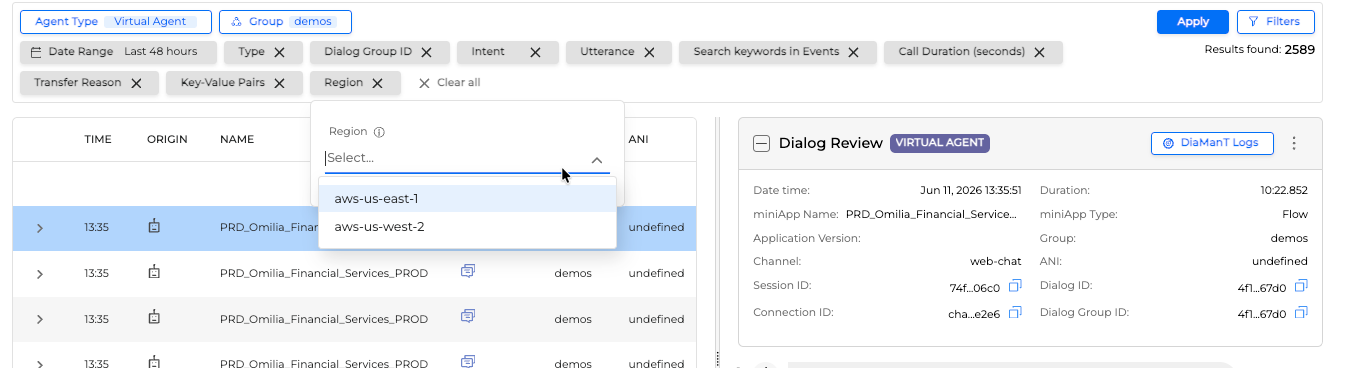
Go to each filter and add the required value or select from the drop down list.
-
The dialogs that match your selected criteria are shown in the Dialog list.
Applied filters are indicated below the Filters bar

To clear the search filter fields, click the Clear all button.
Search Filters Description
Initial filters available in the Default Filters area include:
|
|
Description |
|---|---|
|
Agent Type |
Filters by the type of agent, such as Virtual Agent. |
|
Group |
The resource group that miniApps or Flows belong to. It is possible to select multiple groups. |
|
Date Range |
Select the specific date/time period you are interested in by indicating start/end dates. |
The following filters are available upon clicking the Filters and selecting specific type of agent:
|
Filter Name |
Description |
Virtual Agent |
Live Agent |
|
|---|---|---|---|---|
|
Standard Filters |
||||
|
|
Name |
The application name. This value can be multiple. |
✓ |
|
|
|
Type |
The miniApp type. Select Flow from the dropdown list to review only Flow dialogs. |
✓ |
|
|
|
ANI |
The caller's phone number. |
✓ |
|
|
|
Dialog Group ID |
Alternative to Session ID to fetch all Dialog IDs requested by the same Orchestrator Application. |
✓ |
|
|
Agent Assist Filters |
||||
|
|
Agent Skill |
Filters by the skill group assigned to the human agent. |
|
✓ |
|
|
Agent ID |
Filters by the unique ID of the human agent. |
|
✓ |
|
|
Agent Utterance |
Searches the text typed by the human agent during the interaction. |
|
✓ |
|
|
Master ID |
The master ID for the Agent Assist session. |
|
✓ |
|
|
Business Flow Intent |
Filters by the specific agent-side business flow intent. |
|
✓ |
|
|
Business Flow Status |
Filters by the status of the agent-side business flow. |
|
✓ |
|
|
Keywords in summary |
Searches for keywords within the agent's summary notes. |
|
✓ |
|
|
Profile Name |
Filters by the associated agent profile name. |
|
✓ |
|
Advanced Filters |
||||
|
|
Channel |
The session channel of the user such as Chat, miniApps, Voice, Web chat. |
✓ |
✓ |
|
|
Intent |
Allows searching for the dialogs using multiple intents. For example, all the dialogs where the intents Balance and Payment were identified. |
✓ |
✓ |
|
|
Result |
Allows to sort by success or fail results. |
✓ |
|
|
|
Number of Steps |
Indicates the number of steps within the session. Insert a number by using Less than or equal and Greater than or equal fields. |
✓ |
|
|
|
Region |
The OCP Environment origin region. This filter is available on specific environment configuration setups only. |
✓ |
|
|
|
DNIS |
The Destination URI. |
✓ |
|
|
|
Utterance |
The caller input, such as specific keywords or phrases. |
✓ |
✓ |
|
|
Fail Reason |
Allows to filter sessions by a specific error that caused the session failure, as set up in miniApps or Orchestrator for a Flow. |
✓ |
|
|
|
NoInputs |
Indicates the number of [no_input] values within a dialog. Insert a number by using Less than or equal and Greater than or equal fields. |
✓ |
|
|
|
NoMatches |
Indicates the number of unidentified user inputs (for example, due to noise in the background or in case of out-of-domain requests). Insert a number by using Less than or equal and Greater than or equal fields. |
✓ |
|
|
|
Test Flag |
Filters dialogs by whether the session is marked as a test or non-production interaction, True or False. |
✓ |
✓ |
|
|
Call Duration (seconds) |
The duration of the call provided in seconds. Insert a number by using Less than or equal and Greater than or equal fields. |
✓ |
✓ |
|
|
System Prompt |
Omilia application system prompt. Allows searching through system responses (the gray bubbles in the Dialog Review of what the application said to the user during the call). |
✓ |
|
|
|
Search keywords in Events |
Events that happen within a dialog session. Can be used to query dialogs based on custom loggings or other identifiers. |
✓ |
|
|
|
Key-Value Pairs |
Allows searching for custom loggings as configured in Orchestrator. |
✓ |
|
|
|
End Type |
End type of the dialog (for example, NEAR_HUP, FAR_HUP, TRANSFER, SYSTEM_ERROR). |
✓ |
|
|
|
Transfer Reason |
Filters by the reason provided for a call transfer. |
✓ |
|
|
|
Result Type |
Filters by the specific category of a success or failure result. |
✓ |
|
|
Voice Biometrics Filters |
||||
|
|
VB Search Result |
Voice Biometrics search result options, including NO_USER_FOUND, FOUND_ONE, FOUND_MANY, FOUND_TOO_MANY. Indicates if any Voice Biometrics enrolled users were detected in the call. Read more in the Voice Biometrics section. It is also possible to add a custom search result option by clicking the + Create new button within the dropdown. For this filter field we perform a prefix match, meaning the search is executed for values that start with the given text. For example, if the user searches for FOUND_MANY/1, we will return results matching FOUND_MANY/1, FOUND_MANY/10, FOUND_MANY/100, and so on. |
✓ |
|
|
|
VB Verification Result |
Voice Biometrics verification result options. Read more in the Voice Biometrics section. It is also possible to add a custom verification result option by clicking the + Create new button within the dropdown. |
✓ |
|
|
Agentic Filters |
||||
|
|
Agentic App Name |
Filters dialogs by the name of the Agentic application used during the session. |
✓ |
✓ |
|
|
Agentic Type |
Filters dialogs by the type of Agentic application used during the session. |
✓ |
✓ |
|
Tags related filters |
||||
|
|
CISR |
Concept Identification Success Rate. Read more about the available values in the CISR section. |
✓ |
✓ |
|
|
Custom Boolean Tag |
It is possible to set the Custom Boolean Tag to true or false when reviewing utterances. This filter allows searching for true or false utterances previously reviewed and tagged correspondingly. |
✓ |
✓ |
|
|
Turn Detection Breakdown |
Filters dialogs by the turn-detection outcome category, such as correct_take_over, correct_pause_handling, incorrect_take_over, incorrect_pause_handling, late_take_over, unclear, or previous_turn_answer. Available values depend on the environment configuration and are mainly used in VFO environments. |
✓ |
✓ |
|
|
Custom Tag |
Allows searching for a Custom Tag keyword that was set when reviewing utterances. |
✓ |
✓ |
The available tags (CISR, Custom Boolean Tag, and Custom Tag) depend on the environment configuration. Additional tags are available in specific environments.
Text Matching
We use a Standard Text Matching analysis to process step’s prompts and utterances and an Events Matching Approach for dialog events. Both of them use a list of terms parsed from the text instead of the whole text, but in a different way to ensure the best accuracy.
The Standard Text Matching analysis:
-
matches all the words of the given text;
-
does not care about the words’ order;
-
matches all the given words anywhere in the text;
-
case insensitive.
Example
This text:
Welcome to our new voice-enabled service line. I'll be your Virtual Assistant.
will have the following matches:
-
“welcome” (single word match)
-
“welcome to our new“ (all words match)
-
“Welcome” (case insensitive)
-
“Welcome to our...” (ignores trailing punctuation)
-
“assistant service Welcome” (ignores word order)
and will not match the following:
-
“Hello welcome to our” (not all words match)
-
“come” (any random substring won’t match)
The Events analysis:
-
matches all the words of the given text;
-
cares about the words’ order (to avoid wrong matches, due to events string format);
-
matches consecutive words (phrases);
-
case-insensitive.
Example
This text:
“DialogGroupID:13188be3907c4f340d69479834b07b0a5fb64b6d.1712755163180.49a7bca9167e4d1eb1c2aceb8f3592d1,FlowName:MiniApps,appId:c958d295-9348-4899-9783-e09a5e8abcec.Card_GetAccessToken_WebService.WebService.MiniApps.ocp-qa,requestId:undefined,envMode:DEV,testMode:true,Locale:en-US,globalResult:fail:apiException,HUP:Custom FailExitReason,HUP:NEAR,endType:NEAR_HUP,billable:false”
will have the following matches:
-
“DialogGroupID” (single word match)
-
“dialoggroupid” (case insensitive)
-
“globalResult fail apiException HUP Custom FailExitReason” (all words match)
-
“globalResult:fail:apiException,HUP:Custom FailExitReason” (ignores punctuation)
-
“globalResult:fail:apiException” (fail with reason)
-
“globalResult:fail” (fail with no reason)
-
“13188be3907c4f340d69479834b07b0a5fb64b6d.1712755163180.49a7bca9167e4d1eb1c2aceb8f3592d1” (group ID match)
-
“Webservice” (other word from the list of tokens)
-
other IDs or app name/org which could be found in event string
and will not match the following:
-
“globalResult fail HUP FailExitReason” (words in order but not consecutive)
-
“FailExitReason DialogGroupID HUP” (random word order)
-
“group” (any random substring won’t match)
For an overview of all OCP® Monitor components, see OCP® Monitor User Guide.