.svg)
Insights
The Insights tab appears under the Run History section (scroll down). It provides an intuitive view of your project's test results.
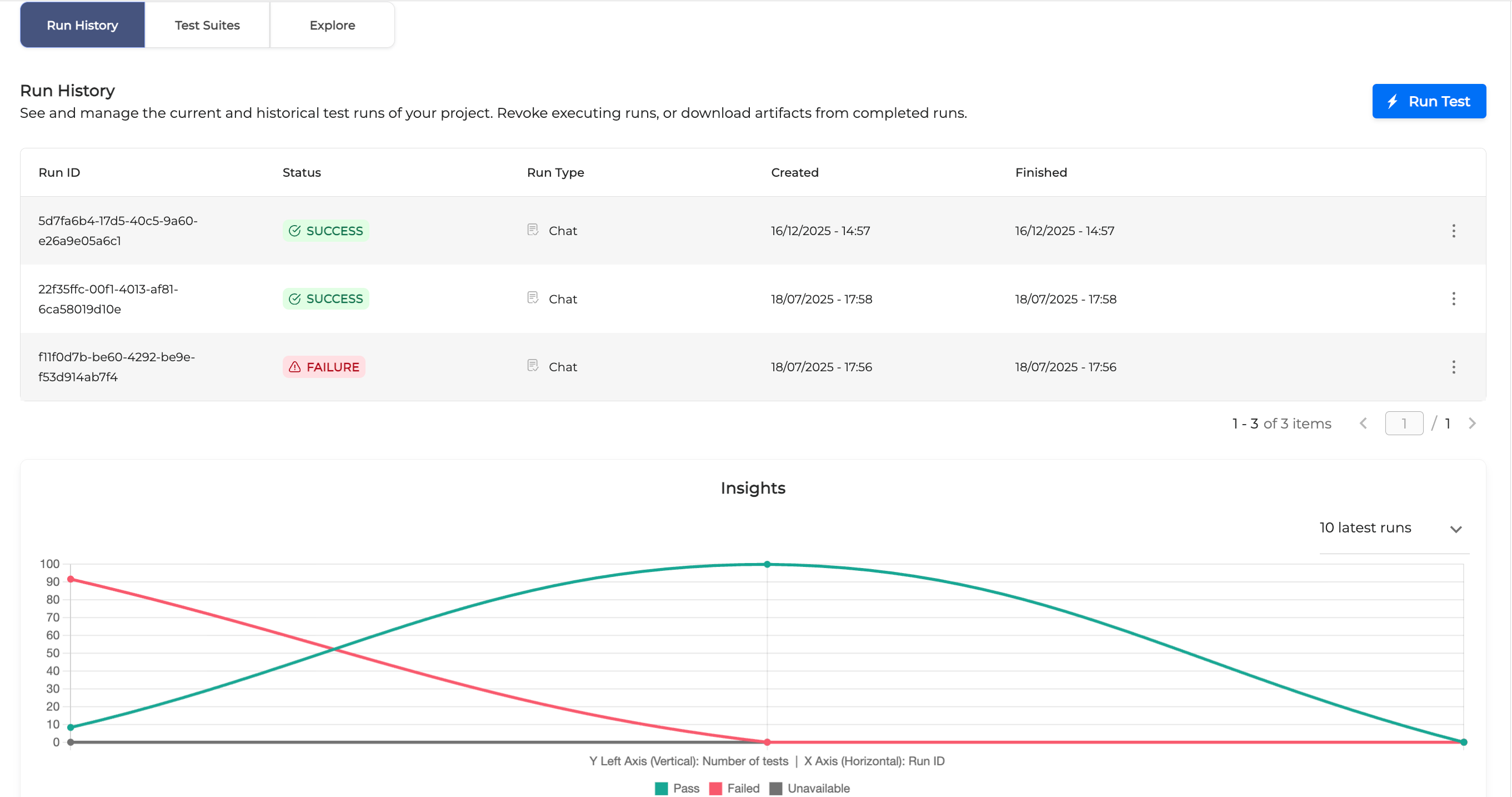
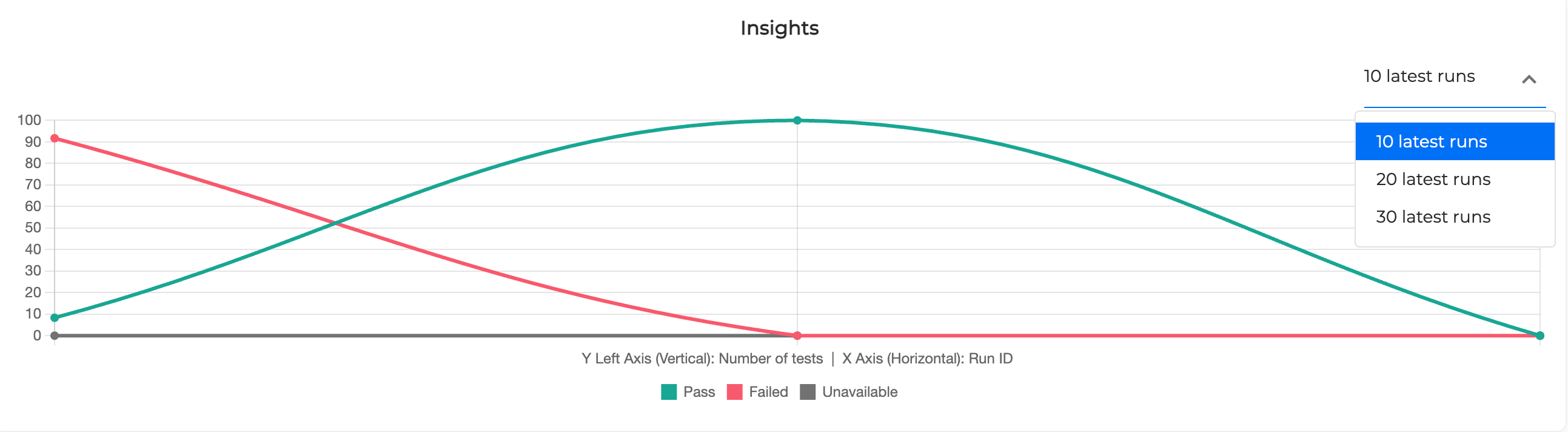
By default, the result of 10 latest runs are shown. You can can change this option by selecting 20 or 30 latest runs from the dropdown list:
Hover over a graph to see a percentage information:
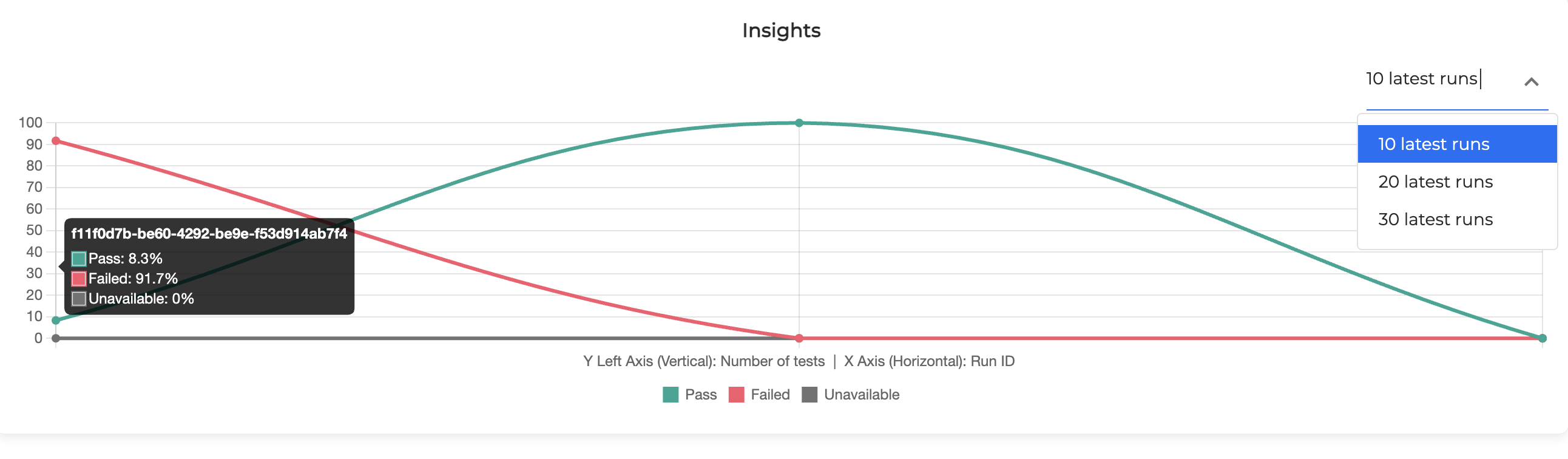
By default the following test cases are included into the graph results:
-
Passed: Successfully executed test cases
-
Failed: Test cases that failed to run
-
Unavailable: Test cases generated by Testing Studio+ and having no golden dialogs
The Pending or Revoked test cases are not included into this statistics.
The graph gives you a visual idea of the test execution trend.
The goal to strive for is to have all test runs green (successfully passed) and none grey or red.
You can exclude some of the test cases from the result by clicking on its status as shown below:
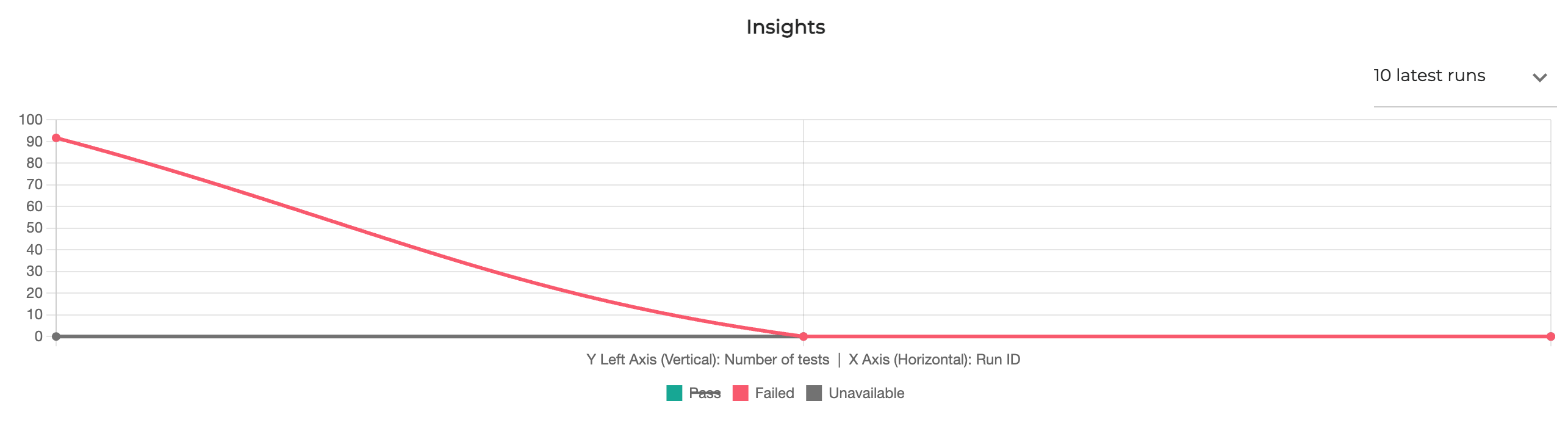
As you see, the Pass test cases are not included.
To get a detailed information about a test run, click on it and the corresponding Test Run page opens.
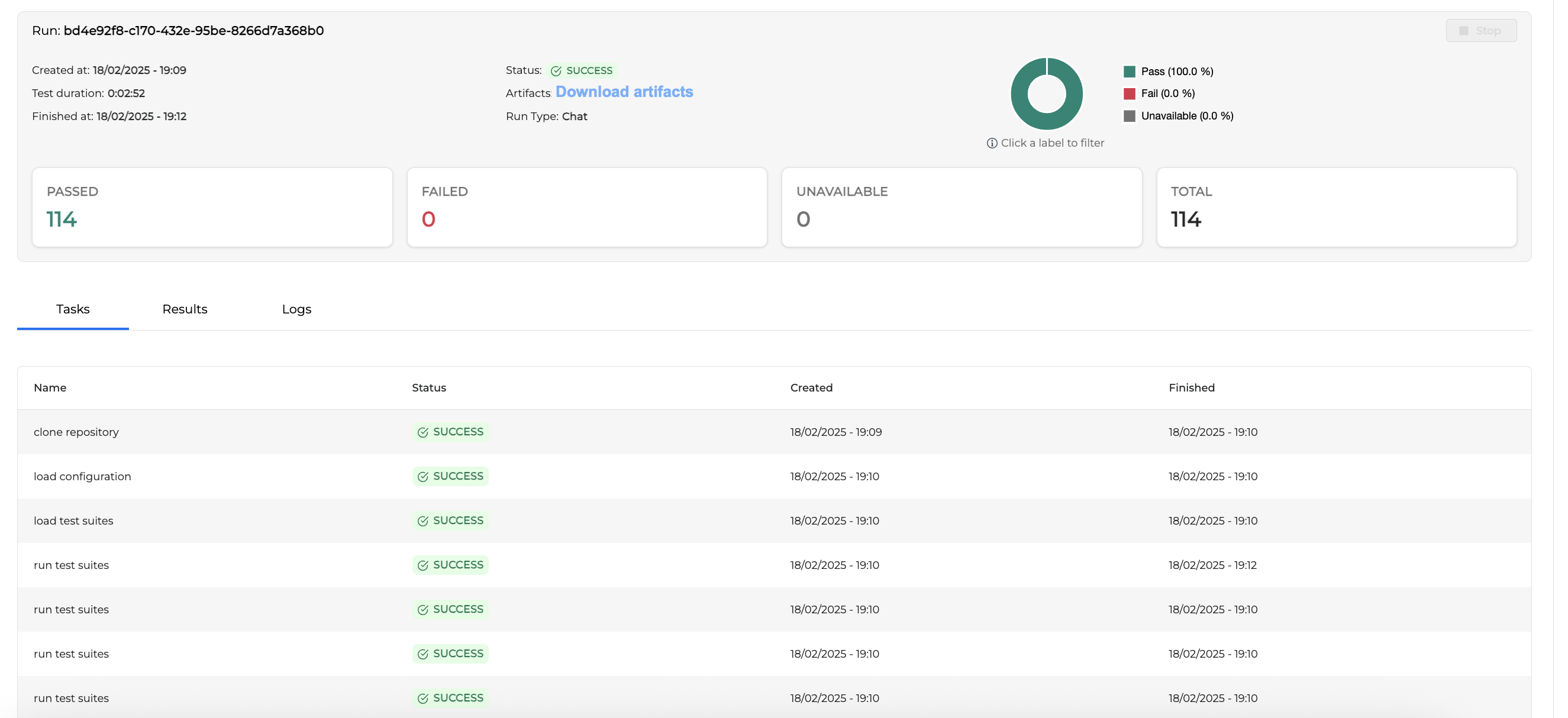
Test Run Details
The page header contains a detailed information about a selected test run.

-
Run number: Test run ID number
-
Created at: Test run creation timestamp
-
Test Duration: Test run duration
-
Finished at: Test run completion timestamp
-
Status: Test run status
-
Download Artifacts: This button allows for downloading Artifacts. You can read more about Artifacts.
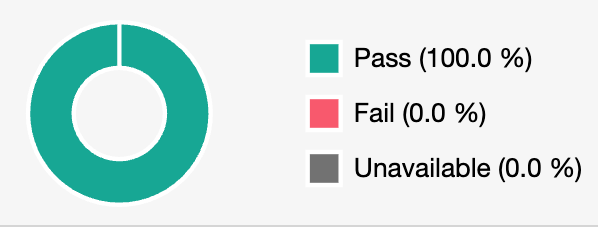
The graph in the header shows a brief statistics on the executed test cases:
-
Passed: The percentage of successfully executed test cases
-
Failed: The percentage of test cases that failed to run
-
Unavailable: The percentage of test cases having no golden dialogs
Tasks Tab
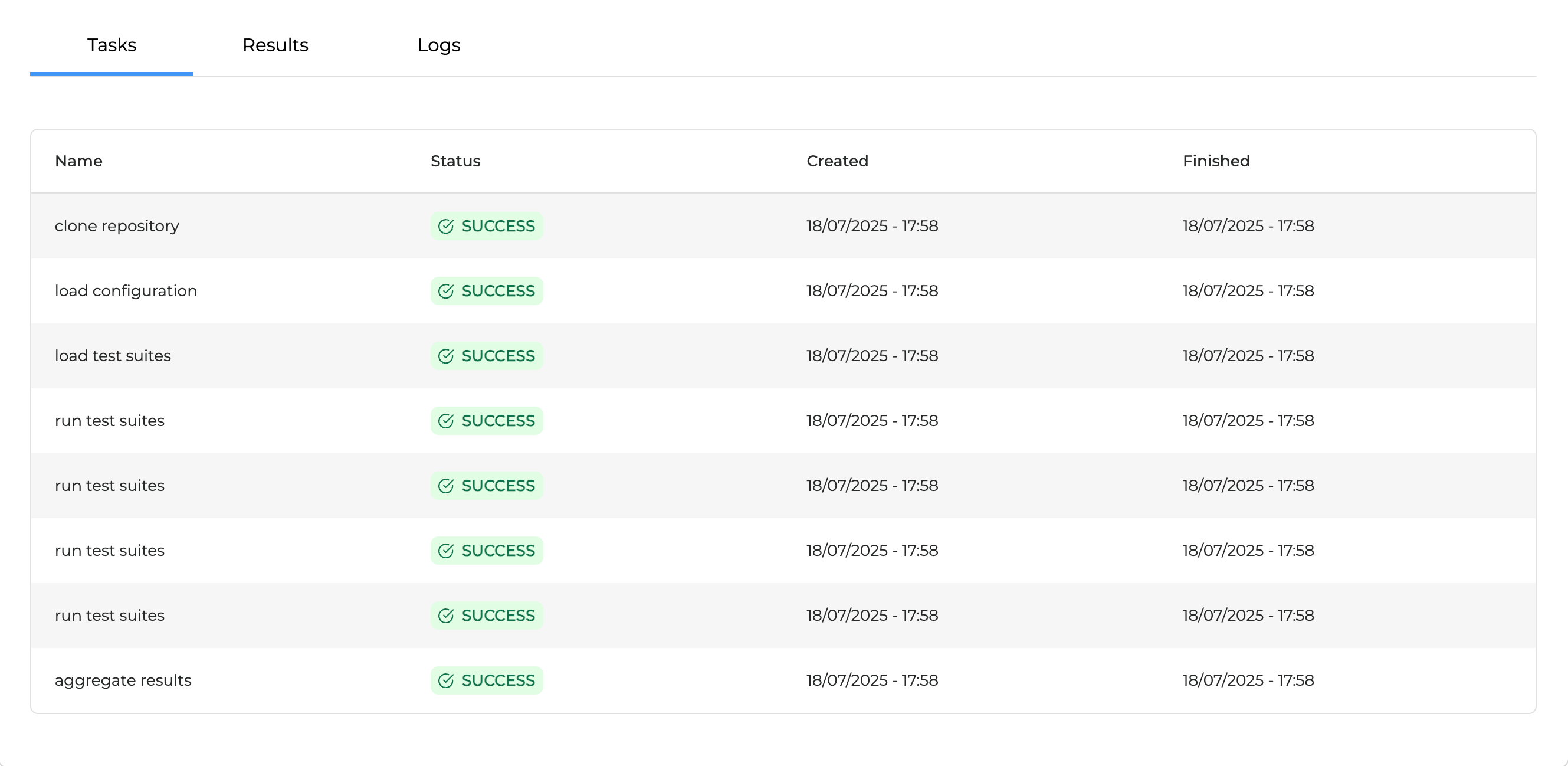
The Tasks tab displays the tasks list performed during a test run.
-
Name: Tasks names performed during a test run. Each task has a detailed log which is available in the Logs tab. The following tasks are usually executed:
-
Clone repository
-
Load configuration
-
Load test suites
-
Run test suites
-
Aggregate results
-
-
Status: Status of a task
-
Created: Task creation timestamp
-
Finished: Task completion timestamp
Results Tab
The Results tab displays the information about all test cases (Succeeded, Failed, Unavailable) per each test suite.
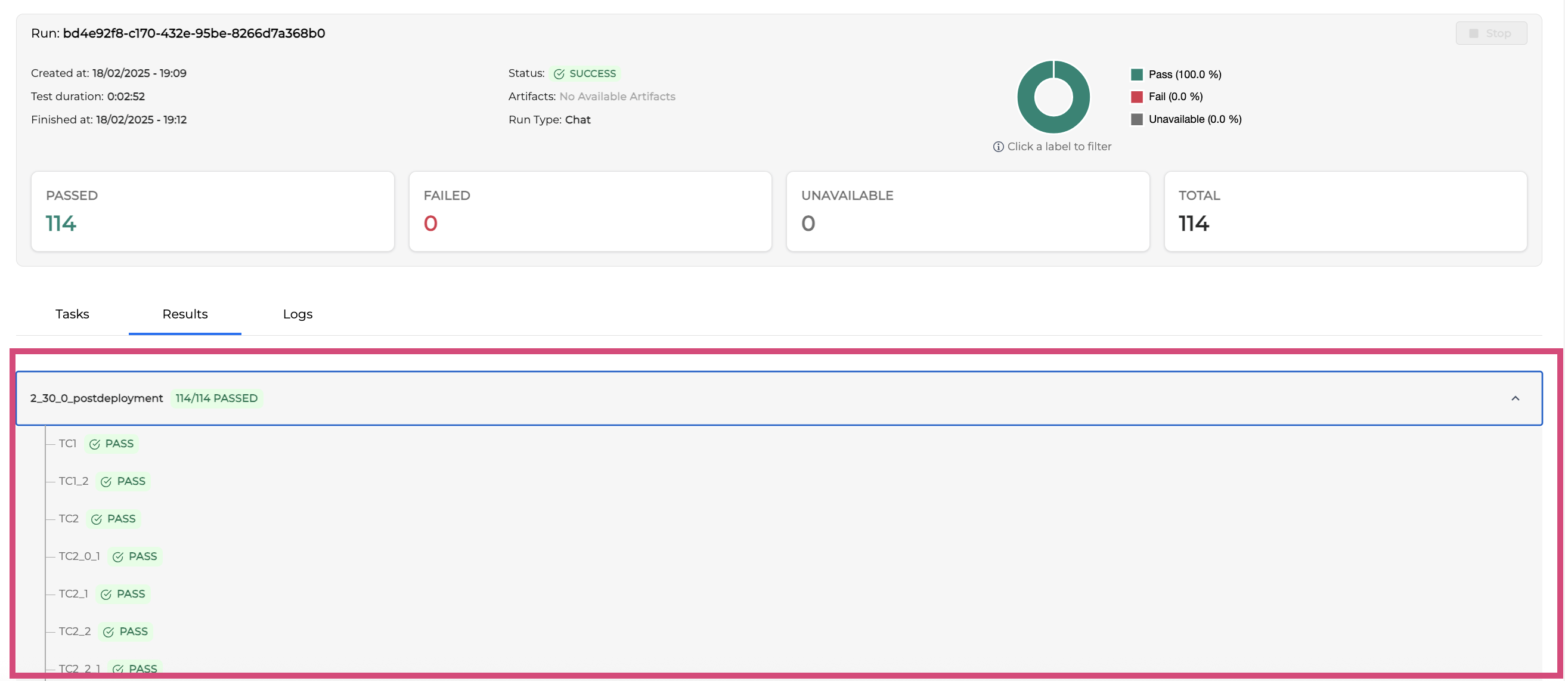
You can filter out cases by clicking on the Pass, Fail and Unavailable to display only the desired results.
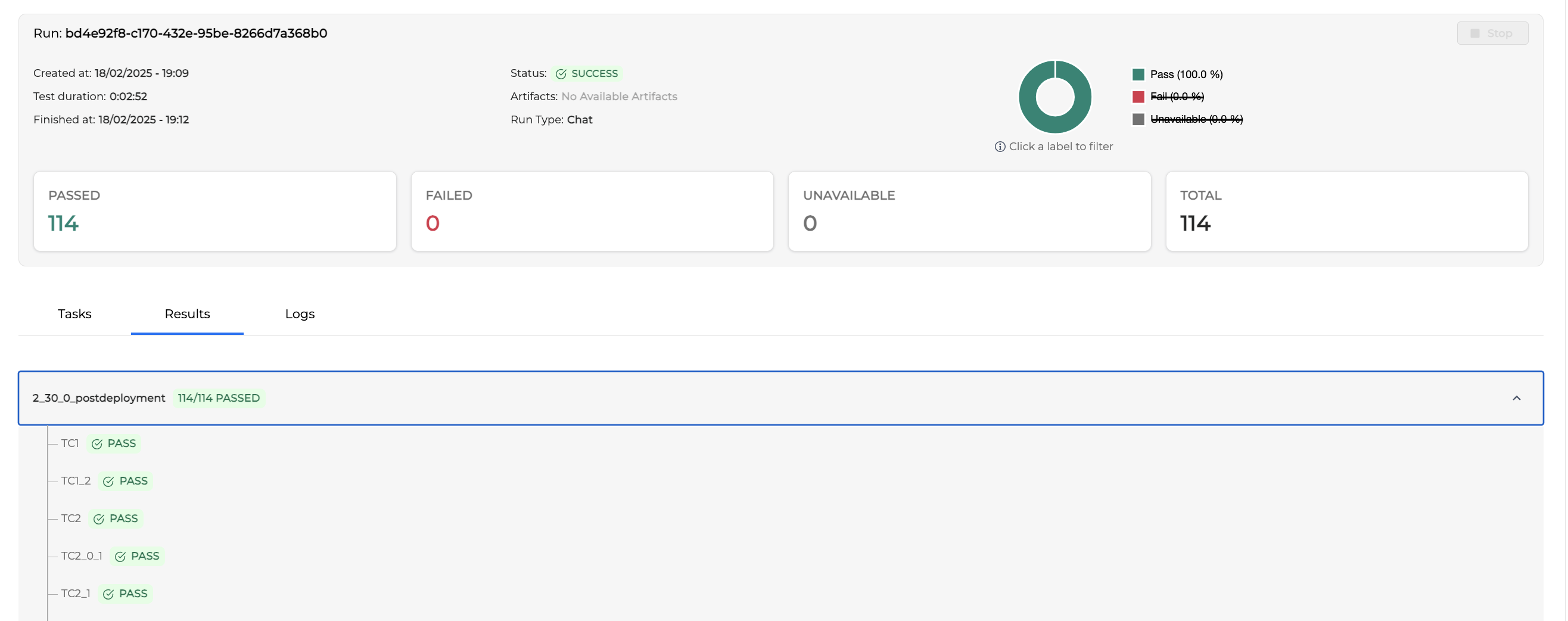

The same information is contained in the output folder of artifacts.
Click on a selected test suite to unfold the information about the test cases. Then click on a test case to get the test result information as shown below:
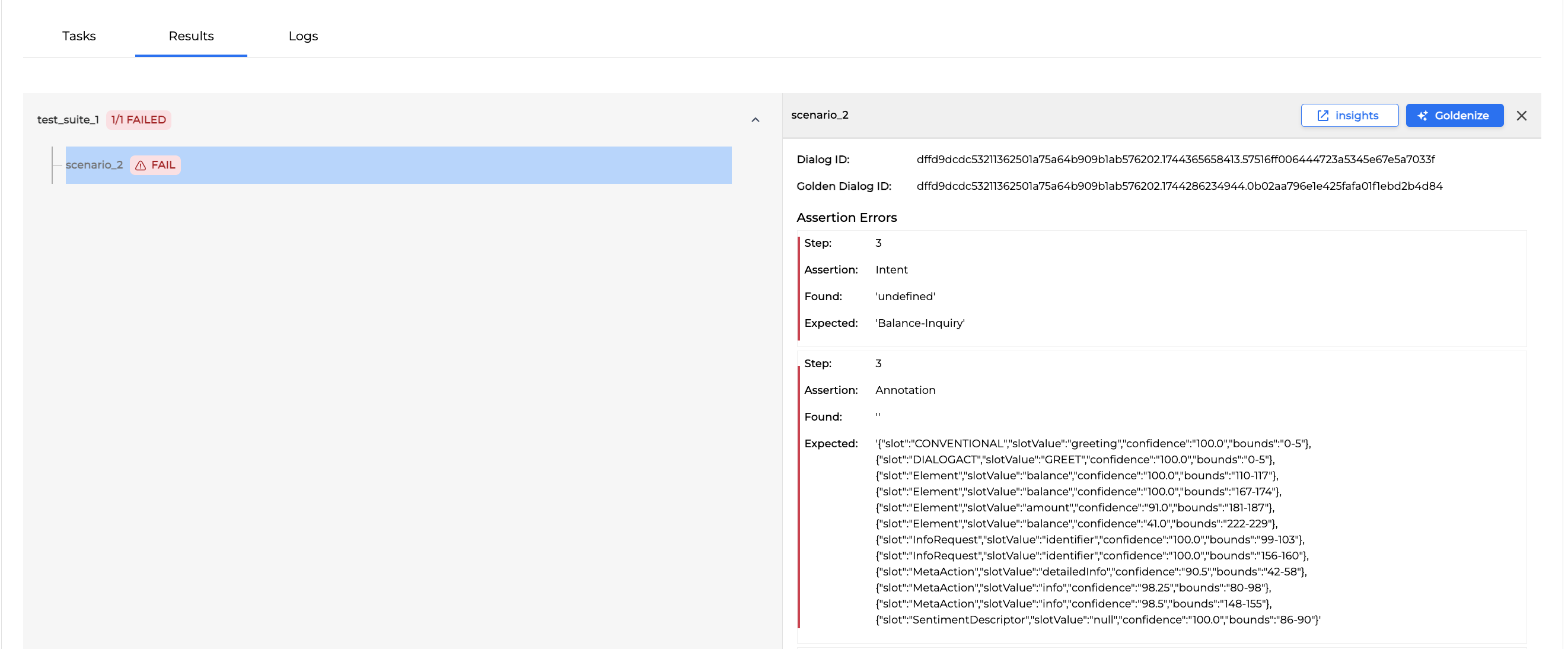
The test result may contain the following information:
|
Property |
Description |
|---|---|
|
Dialog ID |
The dialog ID number |
|
Golden Dialog ID |
The golden dialog ID number |
|
Assertion Errors |
Errors occurred during asserting the expected and return outcome. The following error information is available:
|
|
General Errors |
Errors occurred due to the system failures. E.g. The dialog unexpectedly ended. The following error information is available:
|
|
Warnings |
May contain warnings, e.g. a delay warning due to the system high load |
Goldenize a Test Case
You can goldenize a Failed or Unavailable test case directly from the Results tab, without manually moving files from the output/ folder.
Goldenizing a test case promotes the dialog produced during the run to the golden dialog for that test case. Once goldenized, the test case will use this dialog as the reference for all future test runs.
To goldenize a test case, follow the steps below:
-
In the Results tab, locate the Failed or Unavailable test case you want to goldenize.
-
Click the Goldenize button.
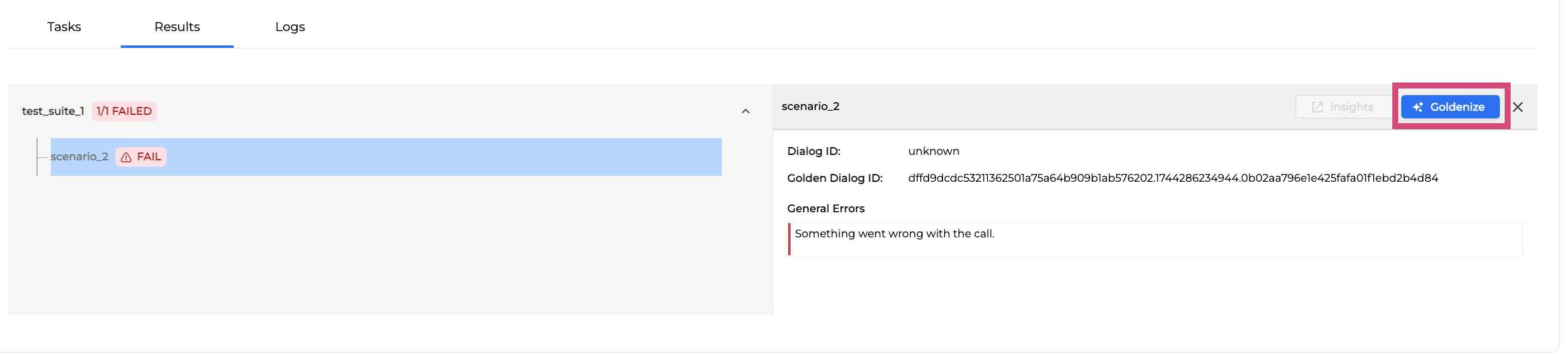
-
Confirm the action when prompted.
The selected dialog is saved as the new golden dialog for the test case. The test case status will change from Unavailable or Failed to active on the next run.
Only Failed and Unavailable test cases can be goldenized. Successfully passed test cases already have a valid golden dialog.
Dialog Review Insights
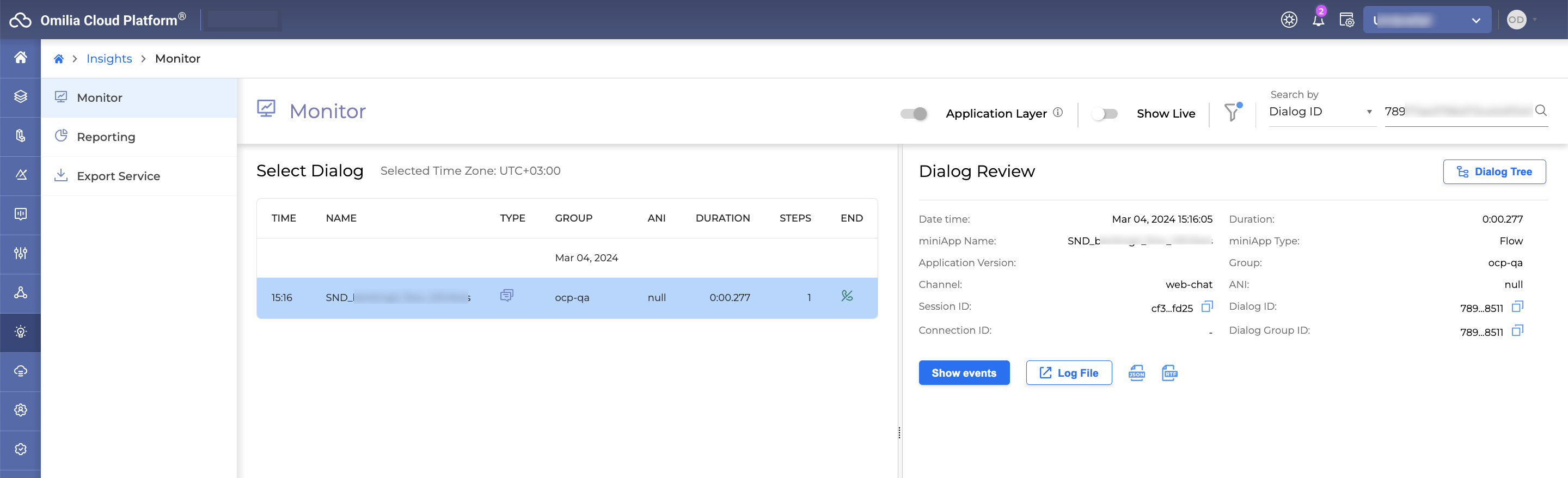
To check a detailed information about the dialog used in the selected test case, click the Insights button.
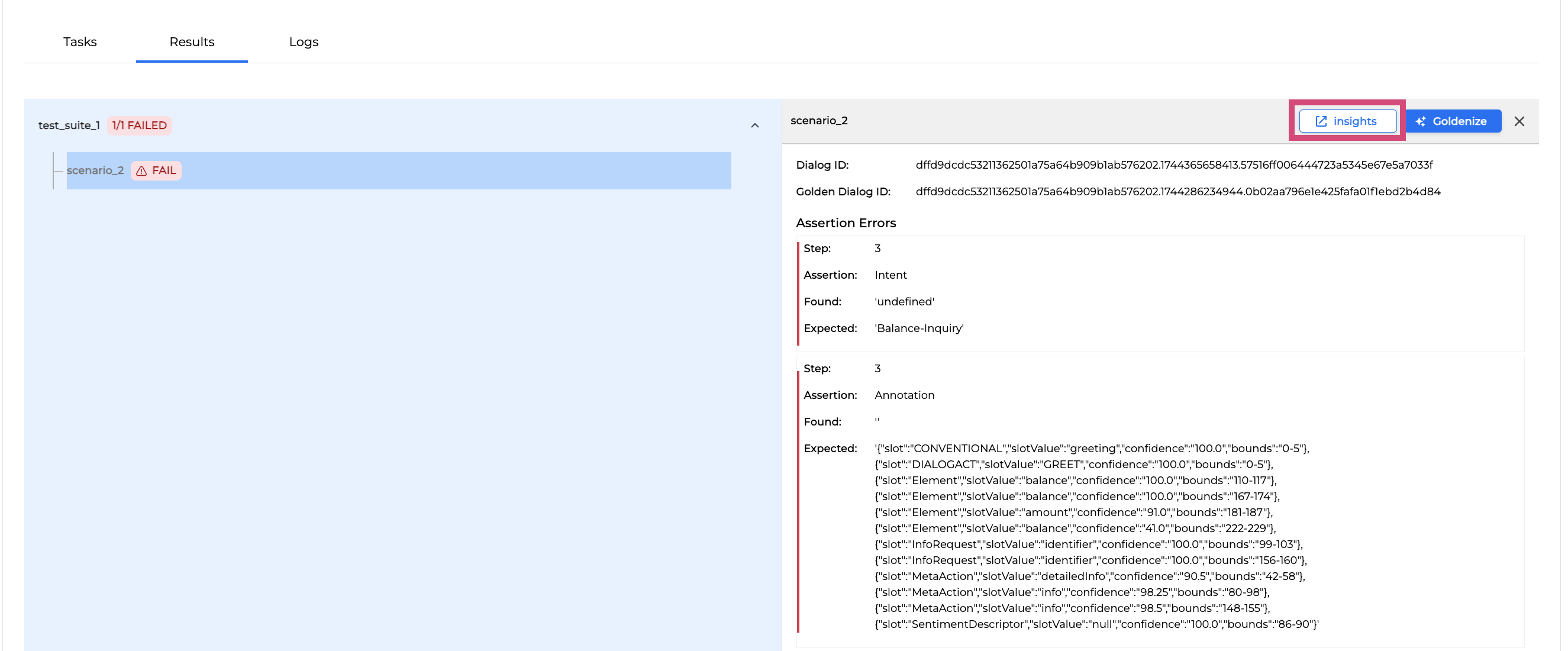
Thus, you will be forwarded to the Dialog Review in Monitor as shown on the image below. For more information, check up Monitor User Guide.
Logs Tab
Tests are run outside Testing Studio+ by distributed workers. The Logs tab allows you to see detailed logs of each task executed during a test run.
The tasks' names are marked in green. The task logs are written in white.
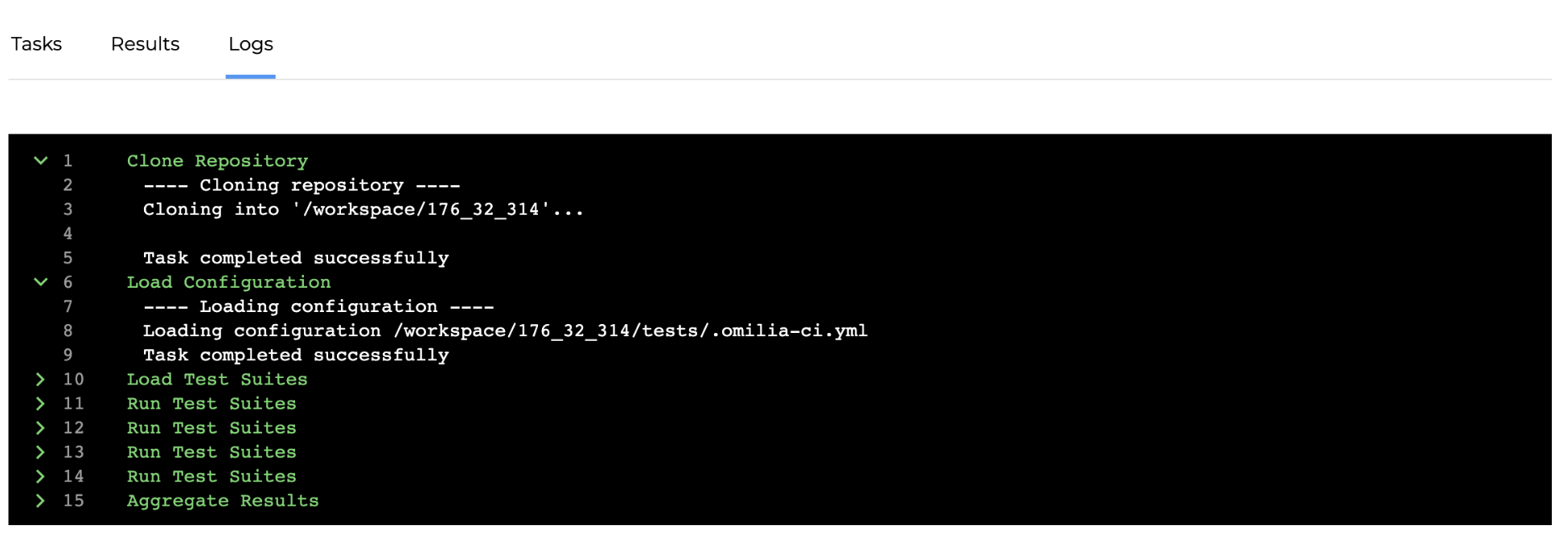
The information in the Logs tab becomes available right after the test run starts and is updated in the real time.