.svg)
Explore Tab
The Explore feature allows you to simulate a conversation between your dialog application and LLM to explore your application’s boundaries by identifying areas that might not be yet supported or possible issues. This enables you to prevent potential problems while using the dialog application in a real conversation.
Start Exploration
To create an exploration session, follow the steps below:
-
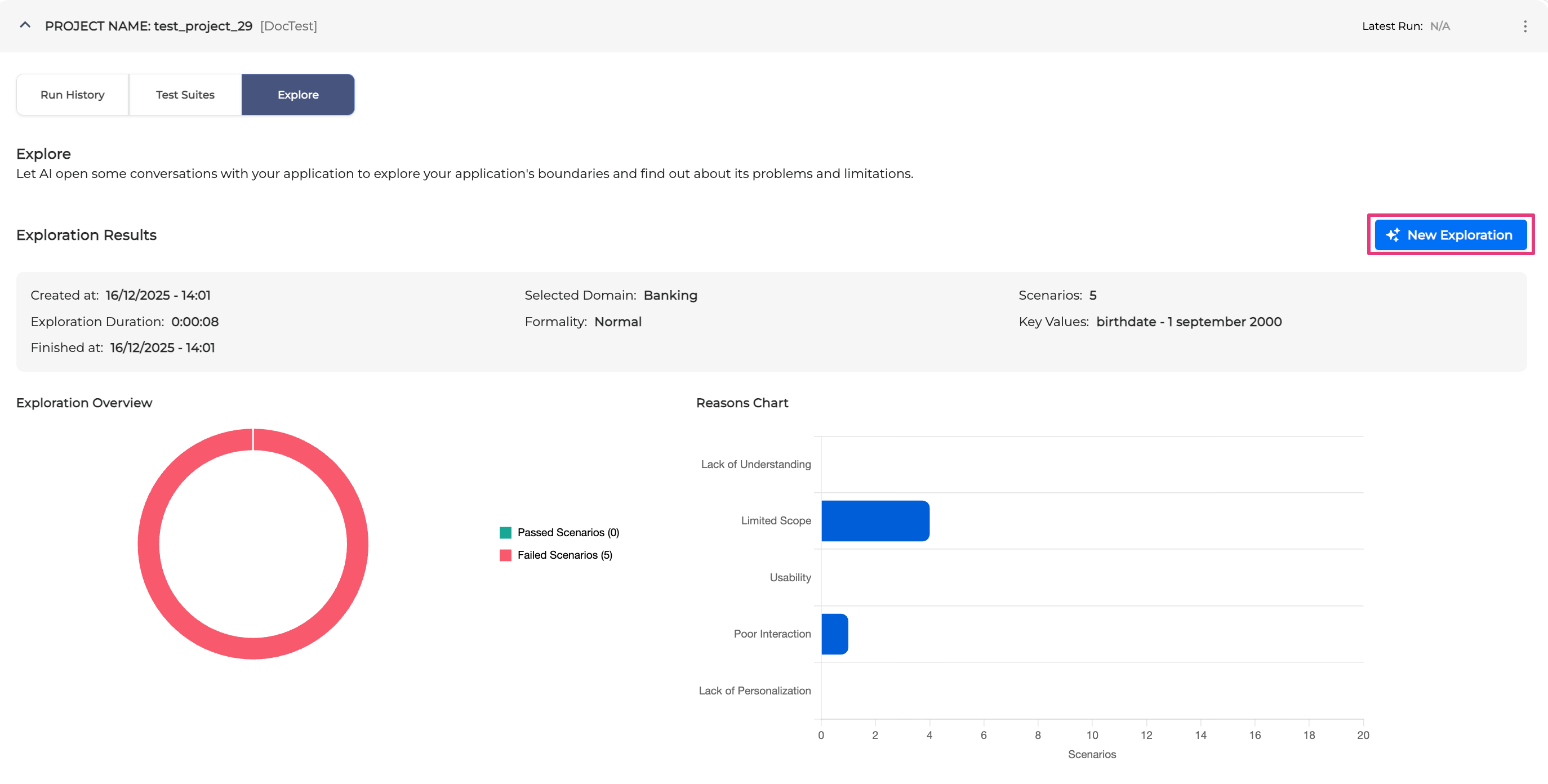
Click the New Exploration button in the upper right.
-
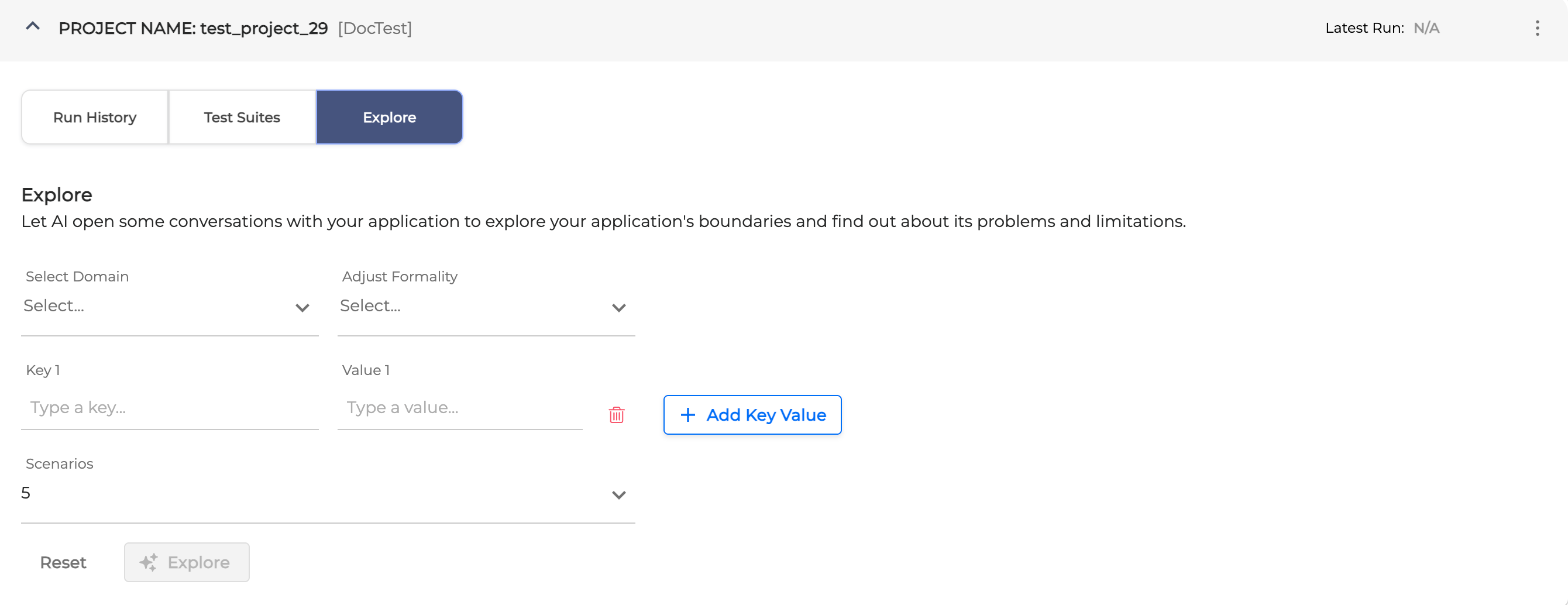
Fill in the form and hit the Explore button when finished:
-
Select Domain: choose the domain from the dropdown list. For example, pick Banking (mandatory).
-
Adjust Formality: select the formality level from the dropdown list. The formality level could be Informal, Normal or Formal (mandatory).
-
Key-Value: add the Key-Value pair to provide the additional information as a birth date or card PIN that the app may ask (optional).
-
Scenarios: define the number of scenarios LLM will run to check the dialog application.
-
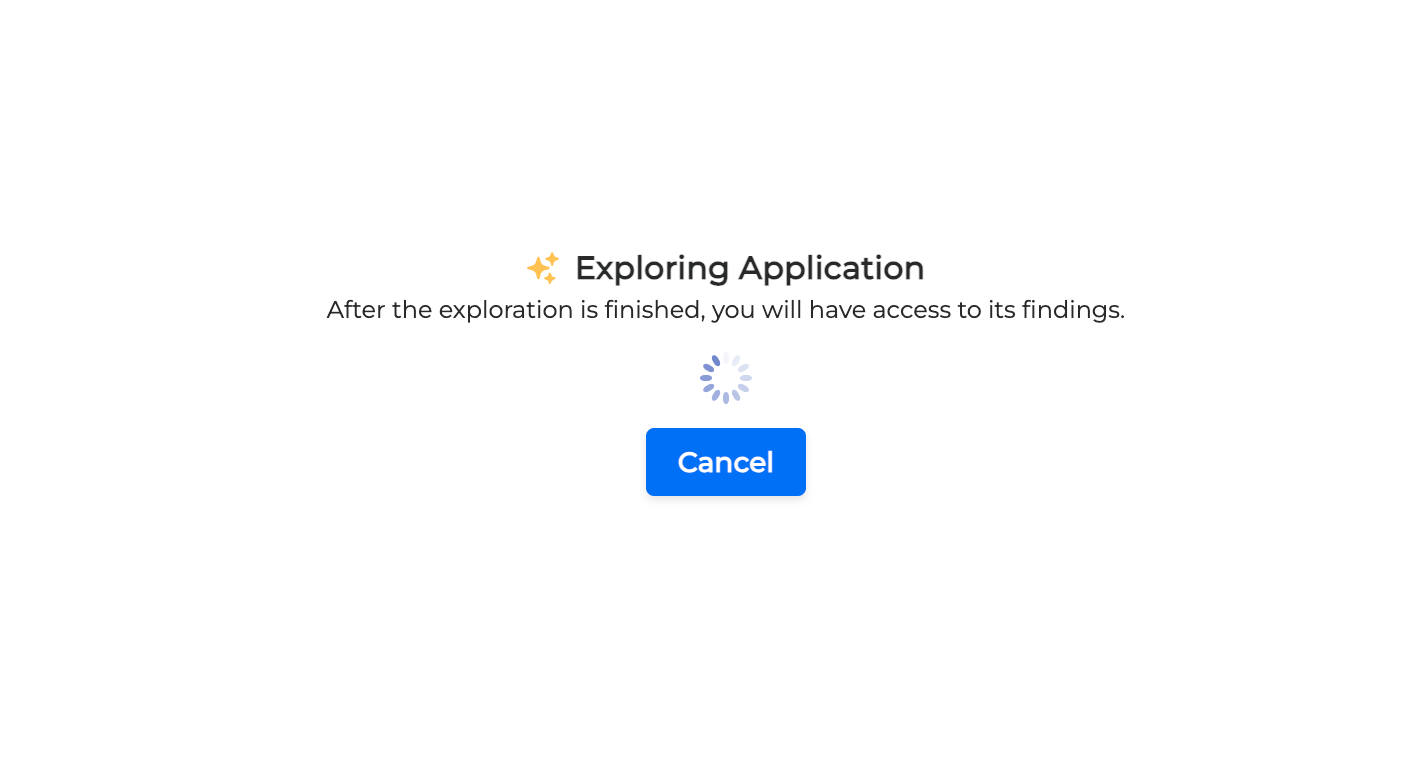
After clicking the Explore button, it might take some time for LLM and dialog application to communicate.
-
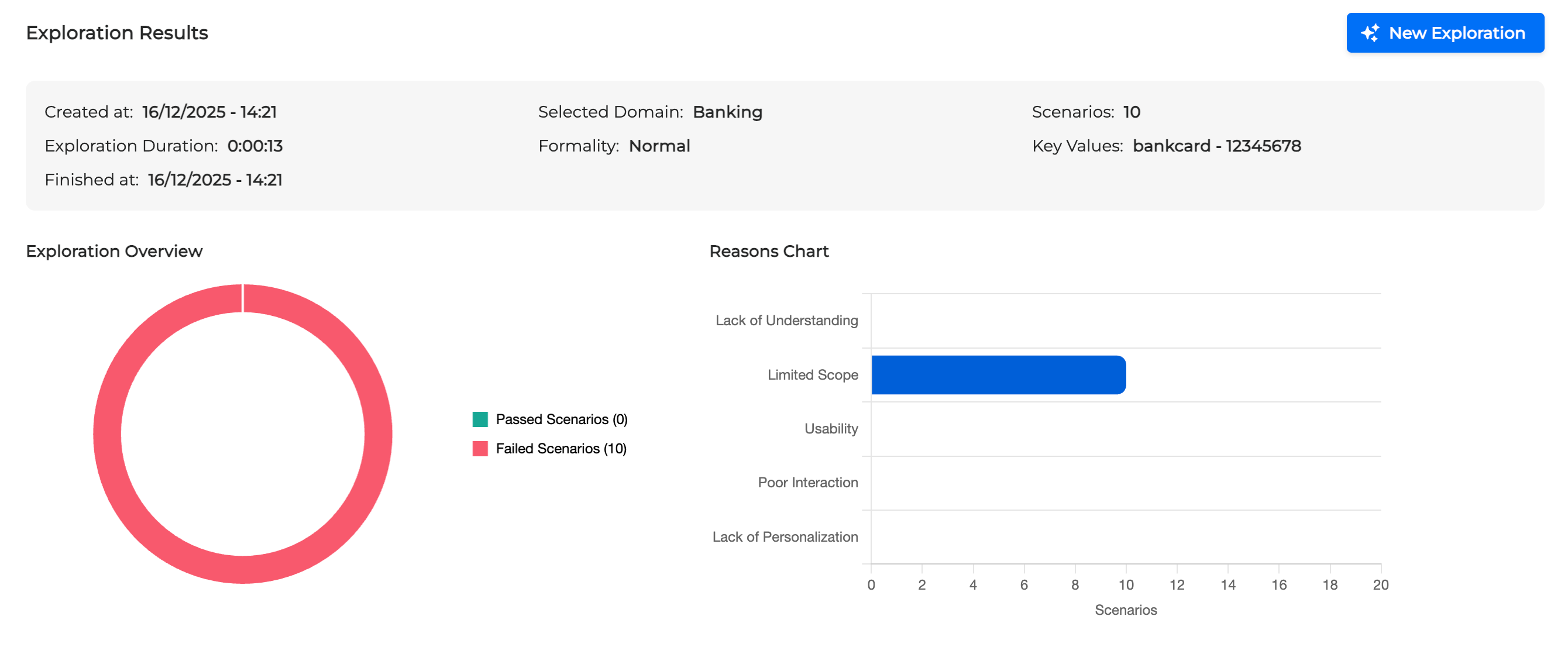
Once finished, you are redirected to the Exploration Results chart.
Exploration Results
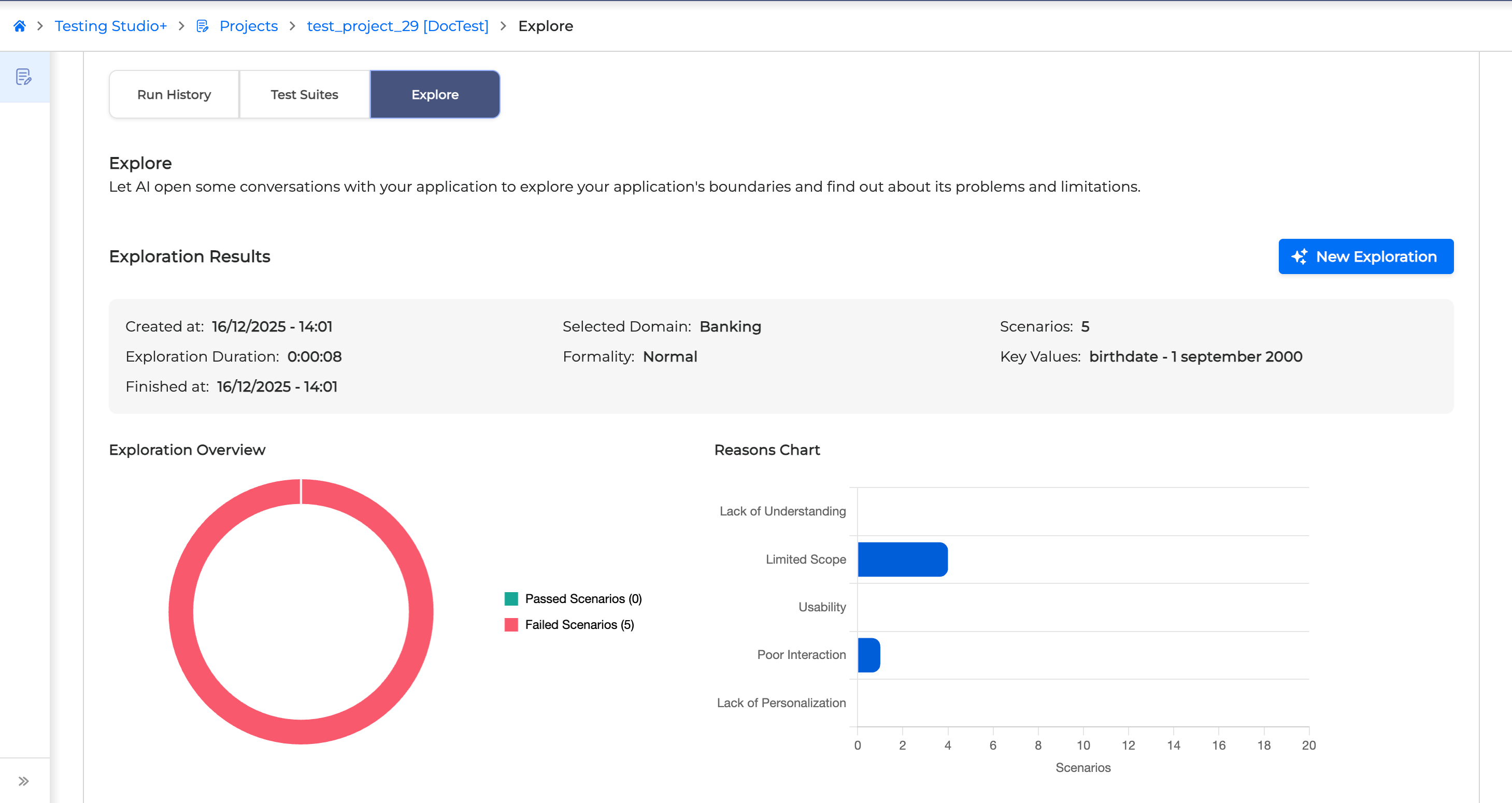
The Exploration Results provide a summary of the exploration sessions, offering detailed information about the conversation between the LLM and your application in a chart view. It allows you to assess the comprehensiveness of the dialog application and identify any potential failure reasons.
Dialogs List
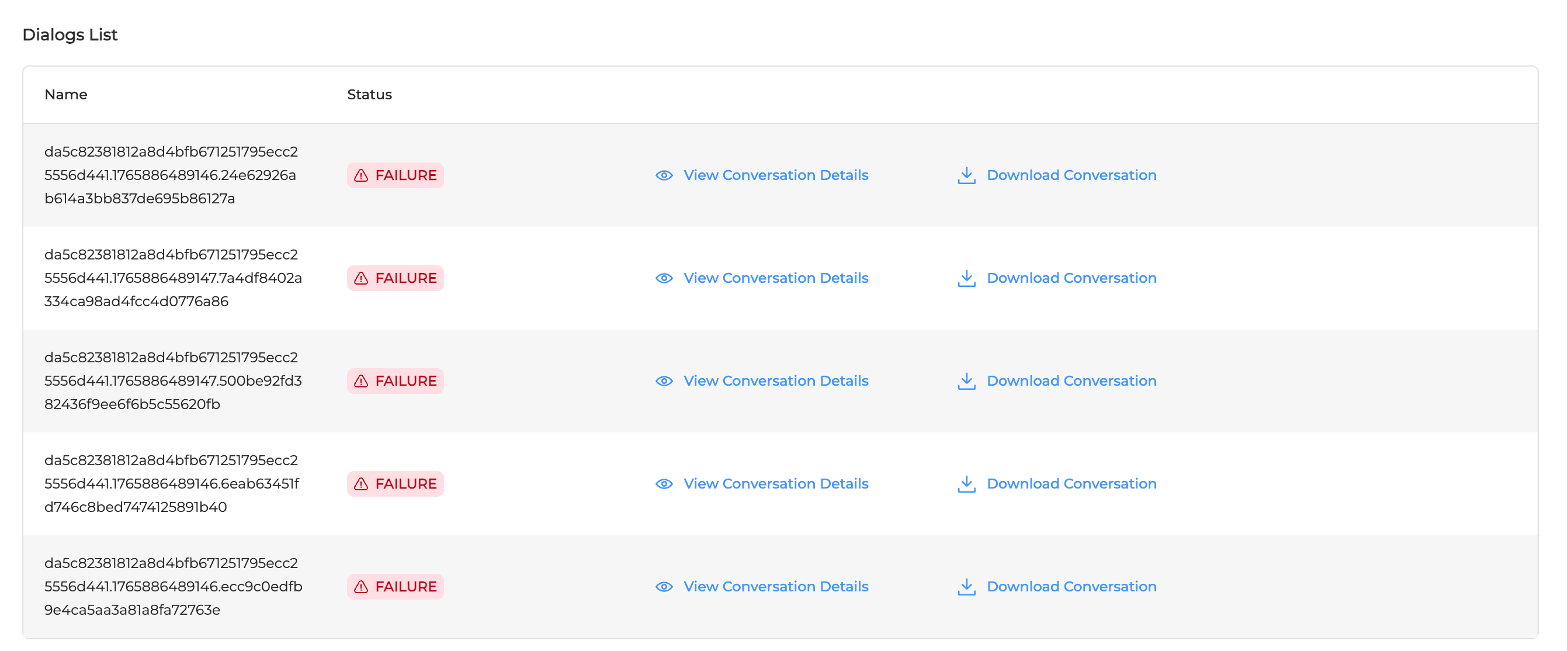
The Dialogs List comprises the conversations that have taken place between your dialog application and LLM.
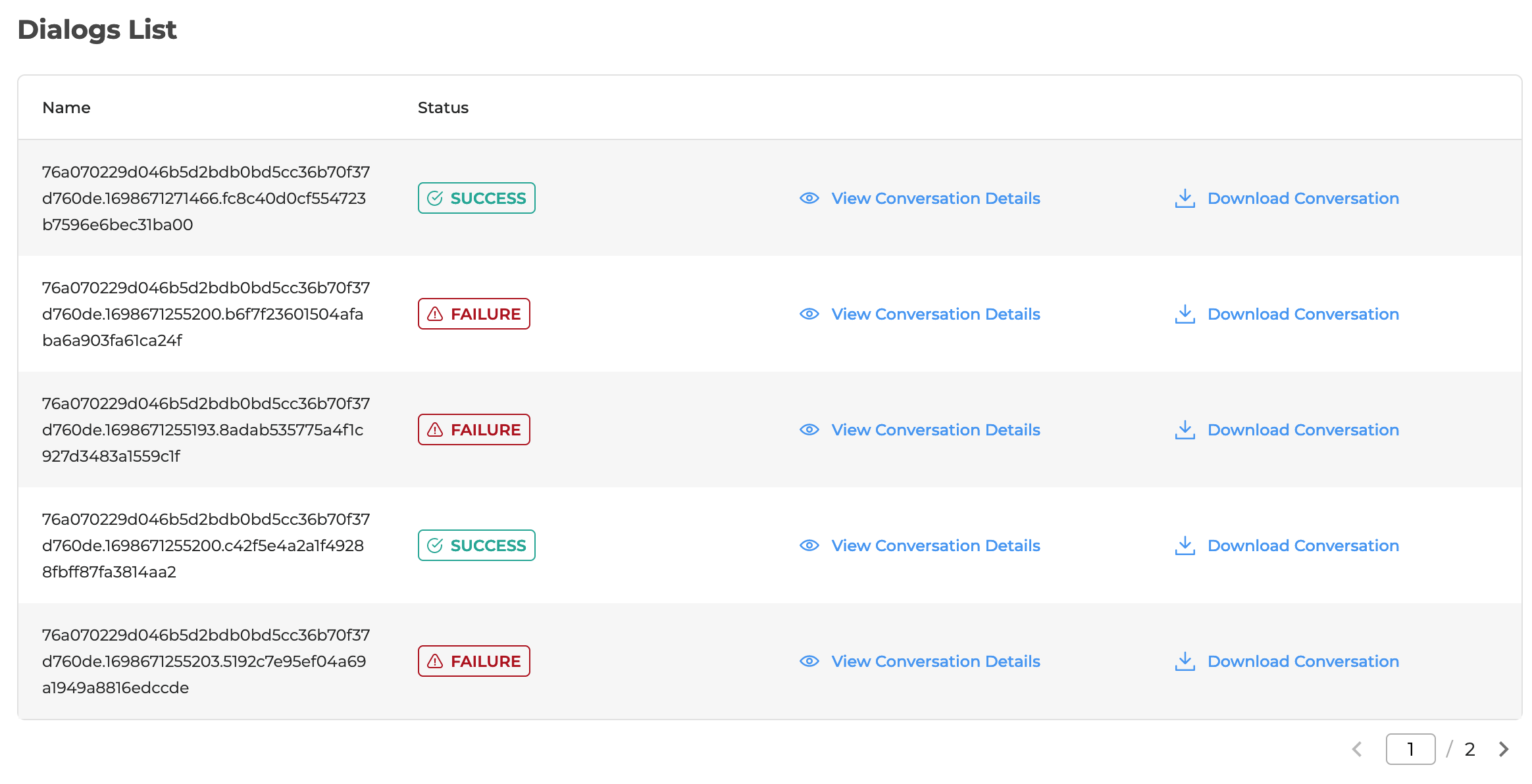
In this section you can perform the following actions:
-
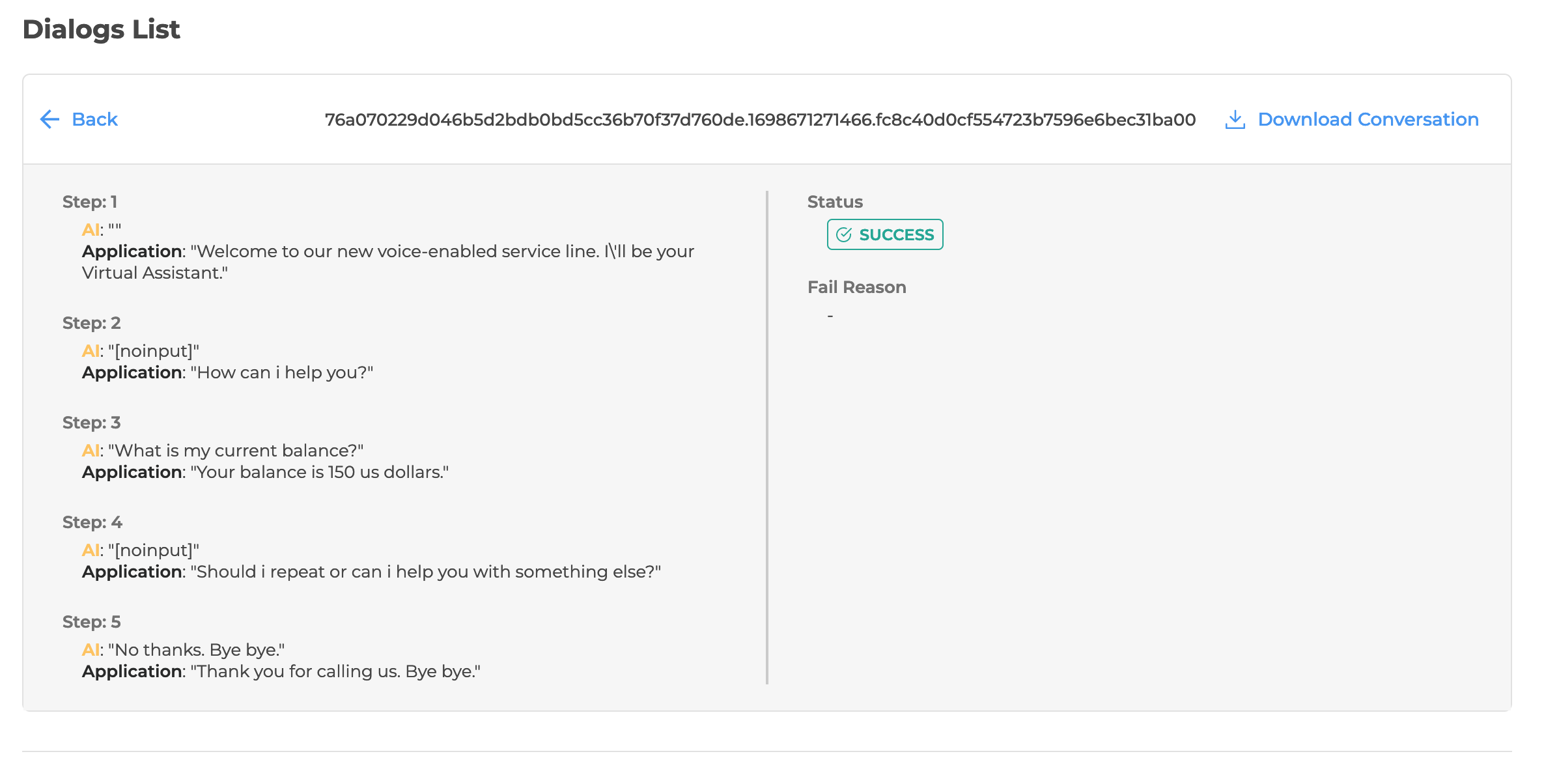
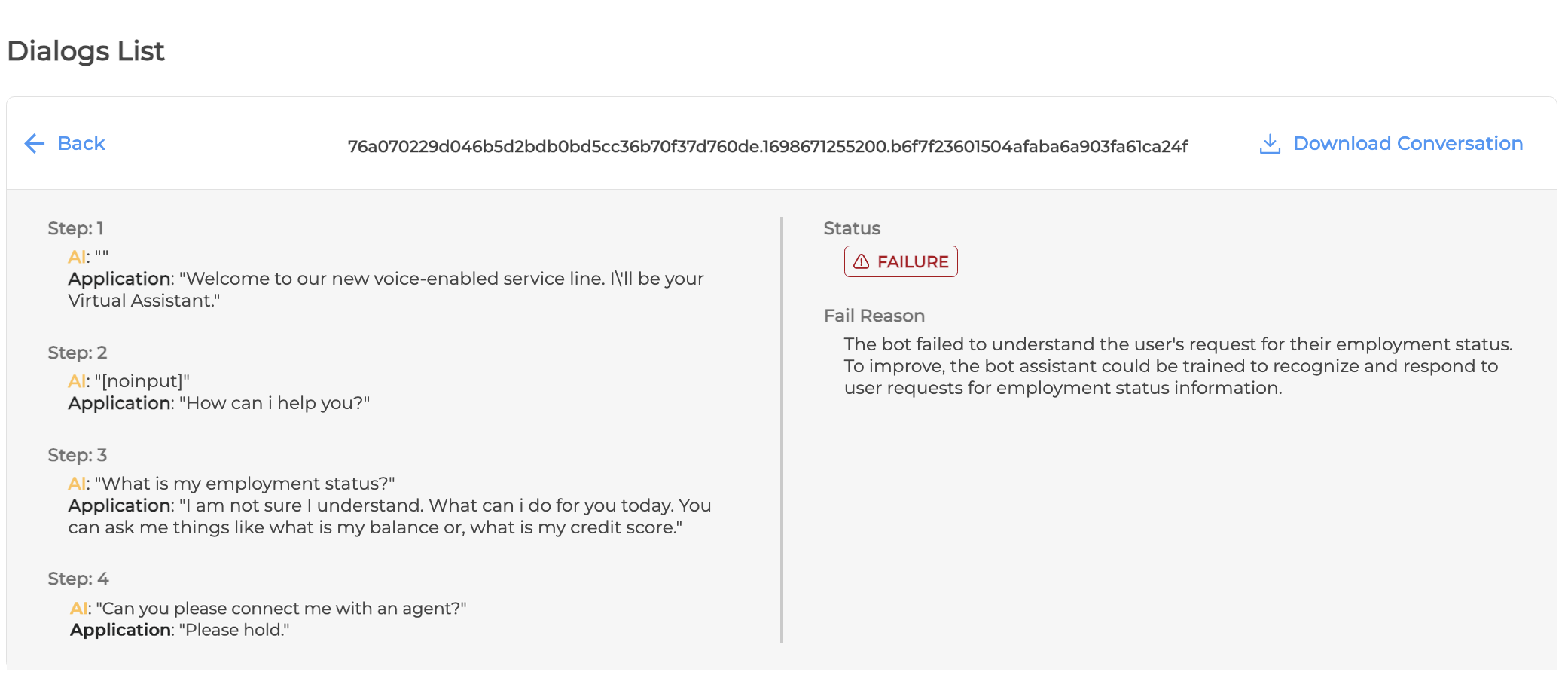
Click the View Conversation Details button to assess the actual conversational steps between your dialog application and LLM, its status (Success or Failure), and find out the detailed failure description with some suggestions.
-
Download the conversation by hitting the Download Conversation button.