.svg)
Overview
Control Panel is a feature of Environment Manager for managing the variables of an application. Variables are stored in panels, one panel per application. Panels were previously called variable collections.
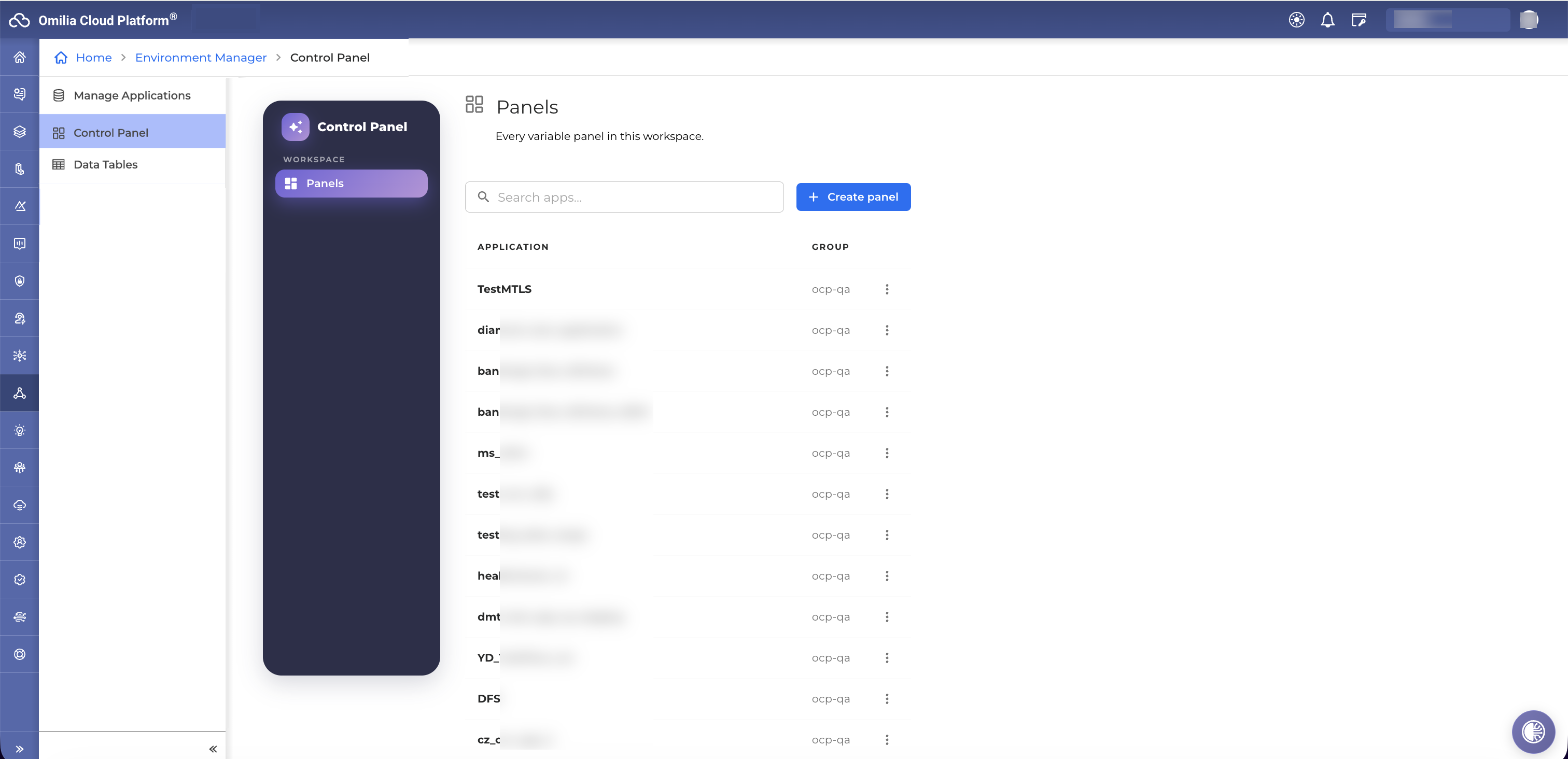
Control Panel adds scheduled variables: each variable can have a start and end date/time, so its value is available only during that period.
Control Panel replaces the older Variable Collections. It's being rolled out gradually and may not be available in all environments yet.
Panels
Panels group variables by application, making it easier to manage configuration values from one place.
Panels list
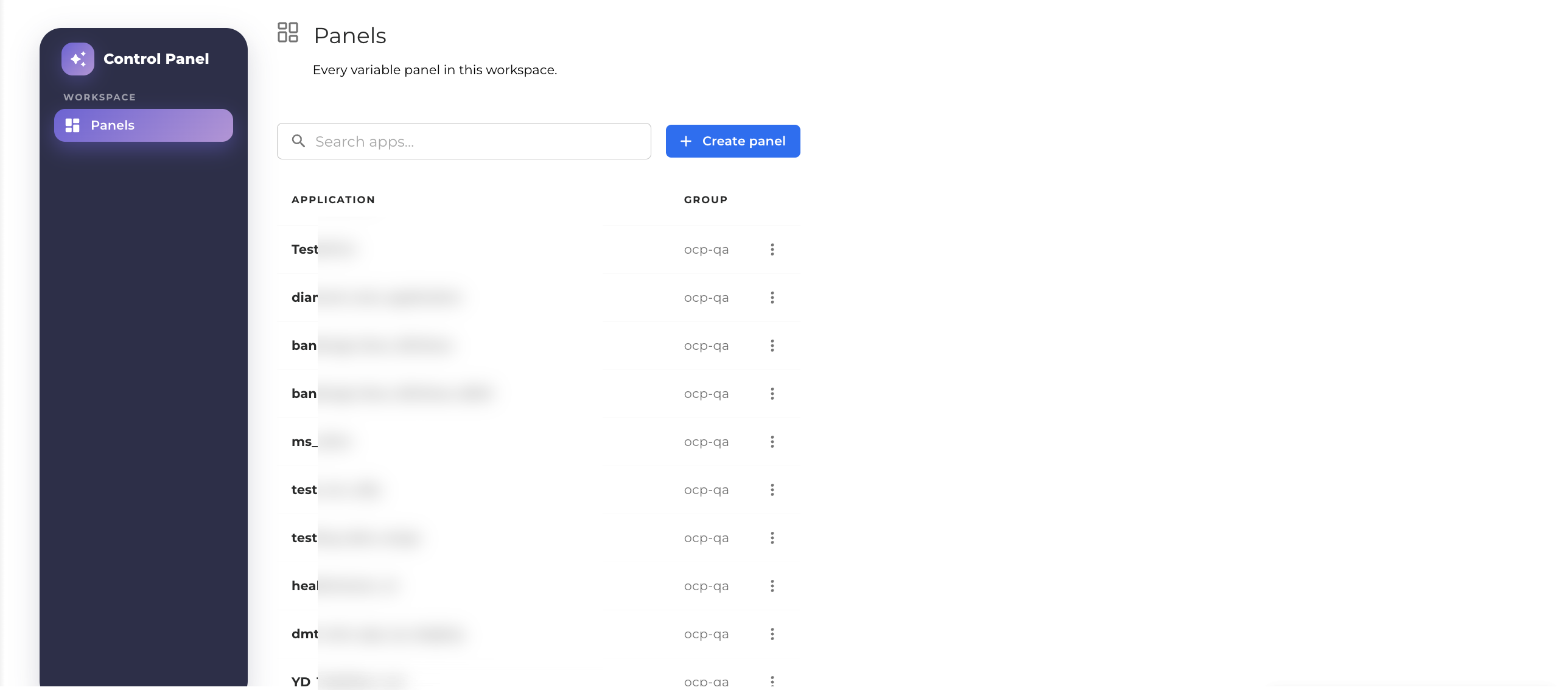
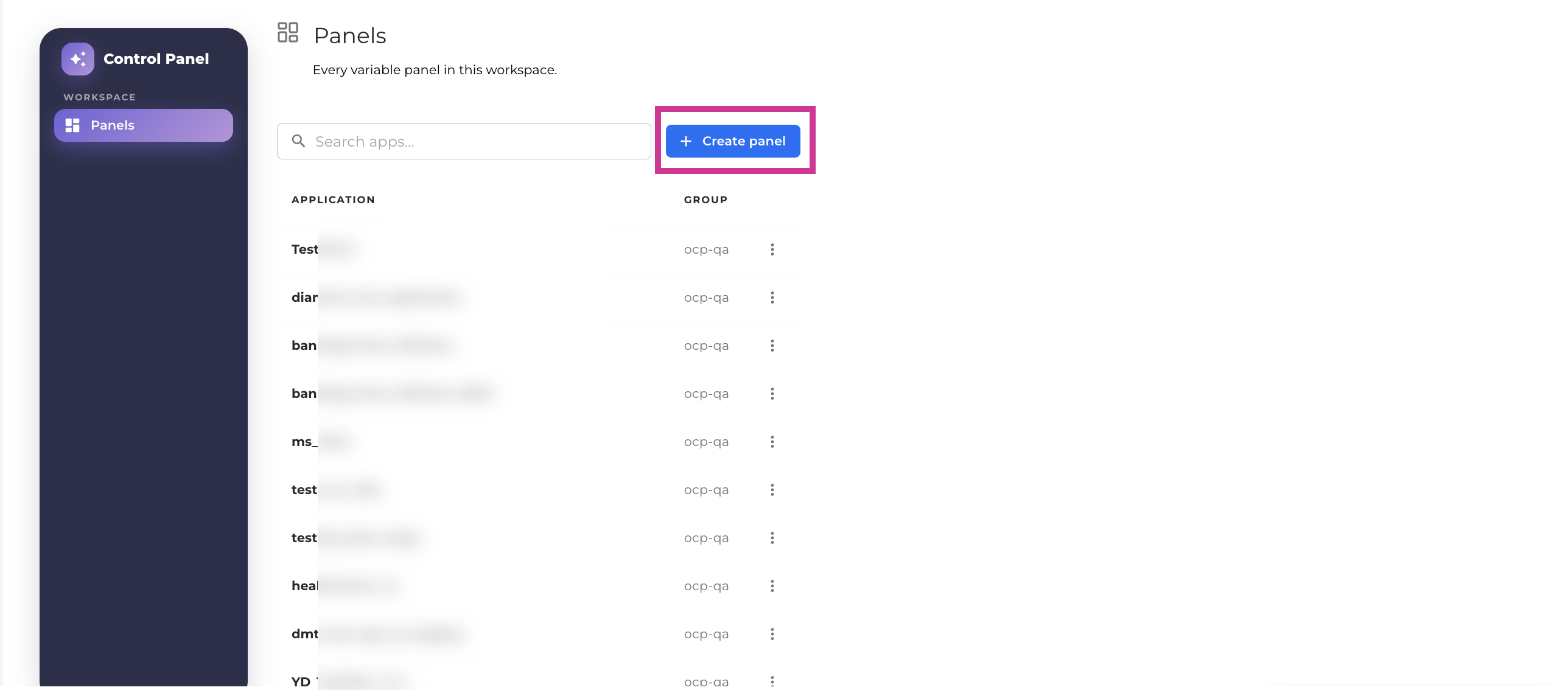
Open Control Panel → Panels to view all panels in the workspace.
-
Application: The application that owns the panel.
-
Group: The application's group (for example,
ocp-qa).
When you switch organization, the list shows the panels of that organization.
Search filters
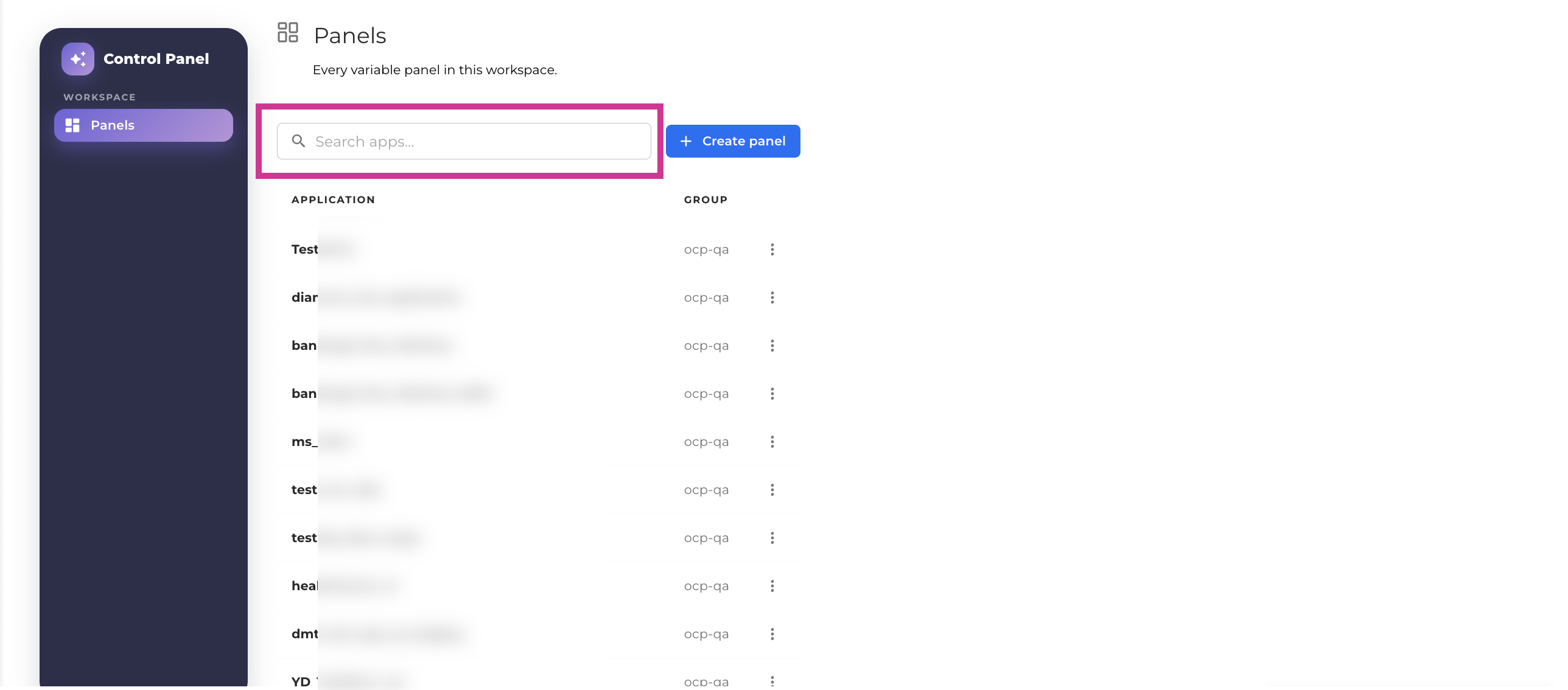
Use the search filter to find an app by name when the panel list is large.
Create a panel
To create a new panel, proceed as described below:
-
On the Panels page, click Create panel.
-
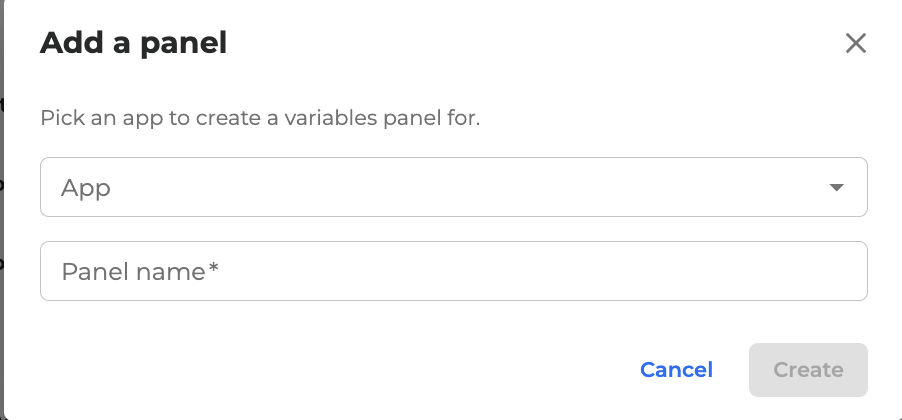
In the dialog box, search for and select the App the panel targets.
-
Enter a Panel name (required).
-
Click Create. The panel is added to the panels list.
View a panel
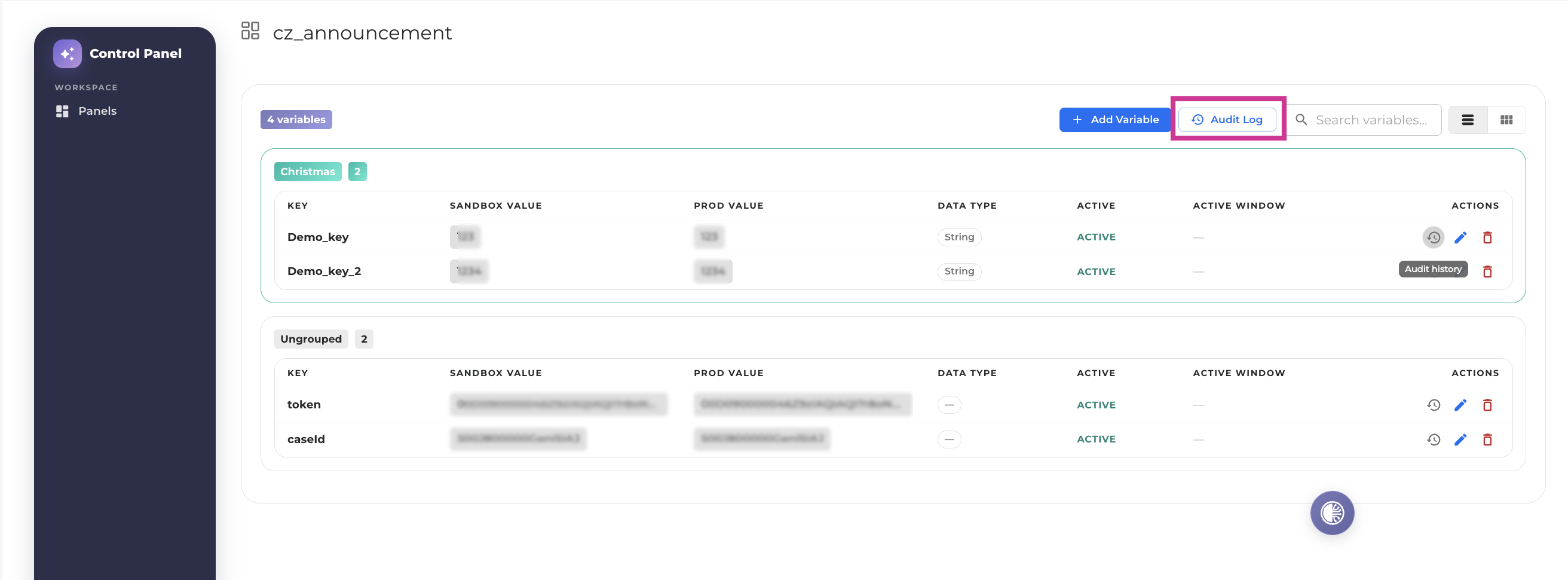
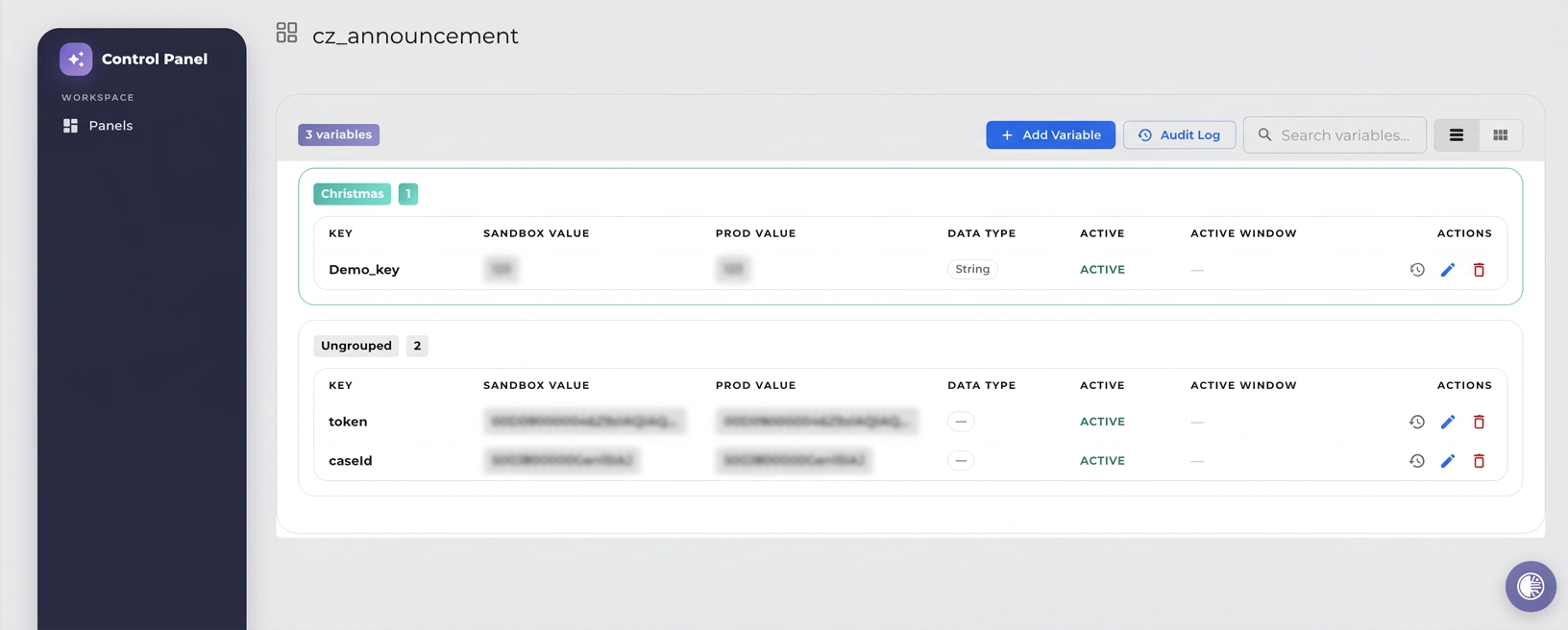
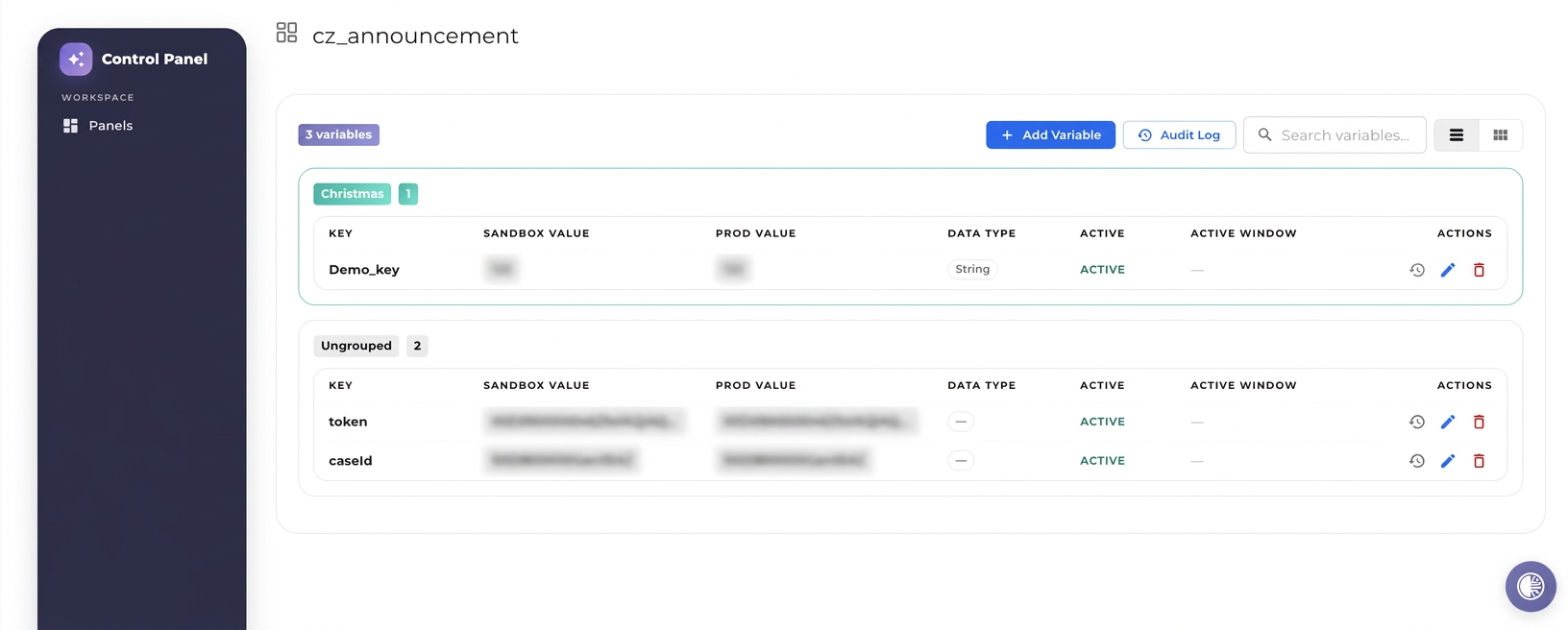
Click a panel to open and view it. The header shows the panel name and the number of variables.
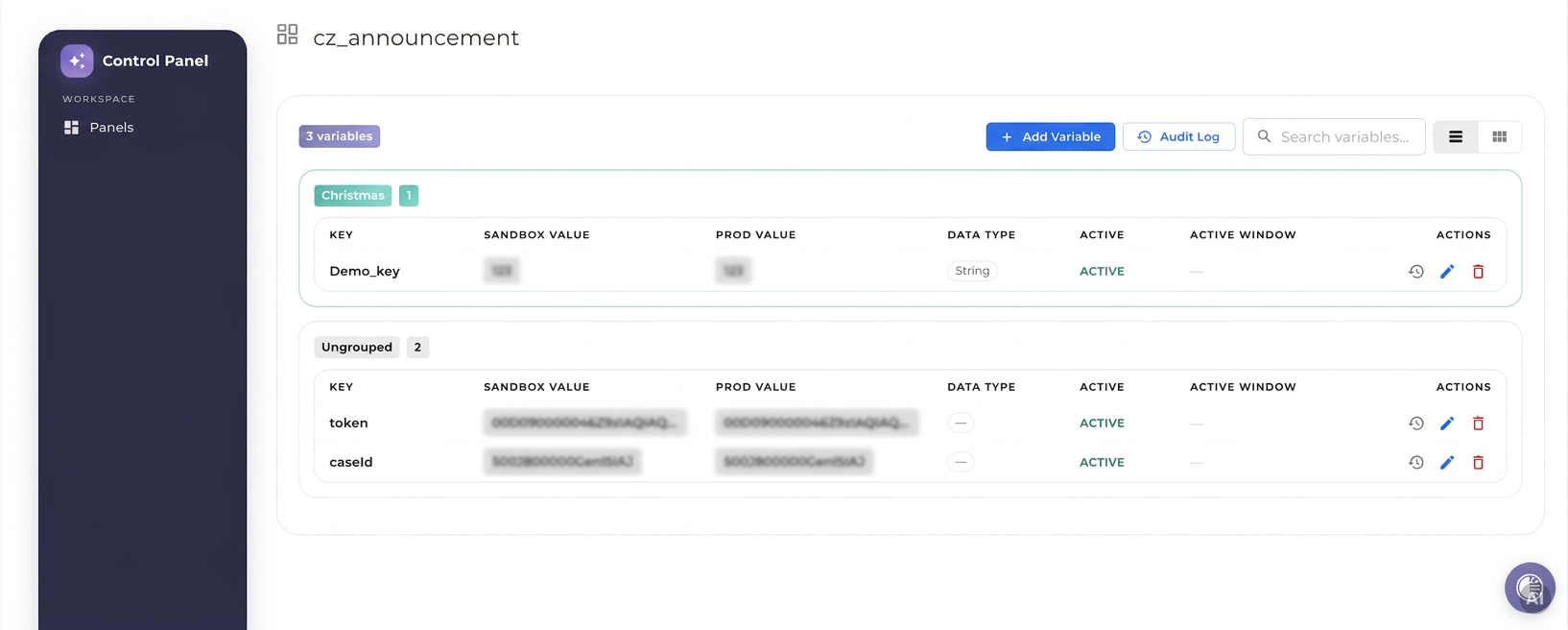
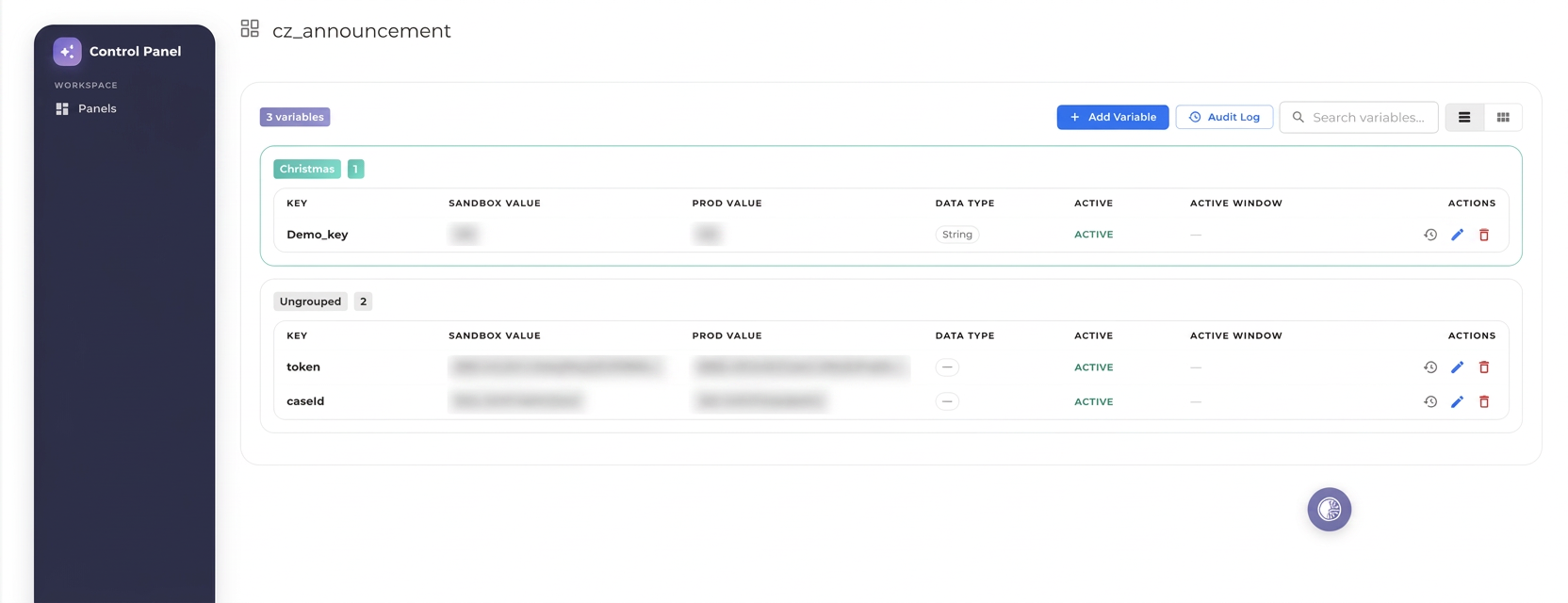
Variables are displayed under their set. Variables with no set appear under Ungrouped.
-
Key: Variable name.
-
Sandbox value: Value used in the sandbox environment.
-
Prod value: Value used in the production environment.
-
Data type: Type of the variable: string, boolean, date, number
-
Active: Whether the variable is active.
-
Active window: Start and end of the schedule, if one is set. Shown as
-when none is set.
Delete a panel
To delete a panel:
-
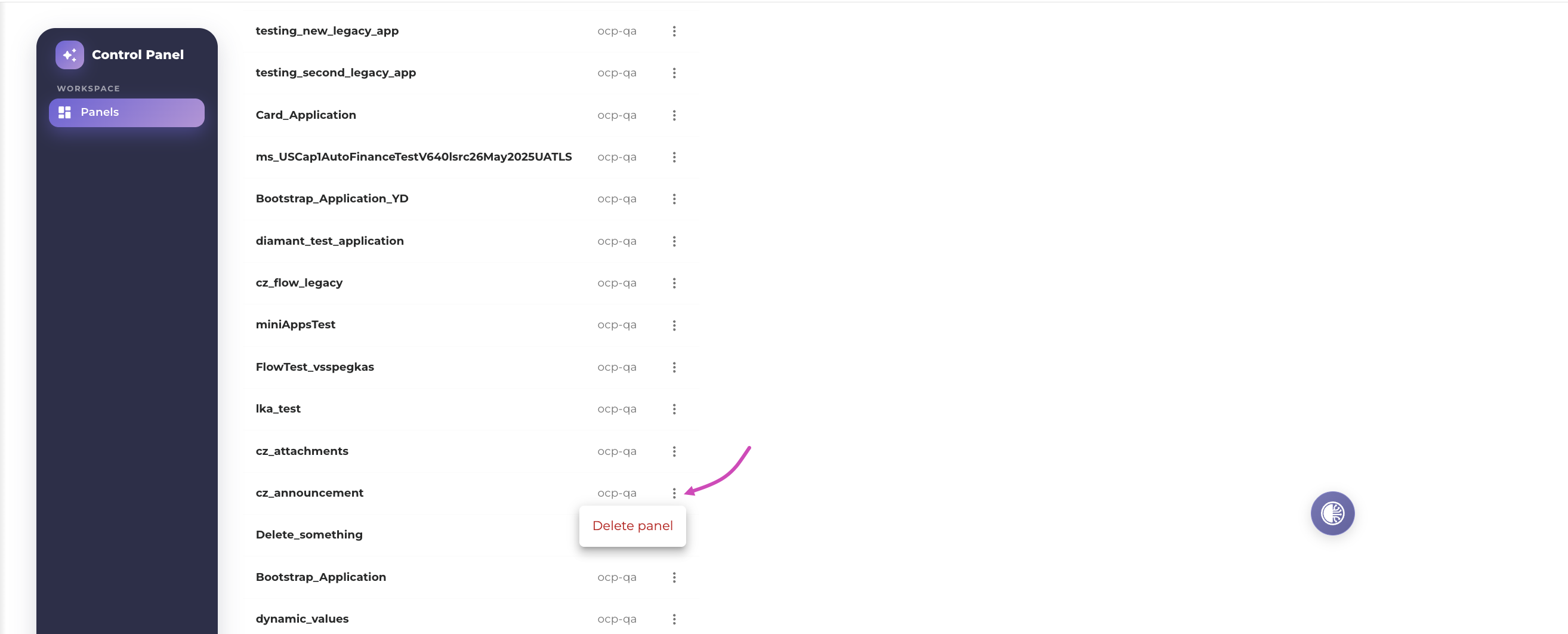
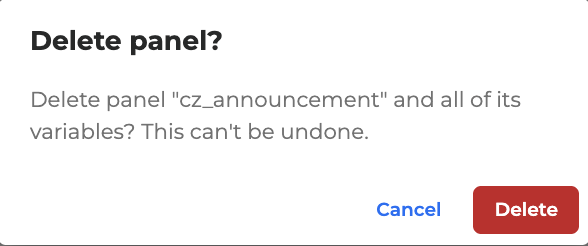
Click the Options menu.
-
In the dialog that opens, click Delete to confirm.
-
The variable will be deleted.
Deleting a panel removes it from the workspace! Confirm the panel name before deleting.
View panel’s logs
The Audit Log menu shows changes across the panel. To view them:
-
Open a panel and click the Audit Log button.
-
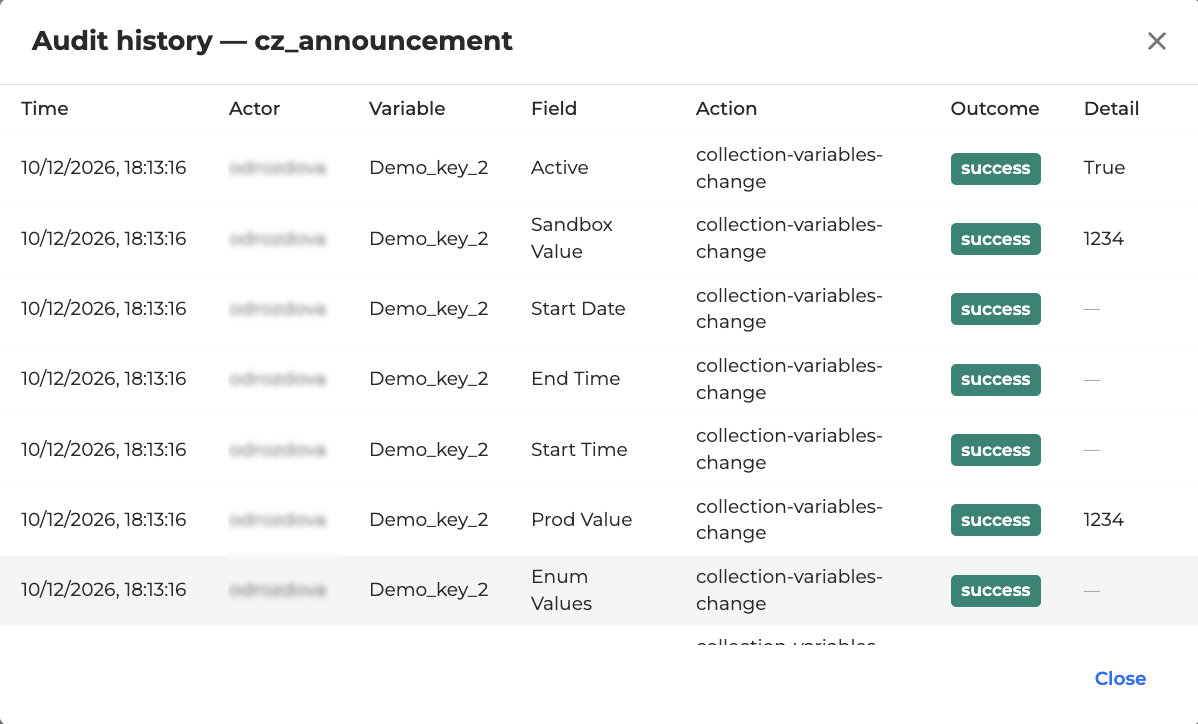
The panel history opens and shows changes to the panel from the last 30 days.
Variables
Variables store reusable values that can be enabled, scheduled, and referenced by applications.
Add a variable
To add a variable to a panel, follow these steps:
-
Select a panel and open it.
-
Click Add Variable.
-
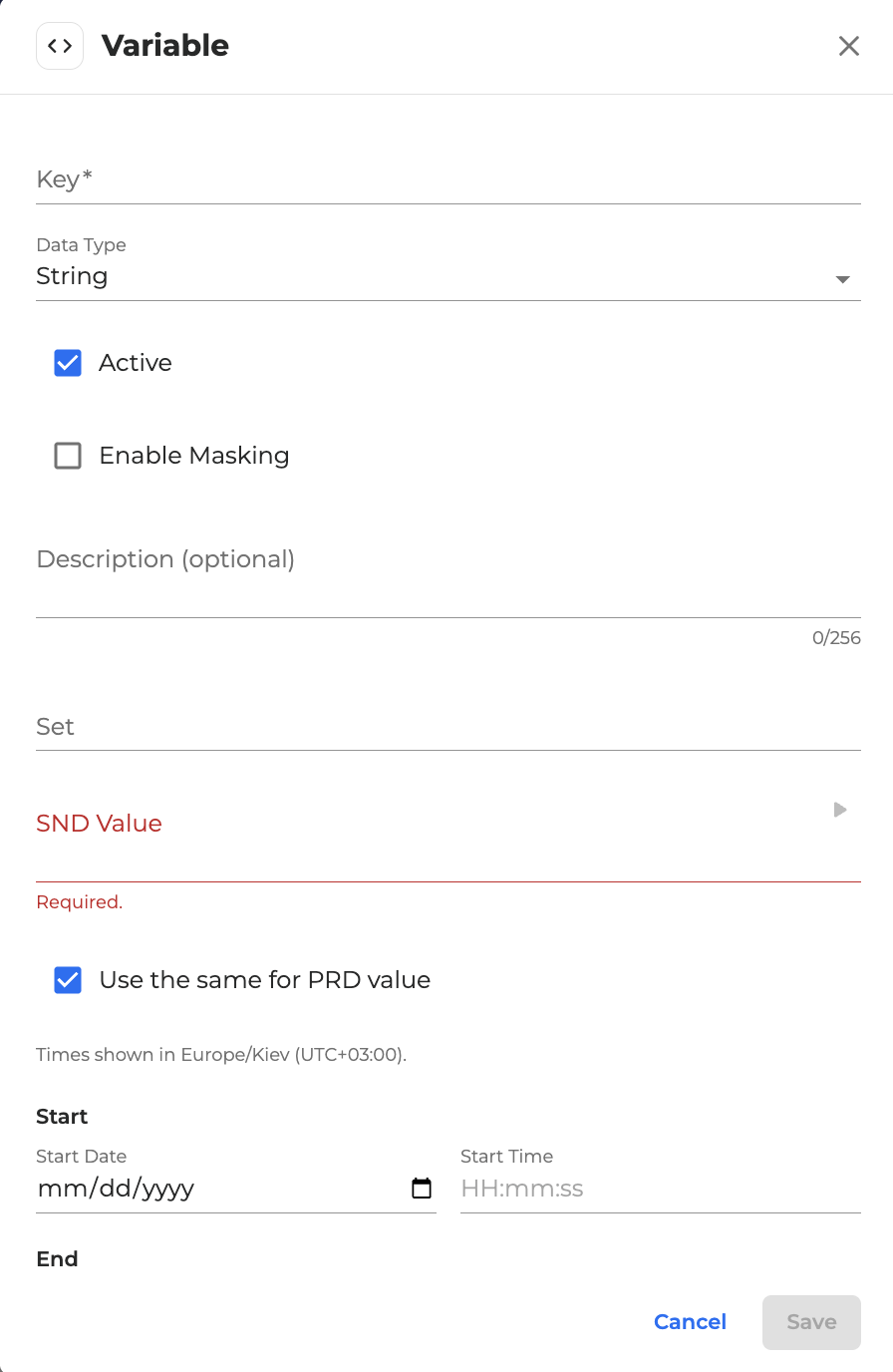
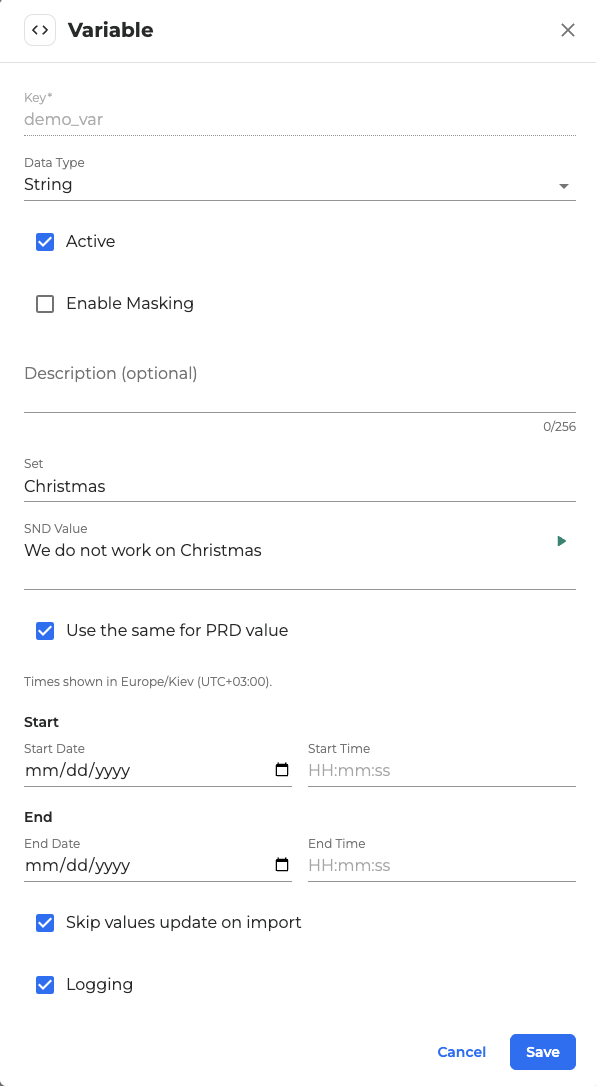
In the dialog box that opens, fill in the fields as described below:
-
Key name: Enter a unique variable name.
-
Data Type: Select the type of the value: string, boolean, date, number
-
Active: Enables or disables the variable.
-
Enable Masking: If selected, the variable is treated as sensitive and its value is masked.

-
Description (optional): Free text, up to 256 characters.
-
Set: Tag used to group variables (for example, holidays or payments). Variables with the same set name display together in the panel view. Variables without a set appear under Ungrouped. Sets organize variables only; they do not change how variables resolve.
-
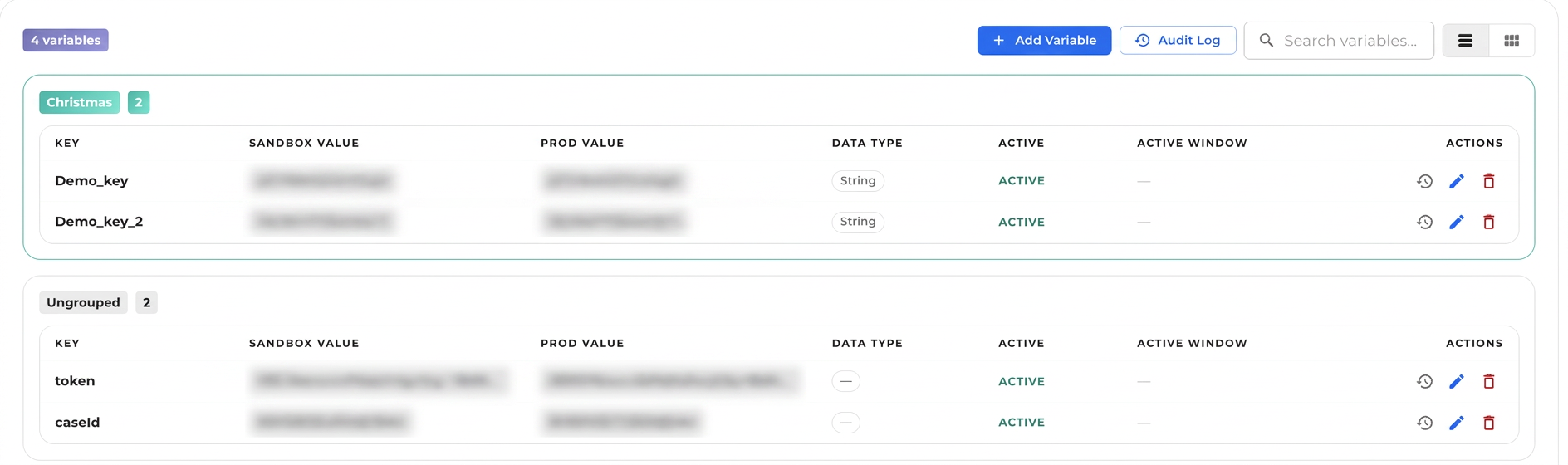
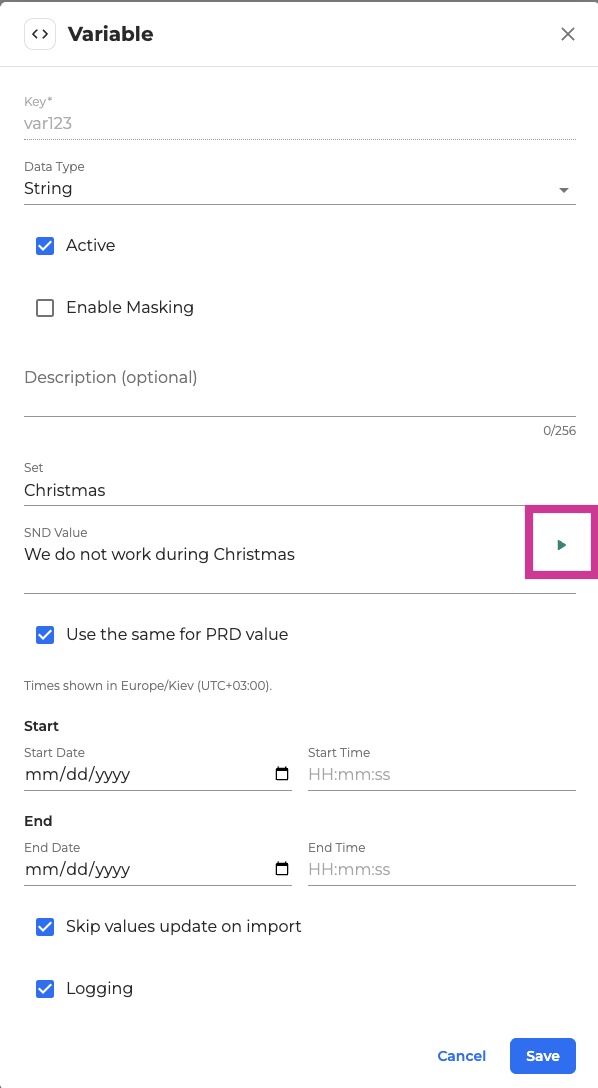
SND Value: Value for the sandbox environment. The Play button next to the value previews it by voice (see Voice TTS preview and configuration).
-
Use the same for PRD value: When selected, the production value equals the sandbox value. Clear it to enter a separate PRD value.
-
Start Date / Start Time: Beginning of the active window.
-
End Date / End Time: End of the active window.
Times are automatically adjusted to your local time zone, and the dialog indicates the active zone (for example, Europe/Athens, UTC+03:00).
The Start and End Date/Time are both optional:
-
If you set only a Start Date/Time, the variable takes effect at that moment and keeps its value indefinitely.
-
If you set only an End Date/Time, the variable takes effect immediately and keeps its value until the end date/time.
-
If you leave both blank, the variable is always Active.
-
Skip values update on import: When selected, imports do not overwrite the variable's values.
-
Logging: Enables logging for the variable.
-
Click Save to apply, or Cancel to discard changes.
Edit a variable
To edit a variable, proceed as follows:
-
Click the Edit icon next to the variable you want to edit.
-
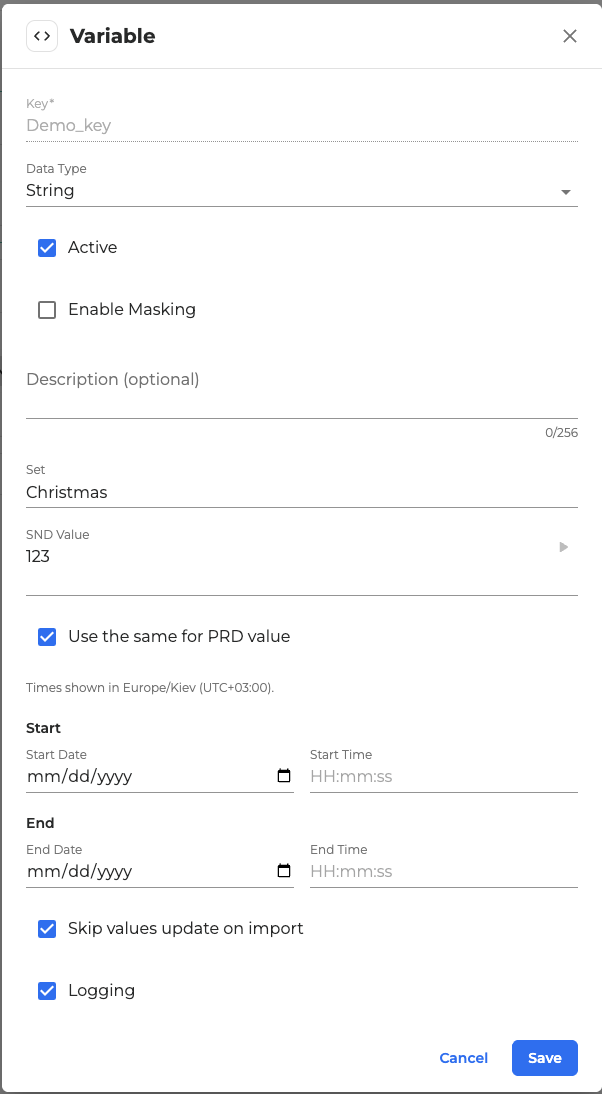
In the dialog box that opens, modify the needed fields.
-
Click Save to apply changes.
The key of an existing variable cannot be changed.
Voice (TTS) preview
To hear a variable's value aloud, configure the Global TTS Configuration for the corresponding application in Orchestrator. There is no voice setting in the Control Panel itself.
To hear a variable's value, follow these steps:
-
Select the variable and click Edit to open settings.
-
Click the Play button next to the value.
-
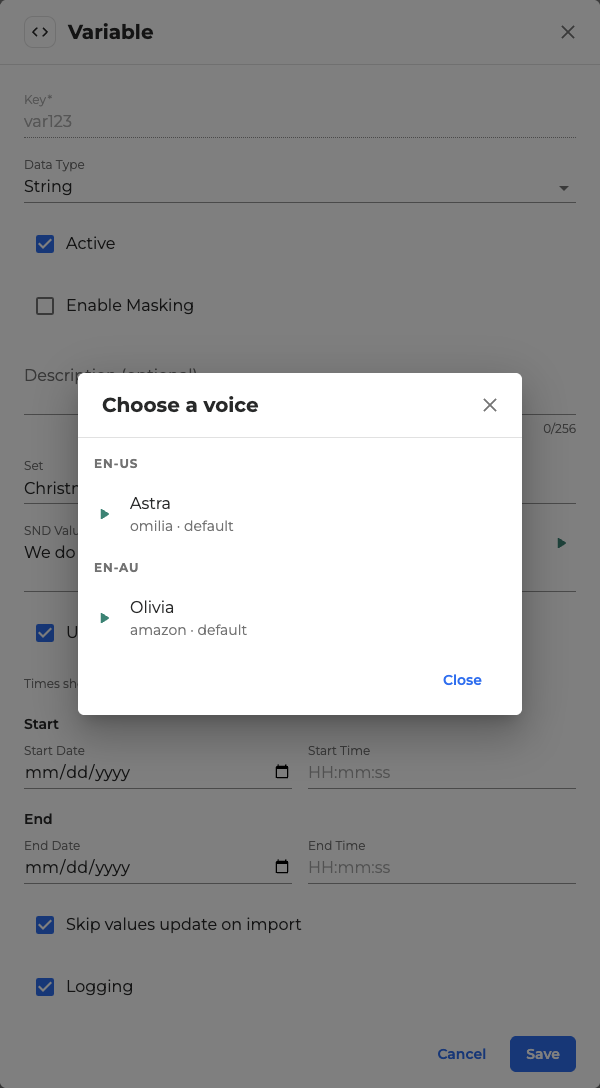
If the app offers multiple global TTS voices, choose one when prompted.
-
The selected voice will read the value aloud.
View a variable’s history
To view the variable's history:
-
Click the History icon.
-
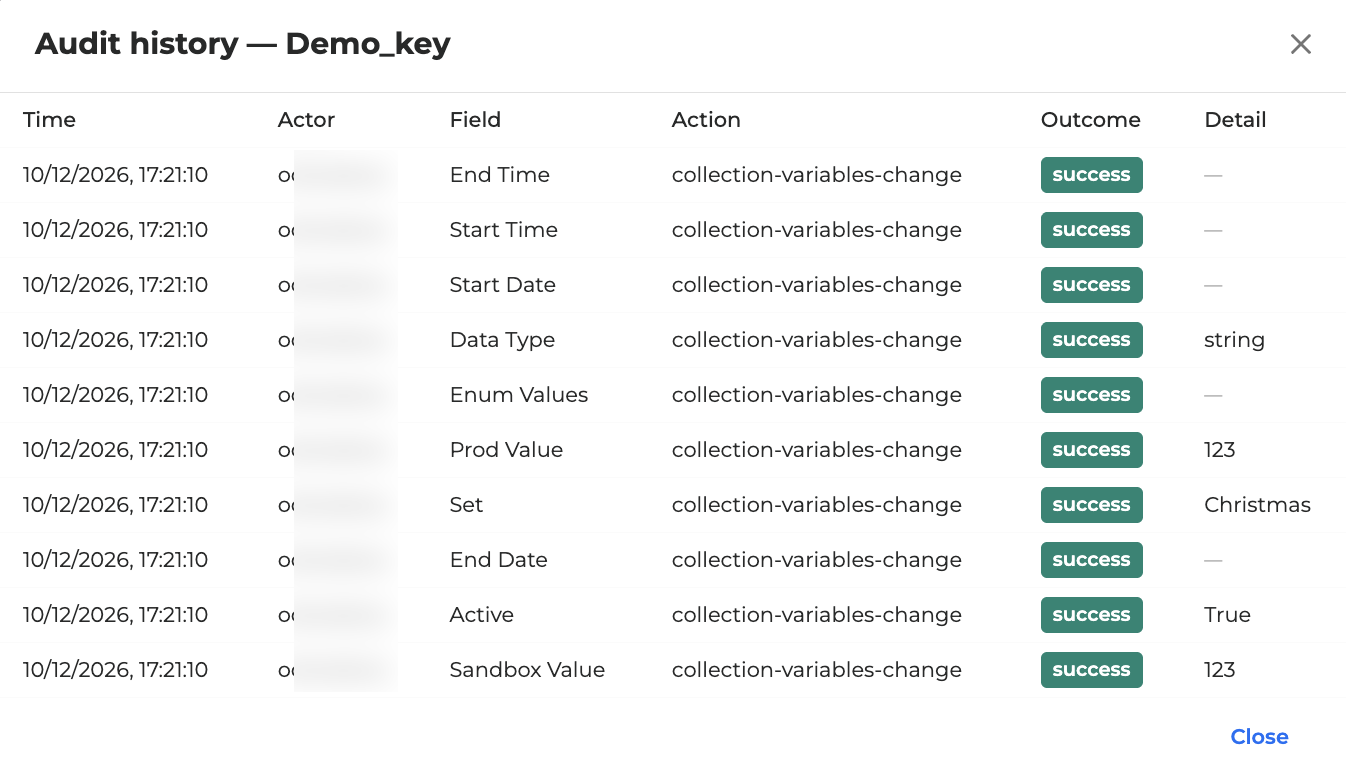
The variable history opens. It shows changes from the last 30 days.
Delete a variable
To remove a variable:
-
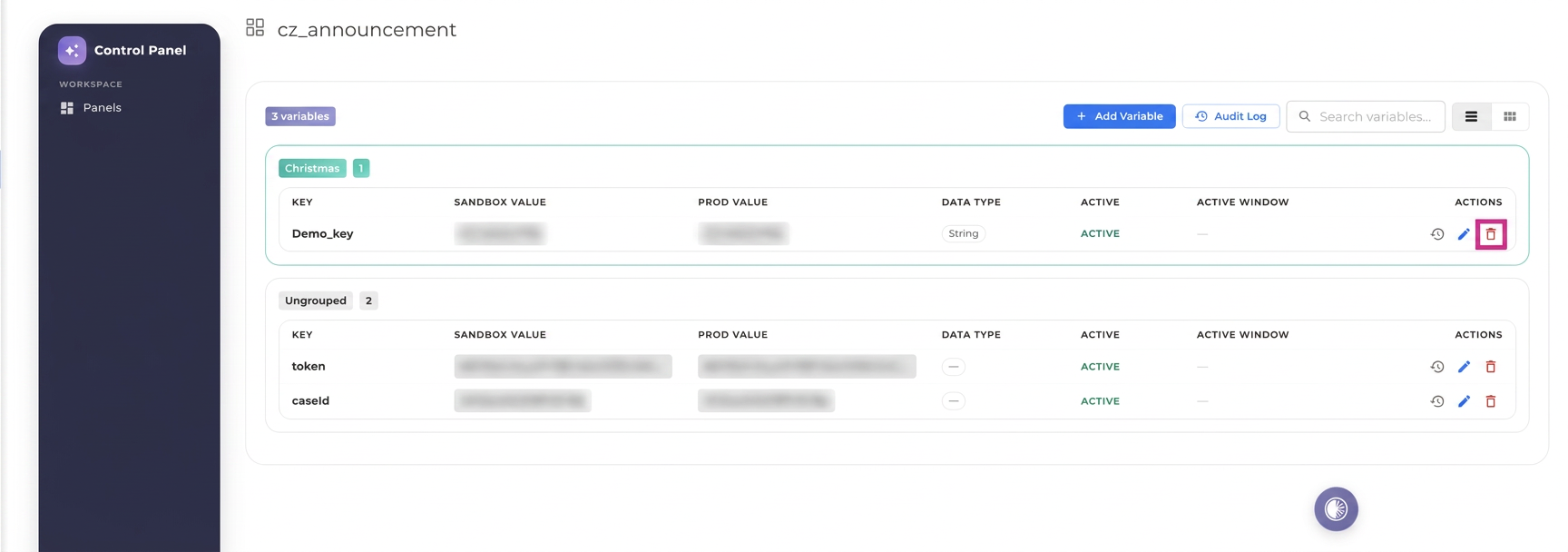
Click the Red bin icon next to the variable you want to delete.
-
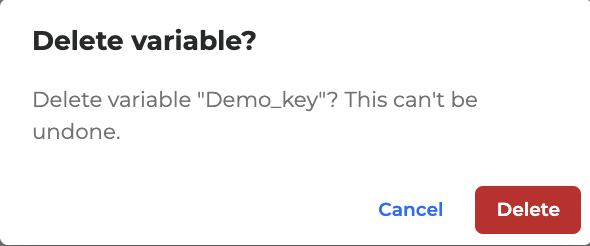
In the dialog that opens, click Delete to confirm.
-
The variable will be deleted.
Deletion cannot be undone!
Use variables in an application
To use a created variable in your application, follow these steps:
-
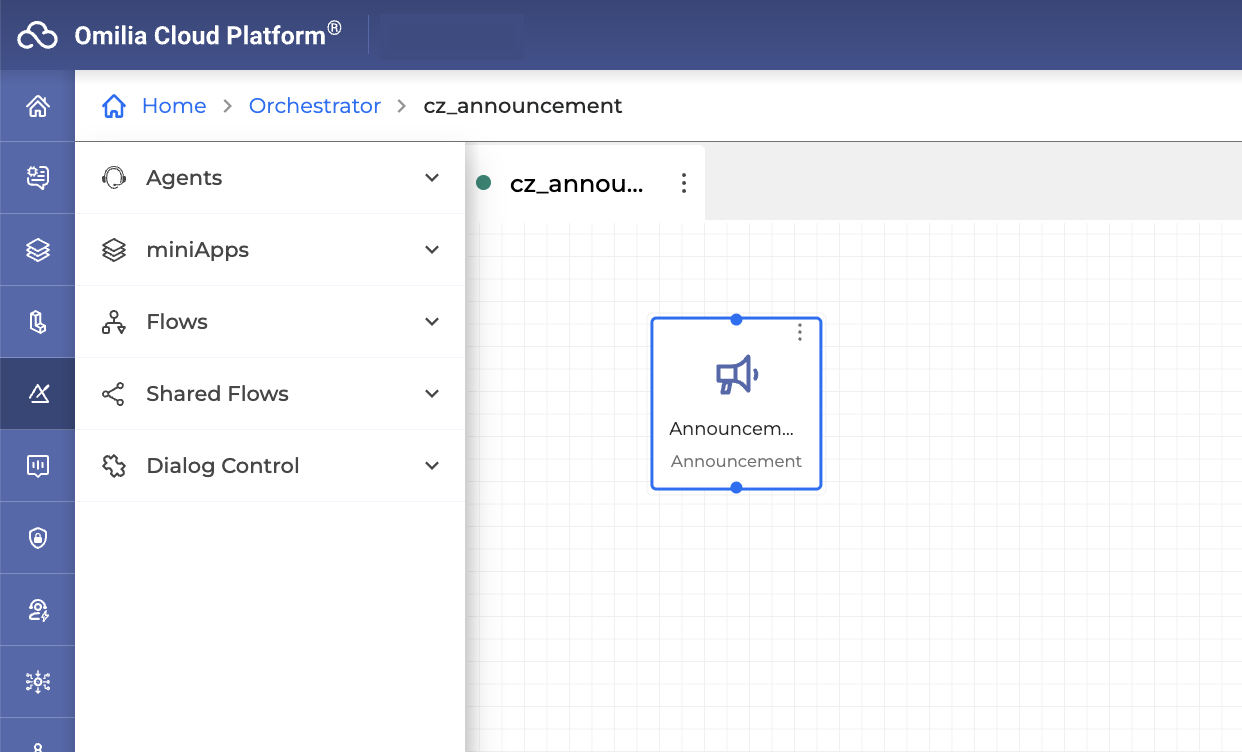
In Orchestrator, open your application. Select a needed node and open its settings in miniApps by double-clicking it.
-
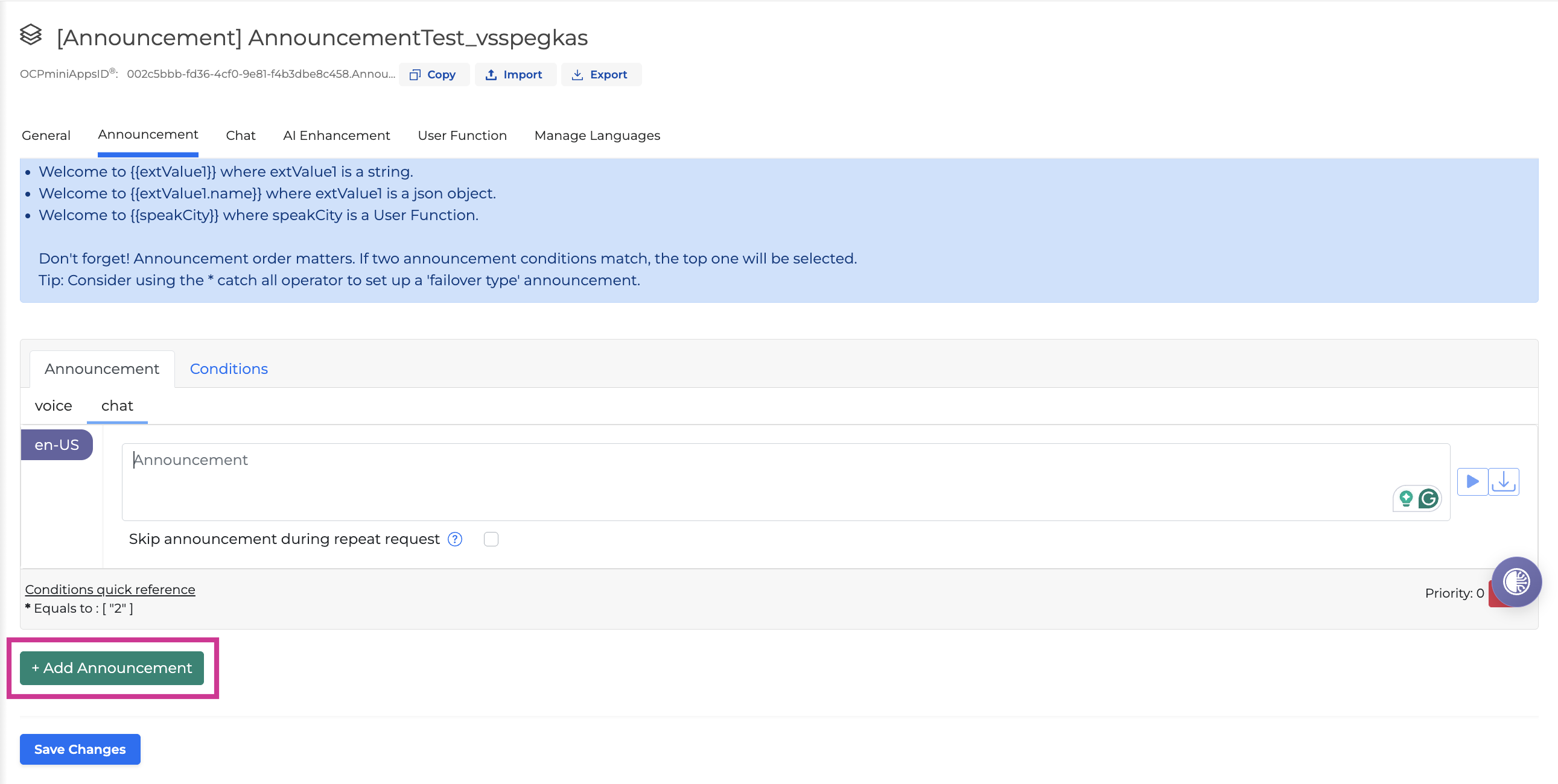
Go to the Announcements tab and click Add Announcement.
-
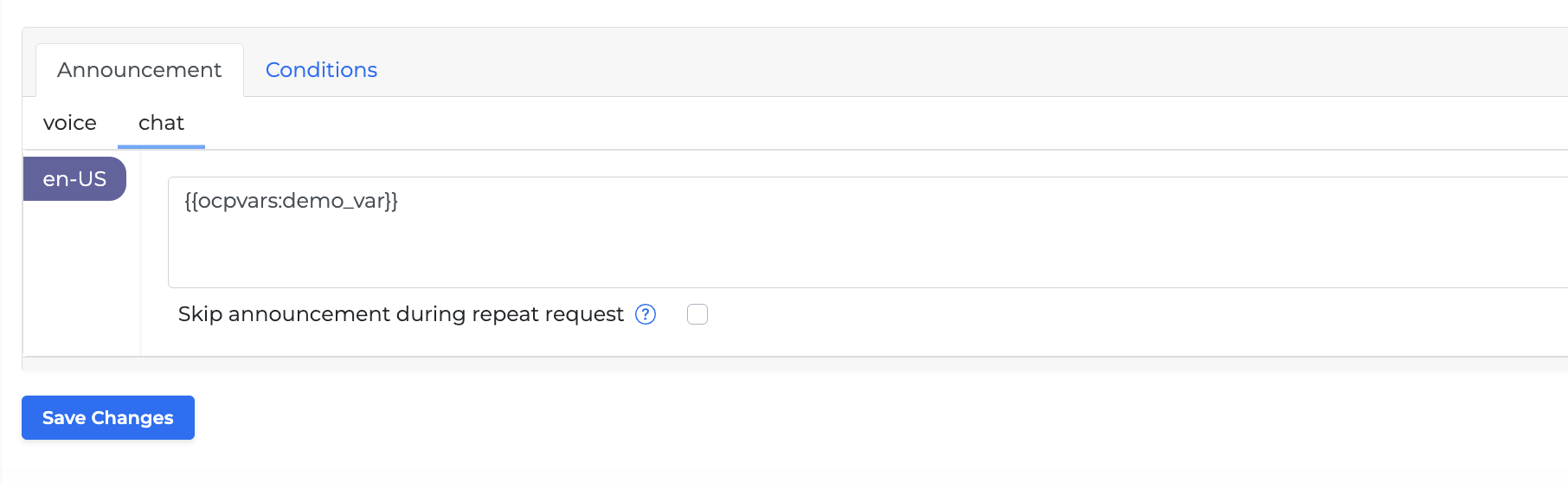
Add a variable by its key in curly braces using the
ocpvarsprefix. In this example, we use the chat subtab and thedemo_varvariable.
-
Now, go to Orchestrator and deploy your application.
-
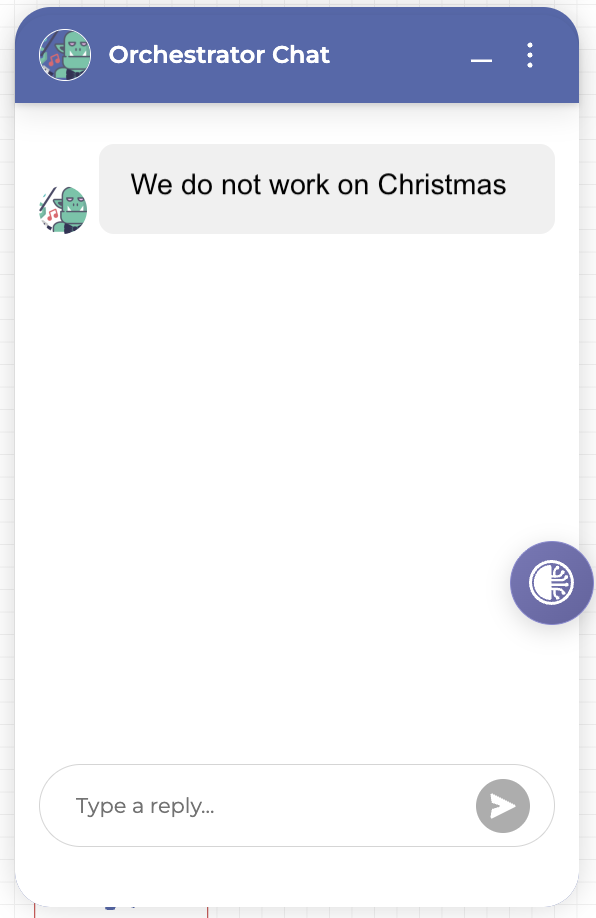
Open the Orchestrator chat and check how your variable works.